Quantcast
Channel: Telerik Blogs
Viewing all 4357 articles
Browse latest View live

Auditory Disabilities and What You Need for Accessibility

$
0
0

The web increasingly provides both a rich visual and audio experience. In this article, we'll define auditory disabilities and talk about web development strategies for improving accessibility for users with hearing impairment.

The internet has done more than transform the way people with auditory disabilities access information. It has enabled them to take part in a system of global communication. However, developers often don’t consider individuals who are deaf; these individuals still encounter barriers when trying to access information on the web. Developers often regard web accessibility as nothing more than adhering to guidelines that ensure sites work with screen readers for the blind. This failing is understandable given how many of us think of the web as a visual medium, but is it?

The web consists of information presented as graphics, video, audio, animation, or text. While our most common experience with web content is visual, increasingly content on the web is a rich visual and audio experience.

Perhaps the most compelling reason to make your site accessible to those with hearing disabilities is that there are negative social implications for those with different types of hearing loss. For example, those with high-tone hearing loss have a more difficult time understanding women’s voices, and the same is true with men’s voices for those with low-tone hearing loss. Likewise, hearing loss has a tremendous social impact on aging individuals. It is thus important to mitigate these social ramifications by making your web content as accessible as possible to these individuals.

Developers should consider accessibility in the context of all disabilities. This article explores useful strategies that help improve accessibility in apps and products to those with hearing loss. Catering to this broad demographic shows respect through inclusion, but it’s also a smart business strategy. Despite the wealth of available assistive technologies, a web application that’s short on accessibility features still presents frustrating problems for users with impairments.

Understanding Auditory Disabilities

Before we look at strategies to improve the internet for individuals with auditory disabilities, let’s first examine the disabilities themselves: specifically, the degrees and classifications of hearing loss. Although deafness is often considered an all-or-nothing condition, many individuals have degrees of functional hearing loss, classified as mild, moderate, severe, and profound. Those who identify as deaf usually have either acute or profound hearing loss, where people with lesser degrees of hearing loss are commonly referred to as hard-of-hearing.

Degrees of Hearing Loss

Mild hearing loss refers to the inability to hear sounds below about 30 decibels. Speech for these individuals can be difficult to understand, especially in the presence of background noise. Those with moderate hearing loss are unable to hear sounds below about 50 decibels; to compensate, they may require a hearing aid. Severe hearing loss is the inability to hear sounds below approximately 80 decibels, and while hearing aids can help some of these individuals, they may be insufficient. The complete inability to hear, or an inability to hear sounds below about 95 decibels, is referred to as profound hearing loss. Along with those who have severe hearing loss, many individuals with profound hearing loss communicate principally through sign language; others rely on lip-reading.

Classifications of Hearing Loss

Just as hearing loss has its different degrees, there are also classifications of auditory impairment. Conductive hearing loss is the result of damage to or blockage of the moving parts of the ear which leads to the inability of the inner ear bones to vibrate correctly, preventing the proper detection of auditory information. Neural hearing loss (nerve deafness) occurs when the hair cells of the inner ear are damaged, which prevents the associated nerves from properly transmitting auditory information to the brain for processing.

High-tone hearing loss, as its name implies, refers to the inability to hear high frequencies, just as low-tone hearing loss means that low frequencies are inaudible. Deaf-blindness is the condition of being both deaf and blind; those who are deaf-blind often communicate by sign language, but they feel the signs the other speaker is making. And when accessing web content, they generally use refreshable braille displays that allow access to all the web page’s textual content, including alternative text for images.

Making Multimedia Content Accessible to Persons with Hearing Disabilities

Improving accessibility to the hearing impaired in your applications begins by examining how these users navigate the web. The strategies people with auditory disabilities use vary according to the type and extent of their disability and the individual’s preferences, but at minimum, provide transcripts for audio-only content, and provide both captions and transcripts for multimedia content, i.e., video content with audio.

Transcripts for Audio and Video Content

Providing transcripts is a good idea in itself: text content is easy to skim, not to mention highlight, and it also offers SEO advantages for your site or app. Additionally, those who like to take notes have an easier time doing so with text content available.

YouTube offers automated transcriptions and captions for all videos. Third-party transcription services include Trint and Sonix.

Captions and Subtitles for Video

With video content, the most effective way to make multimedia content accessible to persons with hearing disabilities is including captions and subtitles.

Like transcripts for audio-only content, captions and subtitles benefit the public at large. Many viewers of your video content are likely to be watching on their phones in a public place, and so have the sound muted. This is true for popular platforms like Facebook and Instagram, and it’s likely to become the norm in the future.

For reference, here’s a list of the source repositories for a few subtitle-capable JavaScript video player libraries:

Sign Language Feeds for Your Videos

Offering sign language is secondary to the other methods of content accessibility, but it remains a valid consideration. It may not be possible for those who communicate primarily in sign language to read and understand text at the rate it is presented in captions.

Providing sign language presentation of audio information is a way to make content accessible to these individuals. One universally compatible way of doing this is to embed a video of the sign language interpreter in the video stream.

However, this has a few disadvantages. One is technical: including sign languages leads to a lower resolution image that cannot be enlarged without enlarging the entire image. A deeper issue is a linguistic one: American Sign Language (ASL) differs from British Sign Language (BSL) and Australian Sign Language (Auslan), and is different from the sign languages in Europe and Asia.

Different sign languages are in use around the world, and while that presents problems more related to internationalization than accessibility, the fact that those who can read the same spoken language (e.g., English) sometimes use and understand profoundly different sign languages presents a problem of disability access. Still, including sign language feeds is an option to consider.

Making Other Website Functionality Accessible to Users with Hearing Disabilities

Besides transcripts and captions for those with hearing impairment, there are more accessibility considerations to keep in mind as a web developer.

First, don’t rely on sounds alone to get the user’s attention; instead, use a combination of sound and visual elements. Though this principle applies to alerts and notifications, it also naturally extends to providing support over email or text chat, as opposed to forcing customers to call a phone number (even if you offer support over TTY/TDD).

Next, make two-factor authentication friendly and fully accessible to those with auditory disabilities by not requiring a phone for initial setup, reset or validation.

Third, increase the distinguishability of your content by excluding background sounds, making it easier for those who are hard of hearing to discern your content. If this is not an option, include background sounds that a user can turn off, or background sounds that are at least 20 decibels lower than the foreground speech content. For those who are completely deaf or cannot audibly discern your content, making your content visually distinguishable by, for example, increasing contrast and enlarging text, is an important consideration.

Options for making your application or site accessible to users with auditory impairments don’t end with these best practices. We encourage you to delve into the full potential of true accessibility when developing web apps. Reading the Web Content Accessibility Guidelines (WCAG) 2.0 at the World Wide Web Consortium (W3C) website is a great place to start.

Conclusion

Most of the work required to make your website accessible to persons with hearing disabilities consists of providing text-based alternatives for video and audio content. However, you may discover other, smaller details in your website or product experience that also present difficulties to those who can’t hear or hear well. Developers committed to making their content more accessible should take this goal into account as early as possible when planning a project. Although you can apply small changes after development is complete, you can’t address everything required for accessibility by a technical change.

It’s, therefore, crucial to educate your team about all types of disabilities your users might have so that they can design and build software with accessibility in mind. That, in turn, is an essential step in helping the web become a friendlier and more welcoming place for those with auditory disabilities. Along with providing resources like transcripts and captions, clarity in your content can make a profound difference for users with auditory disabilities.


Learn More about Accessibility

We have created a comprehensive whitepaper on accessibility for developers that covers everything from laws to coding to testing.

Download the whitepaper:Accessibility for Developers

Adding Accessibility to Your Apps

One easy way to make sure that you are creating accessible web apps is to start with components from the Kendo UI libraries. Our components are all WCAG complaint and give you great functionality from grids and charts to schedulers and pickers. Get a head start on your app's UI and a head start on accessibility compliance at the same time.

Learn more about: Kendo UI


Easily Edit Your Images with an ImageEditor for Xamarin.Forms

$
0
0

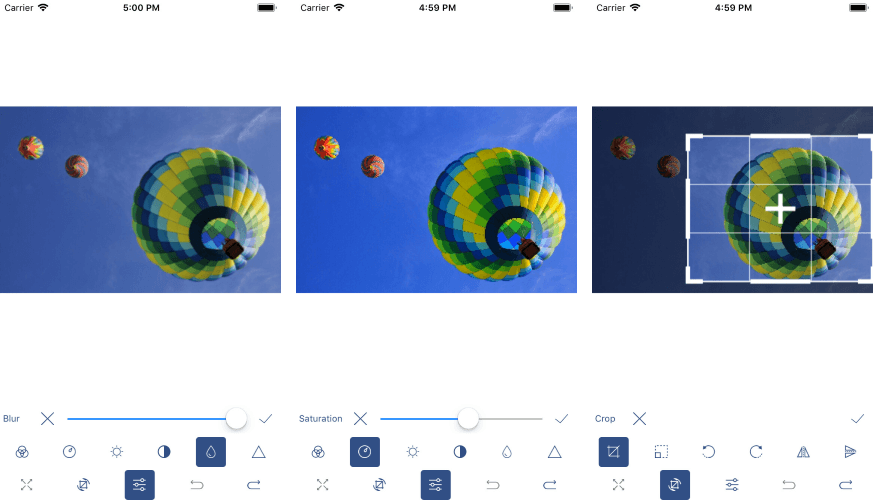
The RadImageEditor in Telerik UI for Xamarin allows you and the end users of your mobile application to easily view and edit images in different file formats.

If you use our Telerik UI for Xamarin suite, you can have all editing tools in one place with the RadImageEditorToolbar control. The Toolbar control is designed to enhance further the capabilities of the editor by introducing a set of tools for editing images. It also provides the ability to be customized with just the tools for your needs.

In this blog post I will bring two components to your attention - RadImageEditor and RadImageEditorToolbar. You will get familiar with the features they provide and how to use them. We will learn more about the customization process of the Toolbar and how to apply styles to it.

image editor features

Xamarin.Forms Image Editor Features

  • Import and export images in different formats such as JPEG and PNGGIF and BMP can be imported only for viewing purposes for the time being
  • Various image source options: Images can be loaded from a stream, a file (as embedded resource, or image located on the device) and a URI
  • Rich image editing feature set– including transformations and effects
  • Undo/Redo support
  • Pan and Zoom support
  • Custom Commands
  • Toolbar with customization capabilities

Image Editor Toolbar

The RadImageEditor control comes with various editing capabilities, and with the help of the ImageEditorToolbar you can provide your users easy and quick way to edit their images. Whether it is for the creation of a full fledged Image Gallery, or simply to add an avatar to their profile, the Image Editor component for Xamarin Forms has got you covered. 

The default Toolbar includes items for all the available image editing options, and additionally you can customize the displayed editing options according to your needs.

The editing capabilities can be separated into three main categories:

  • Image transformations which includes operations such as Crop, Rotate, Resize,etc.
  • Applying Effects such as Hue, Saturation, Brightness, Contrast and many more.
  • Reversing and Re-Applying actions such asUndo, Redo, Reset.

Getting Started with the Image Editor 

Now let's create a sample demo app using the editing capabilities of the ImageEditor control.

Add the ImageEditor and ImageEditor Toolbar in your page. Note that we need to attach the ImageEditor control to the Toolbar control. This can be achieved through the Toolbar ImageEditor property. We need this because all Toolbar items execute their actions against the specified image editor.

<Grid>
    <Grid.RowDefinitions>
        <RowDefinition/>
        <RowDefinitionHeight="Auto"/>
    </Grid.RowDefinitions>
    <telerikImageEditor:RadImageEditorx:Name="imageEditor">
        <telerikImageEditor:RadImageEditor.Source>
            <OnPlatformx:TypeArguments="ImageSource"Default="image.jpeg">
                <OnPlatform="UWP">Assets\image.jpeg</On>
            </OnPlatform>
        </telerikImageEditor:RadImageEditor.Source>
    </telerikImageEditor:RadImageEditor>
    <telerikImageEditor:RadImageEditorToolbarGrid.Row="1"ImageEditor="{x:Reference imageEditor}"/>
</Grid>

and add the following namespace:

xmlns:telerikImageEditor="clr-namespace:Telerik.XamarinForms.ImageEditor;assembly=Telerik.XamarinForms.ImageEditor"

Note that for the demo, the .jpeg file is loaded from platform resources. Here is how the default Toolbar looks:

On Android

ImageEditor Toolbar on Android

On iOS

ImageEditor Toolbar on iOS

Customizing The Image Editor Toolbar

The RadImageEditorToolbar can be easily customized. By default, all ImageEditorToolbar Items are auto-populated. This can be changed by setting the RadImageEditorToolbar AutoGenerateItems property to False.

Let's include in our Demo app the following editing tools: Crop, Undo, Redo and Brightness. When AutoGenerateItems is false we will need to manually add the Crop, Undo, Redo and Brightness as Toolbar Items:

<Grid>
    <Grid.RowDefinitions>
        <RowDefinition/>
        <RowDefinitionHeight="Auto"/>
    </Grid.RowDefinitions>
    <telerikImageEditor:RadImageEditorx:Name="imageEditor">
        <telerikImageEditor:RadImageEditor.Source>
            <OnPlatformx:TypeArguments="ImageSource"Default="image.jpeg">
                <OnPlatform="UWP">Assets\image.jpeg</On>
            </OnPlatform>
        </telerikImageEditor:RadImageEditor.Source>
    </telerikImageEditor:RadImageEditor>
    <telerikImageEditor:RadImageEditorToolbarGrid.Row="1"ImageEditor="{x:Reference imageEditor}"AutoGenerateItems="False">
        <telerikImageEditor:BrightnessToolbarItem/>
        <telerikImageEditor:CropToolbarItem/>
        <telerikImageEditor:UndoToolbarItem/>
        <telerikImageEditor:RedoToolbarItem/>
    </telerikImageEditor:RadImageEditorToolbar>
</Grid>

We can extend the snippet above by customizing the Toolbar Item (Brightness). Each Toolbar item from Effects and ImageTransformations can be further customized through the ApplyToolbarItem, CancelToolbarItem and TemplateToolbarItem properties:

<Grid>
    <Grid.RowDefinitions>
        <RowDefinition/>
        <RowDefinitionHeight="Auto"/>
    </Grid.RowDefinitions>
    <telerikImageEditor:RadImageEditorx:Name="imageEditor">
        <telerikImageEditor:RadImageEditor.Source>
            <OnPlatformx:TypeArguments="ImageSource"Default="image.jpeg">
                <OnPlatform="UWP">Assets\image.jpeg</On>
            </OnPlatform>
        </telerikImageEditor:RadImageEditor.Source>
    </telerikImageEditor:RadImageEditor>
    <telerikImageEditor:RadImageEditorToolbarGrid.Row="1"ImageEditor="{x:Reference imageEditor}"AutoGenerateItems="False">
        <telerikImageEditor:BrightnessToolbarItemAutoGenerateItems="False">
            <telerikImageEditor:CancelToolbarItemHorizontalOptions="Start"/>
            <telerikImageEditor:TemplateToolbarItem>
                <telerikImageEditor:TemplateToolbarItem.Template>
                    <DataTemplate>
                        <SliderMaximum="2"Minimum="-1"Value="{Binding Value}"/>
                    </DataTemplate>
                </telerikImageEditor:TemplateToolbarItem.Template>
            </telerikImageEditor:TemplateToolbarItem>
            <telerikImageEditor:ApplyToolbarItemHorizontalOptions="End"/>
        </telerikImageEditor:BrightnessToolbarItem>
        <telerikImageEditor:CropToolbarItem/>
        <telerikImageEditor:UndoToolbarItem/>
        <telerikImageEditor:RedoToolbarItem/>
    </telerikImageEditor:RadImageEditorToolbar>
</Grid>

Custom ImageEditor Toolbar

Check here for more details about Toolbar customization.

Styling the Image Editor Control 

The Default ImageEditorToolbar can be styled through the Style property. You will need to declare the Style in the ResourceDictionary of the page and set its TargetType property to be of type telerikImageEditor:ImageEditorToolbarItem. For more on how to do that, check out this Toolbar Styling article.

If you use a custom Toolbar you can easily apply style on each Toolbar item. For more on this, check here.

Tell Us What You Think

Have we caught your interest with the RadImageEditor and its features? We would love to hear what you think about it. If you have any ideas for features to add, do not hesitate to share this information with us on our Telerik UI for Xamarin Feedback portal.

Don’t forget to check out the various demos of the controls in our SDK Sample Browser and the Telerik UI for Xamarin Demos application.

If you have not yet tried the Telerik UI for Xamarin suite, take it out for a spin with a 30-day free trial, offering all the functionalities and controls at your disposal at zero cost. 

Happy coding with our controls!

Azure DevOps and Telerik NuGet Packages

$
0
0

Learn how to use the Telerik NuGet server, or NuGet packages with Azure Artifacts, in an Azure DevOps build pipeline.

As a Support Engineer, I frequently come across questions on how to use the Telerik NuGet server in Azure DevOps build pipelines. Since our NuGet server is a private feed that requires credentials, this can be confusing to set up the first time.

Let me help demystify this today by showing you two options you can use to restore Telerik NuGet packages in your build definitions.

  • A Service Connection
  • Azure Artifacts

Let's start with the more traditional approach and use the Service Connection and a nuget.config file to connect to the Telerik NuGet server to restore packages. Then, I'll explain how you host your own Telerik NuGet package(s) in an Azure Artifacts feed and restore packages from there instead.

Package Sources

In Visual Studio, you would add a private NuGet feed by going into the Tools > Options > NuGet > Package Sources and add a Package Source.

Visual Studio Package Sources

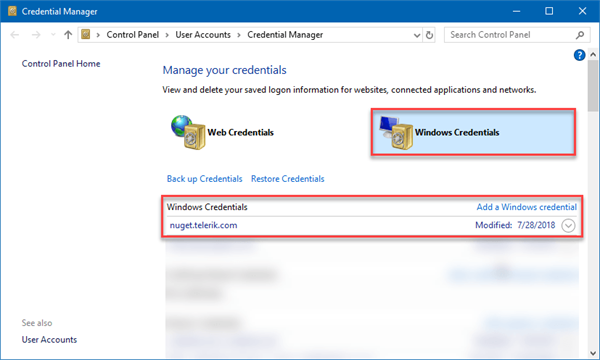
Visual Studio will prompt you for your Telerik credentials the first time the feed is accessed. These credentials can be subsequently accessed via the Windows Credentials Manager (e.g. to update password).

Credentials Manager interface with Windows credentials selected and Telerik list item visible.

However, what if your project is being built in an Azure DevOps build pipeline? How does the pipeline restore a package that is only in a private feed? This is where a NuGet config file comes into play. It allows you to set package sources as well as where to get the credentials.

Below is an example of a nuget.config file. Notice that it defines the Telerik NuGet server URL as well as two environment variables for the credentials.

<?xmlversion="1.0"encoding="utf-8"?>
<configuration>
  <packageRestore>
    <addkey="enabled"value="True"/>
    <addkey="automatic"value="True"/>
  </packageRestore>
  <activePackageSource>
    <addkey="All"value="(Aggregate source)"/>
  </activePackageSource>
  <packageSources>
    <addkey="NuGet"value="https://api.nuget.org/v3/index.json"/>
    <addkey="Telerik"value="https://nuget.telerik.com/nuget"/>
  </packageSources>
  <packageSourceCredentials>
    <Telerik>
      <addkey="Username"value="%TELERIK_USERNAME%"/>
      <addkey="ClearTextPassword"value="%TELERIK_PASSWORD%"/>
    </Telerik>
  </packageSourceCredentials>
</configuration>

However, this could be a security issue in a CI/CD environment where another user might be able to read the values of environment variables. This is where the Service Connection comes in handy.

The Azure DevOps Service Connection lets you enter credentials in a secure manner without unnecessarily exposing account details and that Service Connection can now be used by multiple pipelines to authenticate private NuGet feeds (and other services that need authentication).

Service Connection Walkthrough

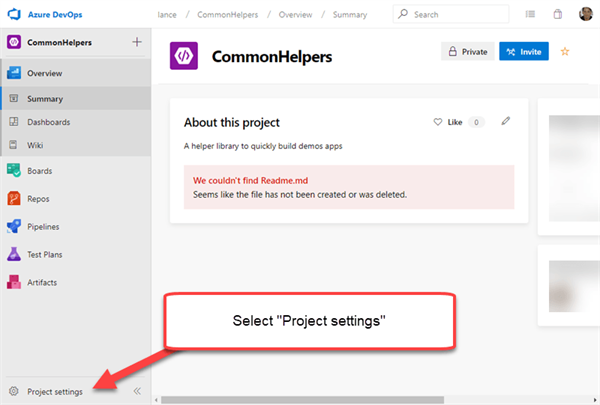
Let's walk through adding a Service Connection to the Telerik NuGet server. To start, go to the Project Settings in your DevOps project portal.

Project Setting

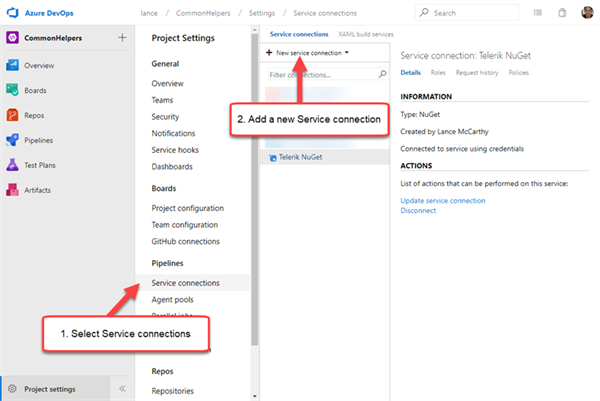
On the Project Settings page, select the Service Connections menu item under Pipelines and then open the New Service Connection drop down.

New Service Connection drop down

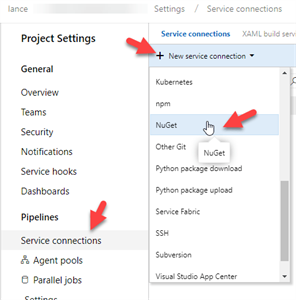
Select NuGet from the drop down list.

NuGet Service Selection

You'll be presented with a dialog that lets you enter the URL and authentication credentials. For the Telerik NuGet server, you'll want to select Basic Authentication.  Once that selection is made, you can enter the Telerik server URL and use your Telerik account credentials.

Add NuGet service connection information

Once that is saved, your build pipelines can now fetch packages from the Telerik NuGet feed. Next, let's take a look at how a build pipeline uses the nuget.config and the Service Connection together to fetch the Telerik packages.

Using Telerik Service Connection

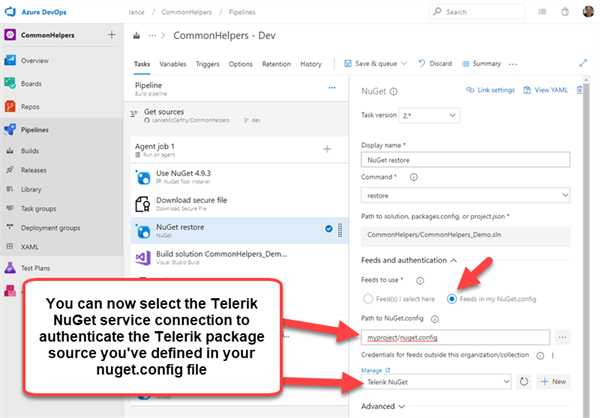
In your build pipeline, there's a NuGet Restore step. Select that step and look to the properties panel. Change the Feeds to Use selection to Feeds in my NuGet.config. A new dropdown will appear titled "Credentials for feeds outside this organization/collection." Open it and select the new Telerik NuGet Service Connection available.

Using Service Connection

That's it! When you queue and run the pipeline, the Telerik NuGet packages will be restored.

Azure Artifacts

Using a Service Connection means that any package available to that account holder could be fetched and used. If you do not want pipelines to have unfettered access to the Telerik account holder's downloads, you can host your own feed right in the DevOps project with the Azure Artifacts feature.

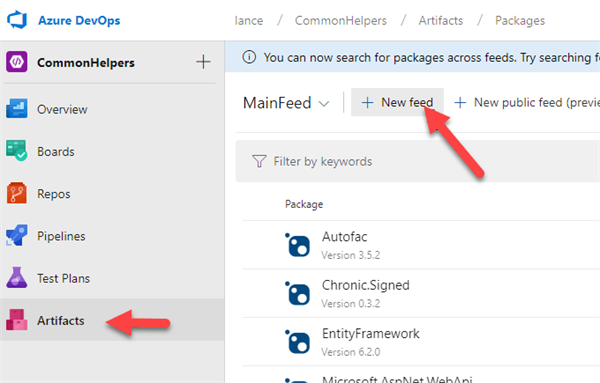
In the project's main menu, select Artifacts and then click the New Feed button at the top.

Artifacts Tab

Give the feed a name (e.g. something like TelerikPackages), select the "Only use packages published to this feed" option, then click the Create button. You will now have your own feed that you can push nupkg files to and it will handle the heavy lifting of the server duties.

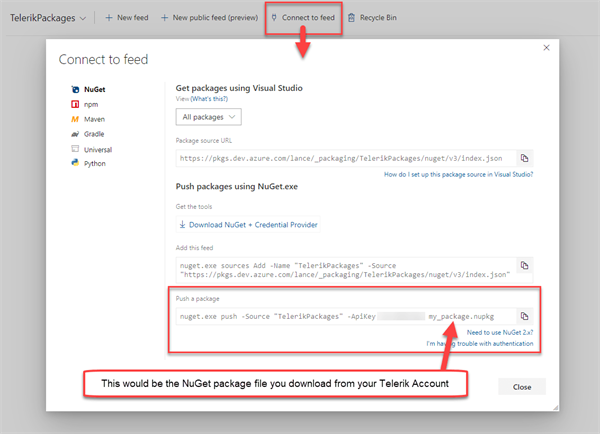
To see how to push packages to this feed, click the "Connect to feed" option at the top. A dialog will appear with helpful information on how you can push packages to that specific feed.

Connect to Azure Artifacts Feed

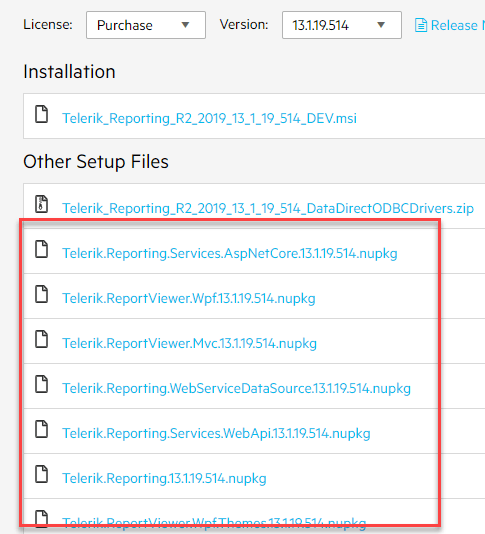
You can get the NuGet package file (nupkg) for any Telerik product you're using by going to the downloads page for that product. You can start at the My Account - All Products page.

Underneath the installer for the product, you'll see an Other Setup Files section where the nupkg files will be. For example, here's what it looks like for the Telerik Reporting packages.

Telerik Reporting NuGet package files

The last piece of this puzzle is to go to the build pipeline and select that feed for a NuGet Restore step.

Using an Artifact Feed

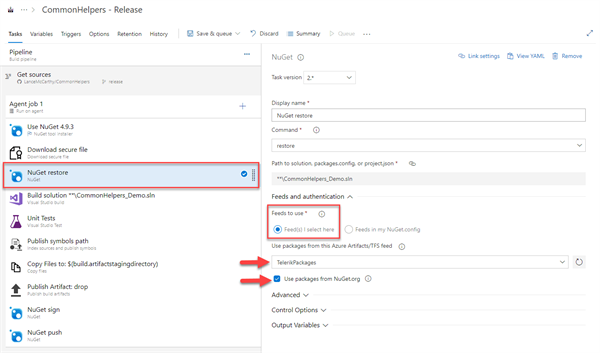
Just like we did above for the Service Connection, go to the build pipeline and select the NuGet Restore step. Except this time, you'd choose Feed(s) I select here and choose the TelerikFeed from the Use packages from this Azure Artifacts/TFS feed dropdown list.

Using the Artifact feed in a pipeline

Important: If you have nuget.org packages to restore in addition to the Telerik packages, leave the "Use packages form NuGet.org" option selected.

Wrapping Up

I hope this information helps show how you can use Telerik NuGet packages in your Azure DevOps pipelines. you can take Service Connection route or go with a more controlled Azure Artifact option.

You can find more information on using Azure DevOps or Azure Artifacts in the following documentation:

If you have any questions, don't hesitate to reach out. I'm available on Twitter @lancewmccarthy. If you're having problems with, or have questions about, the Telerik packages, you can talk directly to the engineers for that product by opening a Support Ticket.

Thanks for stopping by and have a great day!

Motor Disabilities and What You Need for Accessibility

$
0
0

Designing for accessibility can make your website better for everyone. In this article, we'll define motor disabilities and talk about web development strategies for improving accessibility for users with a motor disability.

For people with disabilities, the internet can be a lifeline that connects them to the world. Motor disabilities, in particular, can limit a person’s independence, especially in a society that routinely designs physical structures without regard to the concerns of people with disabilities. But on the internet, individual creators and developers can make their products more accessible to all their users, irrespective of physical ability.

What is a Motor Disability?

The term “motor disability” applies to any condition that impedes sensation, movement, or coordination. Motor disabilities can result from several possible causes, including congenital conditions, illnesses, and physical trauma, but these disabilities tend to present similar challenges for users when they navigate the web.

Diseases and Conditions

  • Cerebral palsy describes a brain injury or abnormality, resulting in a loss of muscle control. The condition usually appears during pregnancy or early infancy and can cause spasms or tightness in the muscles, involuntary movements, and speech impairment.
  • Muscular dystrophy (MD) is a genetic disorder that affects the genes governing muscle protein production. The progressive muscular degeneration caused by MD impacts a broad range of individuals but is most common in children.
  • Multiple sclerosis (MS) occurs when the protective myelin layer around an individual’s nerve cells erodes, causing misfiring or non-communication between the brain and the skeletal muscles. The symptoms of MS vary widely and tend to change over time, including tremors, weakness, numbness, unstable walking, spasticity, slurred speech, muscle stiffness, impaired memory, and partial or complete paralysis.
  • Spina bifida is a congenital condition in which a fetus’s spine fails to close fully around the spinal cord during the earliest stages of pregnancy, causing a bulge in a person’s back where the spinal membrane has protruded beyond the spine. Spina bifida can cause motor difficulties and paralysis, as well as, in some cases, language disability due to fluid in the brain.
  • Amyotrophic lateral sclerosis (ALS, or Lou Gehrig’s Disease) is a degenerative disease that inhibits communication between the skeletal muscles and the brain. ALS can cause slowness in movement and speech as well as partial paralysis.
  • Arthritis is most common among the elderly but can also occur in young people. Joint pain caused by advanced arthritis can lead to fatigue when manipulating a mouse or keyboard and may prompt a user to switch to alternative controls or spend less time on a computer altogether.
  • Parkinson’s disease is a central nervous system disorder that can cause both muscle rigidity and muscle tremors. People with advanced cases may be unable to use a computer mouse, keyboard, or voice interface, having to rely on complex assistive technologies to navigate the web.
  • Essential tremor is a nerve disorder that causes uncontrollable tremors and can interfere with the use of arms, hands, head, and larynx.

Trauma

  • Spinal cord injuries interrupt the communication between the brain and the skeletal muscles and can cause partial or complete paralysis in the legs and lower body (paraplegia) or the arms, legs, and torso (quadriplegia).
  • Limb loss and damage may impact an individual’s ability to operate a computer when the injury has occurred to the arm or hand. Some types of traumatic limb damage, such as damage to the nerves, may affect the functionality of the limb without altering its appearance.

Assistive Technologies

Building an accessible web product for users with motor disabilities requires an understanding of the tools and strategies that these individuals are likely to employ when they navigate the web. People with motor disabilities may choose from a variety of assistive technologies, most of which either work with or emulate a keyboard interface. Despite the wide variety of motor disabilities, assistive technologies are often designed with broad purposes that can apply to multiple types of disabled individuals.

Common assistive technologies include:

  • Head wands and mouth sticks are devices that fit over the head or into the mouth and extend toward a control interface. Once in place, the user can manipulate the wand or stick with their neck and jaw muscles to control an adaptive computer mouse, keyboard, or other assistive technology.
  • A single switch is a device - often a large button or touch-sensitive pad - that is placed near a body part to be clicked. Special software is often necessary to translate single-switch activity into computer commands.
  • A sip-and-puff switch has the same functionality as a single switch but is operated by blowing and sucking air into a mouthpiece. This type of switch is helpful for users who retain muscle function in the head but may not be able to rely on muscles from the neck down.
  • An oversized trackball mouse is a trackball whose larger dimensions make it easier to operate with assistive devices such as a head wand.
  • An adaptive keyboard may feature word-completion technology as well as raised gaps between keys that allow users to rest their hands in place when not typing and during muscle spasms.
  • People with limited or no hand control sometimes prefer eye-tracking devices, which register the user’s eye movements and use them to navigate the web.
  • While it can be costly, voice recognition software offers some users the option to navigate the web via direct voice commands smoothly. But others with motor disabilities find that their throat muscles are also affected - for example, by cerebral palsy - to such an extent that typical voice recognition software cannot consistently interpret their speech.

Assistive technologies by themselves are not enough to make the web accessible to users with disabilities, and, in the next section, we cover three ways to make your website more accessible to users with motor disabilities.

Support Effective Keyboard Navigation

Despite the availability of oversized and adaptable models, people with motor disabilities often find it impossible to use a mouse. Most assistive technologies that people with motor disabilities use emulate a keyboard in some way. By making your website effectively usable with a keyboard, you open up access to the users of these assistive technologies.

Start by following WAI-ARIA guidelines to make all elements on your web pages accessible via keyboards and keyboard emulators. Specifically, make sure that the keyboard focus elements are visible on your page with CSS elements.

Reduce Actions that Require Too Many Keypresses

Most motor-assistive technologies make use of isolated and small muscle groups. For example, those using a head wand engage their neck muscles for every action they make on a webpage or a keyboard. The mouth stick users select keys on a keyboard emulator with a movement of the mouth.

With small muscle groups used for every action, fatigue can become an issue when performing a task on your site like navigating to the end of a long list requires a lot of clicks or key presses.

To help people using assistive technologies, provide practical ways to navigate your site with only a few clicks. For example, by adding a way to skip to the end of long pages and long lists with a single click with a skip-to-content button at the top of your navigation bar.

Another way to reduce the keyboard clicks needed for navigation on your website is to structure your navigation menus as a multi-level tree. Instead of scrolling through an entire list of available pages, your users can jump to the section of the navigation that they are looking for with only a few clicks.

Add a Search Field to Your Website

Some users with motor disabilities use a voice recognition system. While those systems make it easier to navigate a webpage, it’s easier to type a phrase into a text field via speech recognition than it is to click specific elements on the webpage via voice control.

Search functionality is generally already present on most websites, and everyone can use it, not just those with motor disabilities. To take full advantage of this strategy, you also need to make sure that your pages are indexed, and that the sorting of the search results is helpful.

Conclusion

Making your webpage usable by those with motor disabilities often boils down to designing each element so that it’s effectively usable with a keyboard. Accessibility-oriented developers should also avoid functionality that relies exclusively on mouse control as well as build in shortcuts, like skip-to-content functions and focus elements, that help alleviate fatigue in users with motor disabilities.

Most importantly, educate your creative team about the nature and challenges associated with motor disabilities, and be sure to design and build projects with accessibility in mind from the earliest development stages.


Learn More about Accessibility

We have created a comprehensive whitepaper on accessibility for developers that covers everything from laws to coding to testing.

Download the whitepaper:Accessibility for Developers

Adding Accessibility to Your Apps

One easy way to make sure that you are creating accessible web apps is to start with components from the Kendo UI libraries. Our components are all WCAG complaint and give you great functionality from grids and charts to schedulers and pickers. Get a head start on your app's UI and a head start on accessibility compliance at the same time.

Learn more about: Kendo UI

Using a Code-Behind Approach to Blazor Components

$
0
0

In this article we'll look into when it's helpful to use a code-behind in your Blazor development, how we benefit and what to expect when re-factoring existing components.

When working with Blazor the default component architecture is to have all of the markup and logic mixed within a single file (.razor). When components are simple this approach works well, however as the complexity becomes greater managing the entirety of a component as a whole becomes difficult. Using a "code-behind" approach allows for markup and logic to be separated into their own files. In this article we'll look into when it's helpful to use a code-behind, how we benefit and what to expect when re-factoring existing components.

Single File Approach

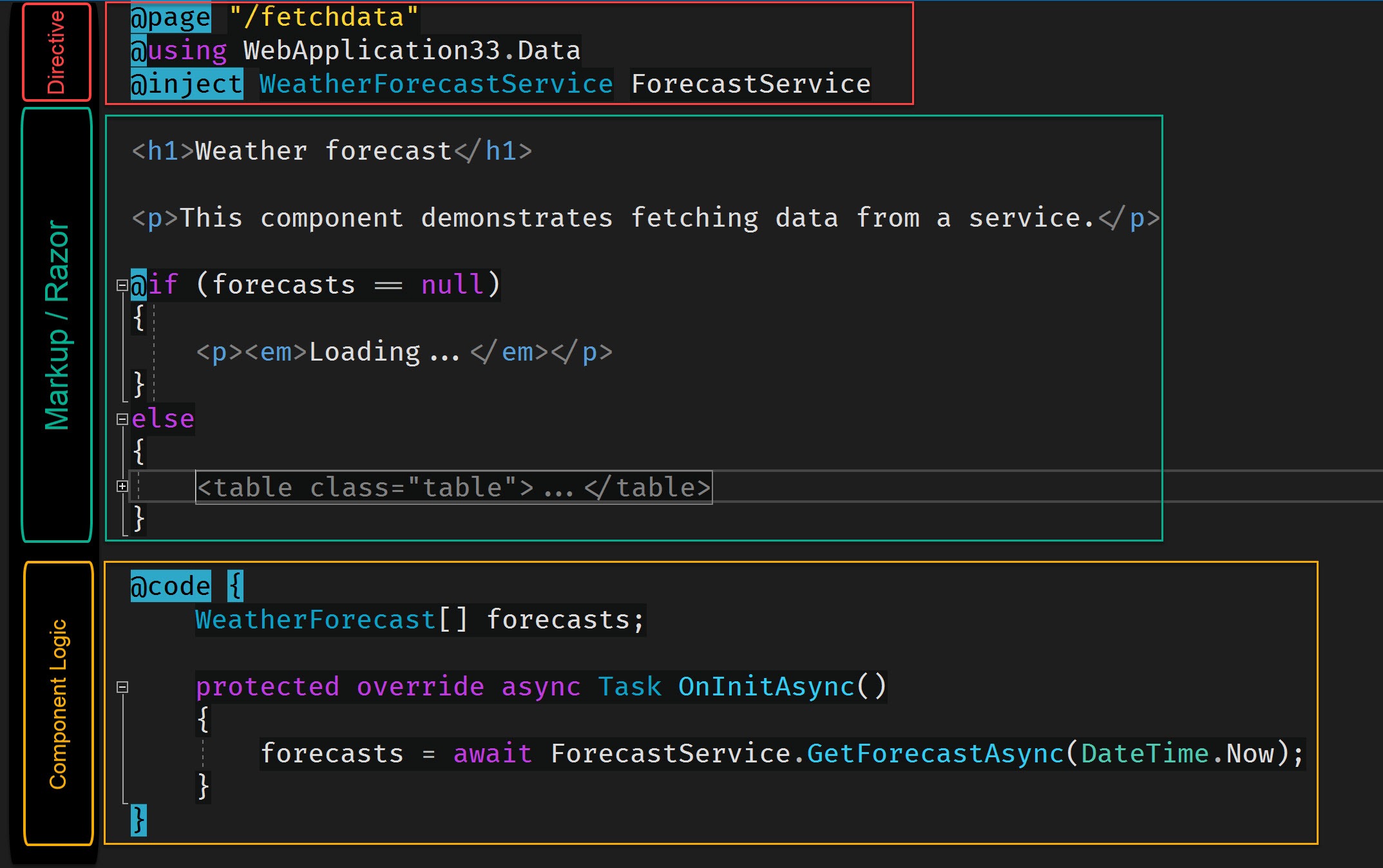
Let's begin with a quick review of the single file approach. We'll use ASP.NET's default template's FetchData component as an example. The FetchData component displays an HTML table of weather forecast data by looping over data provided by a service. The component uses directives, HTML/Razor, and a @code block; these are all typical items that make up a component.

component-anatomy

The markup for the component is quite verbose. Weighing in at 30+ lines the markup itself extends the length of the file, causing us to scroll down to find the components logic represented by a @code block.

scroll-needed

Keep in mind that this component is still actually quite simple. As the complexity becomes greater each section will grow. This means we will eventually have more directives, using statements, markup, and logic in our code block. While it may be convenient to have an all inclusive file, it will eventually become tedious to maintain due to constant scrolling between between markup and logic.

Let's re-factor the FetchData component by using a code-behind file see how it improves the overall developer experience.

Code-Behind Approach

Code-behind is a common term for the technique of using a separate code file to that represents all of the logic for a corresponding page, view, or component. Creating a code-behind in Blazor requires a few steps, but thankfully it's supported by the framework so setup is quite simple. To complete our code-behind we'll need to create a class and then link the code-behind to our markup. Once we have the structure in place, we can move over our existing logic.

Creating and Linking a Code-Behind

First we'll need a class file that will represent our code-behind. This is a standard .NET class, however naming is very important. When we create our code-behind file we need to consider both the file name and class name as they can greatly effect our developer experience.

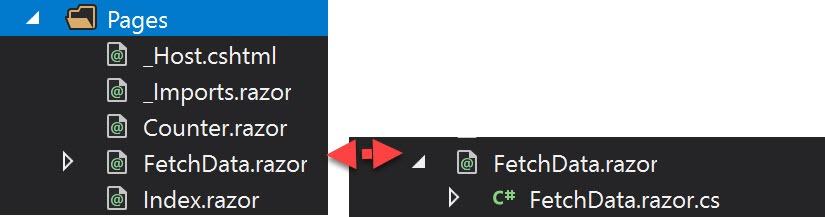
Let's start with the file name. When we add the file name we should follow a common convention of [componentName]Base.razor.cs. The .razor.cs extension is understood by Visual Studio and will be properly nested within the file explorer window. Since the component already occupies a class name we'll need to add the suffix Base to our class name giving it a unique class name. The final code-behind file should be FetchData.razor.cs with a class name of FetchDataBase.

file-nesting

Next, we'll need to link the markup portion of the component (.razor) to the code-behind (.razor.cs). In the code-behind file, we'll inherit from ComponentBase. When inheriting from ComponentBase, in Visual Studio the shortcut ctrl+. will add the using statement using Microsoft.AspNetCore.Components; which is the namespace for ComponentBase. At the time of writing the ctrl+. shortcut is unavailable in Razor as are many re-factoring tools for Visual Studio. Access to these shortcuts emphasizes the importance of code-behind files in Blazor.

using Microsoft.AspNetCore.Components;

namespace MyApp.Pages
{
    public class FetchDataBase : ComponentBase
    {
    }
}

We'll use a similar process in our markup file to complete the link between both files. At the top of the component's markup we'll inherit from our code-behind using the @inherits directive. Inheriting from FetchDataBase forms a complete component and we no longer need to use the @code block to define our component's logic.

@inherits FetchDataBase
@page "/fetchdata"
@using WebApplication33.Data
@inject WeatherForecastService ForecastService

...markup

@code { ... }

We can now migrate all of the code from the @code block to our code-behind, and a few directives as well.

Migrating @code to Code-Behind

Most of the logic from our @code block can be copied directly as-is to the code-behind without change, however there are some small updates that will need to be made. The @code block is scoped to the component's class, while the code-behind's scope is the component's base class. Anything we would like to reference in the base class via markup needs to be marked protected. In the case of FetchData, the variable forecasts is used in the components markup so it must be protected or public to be visible to the FetchData class. In the code-behind WeatherForecast[] forecasts; becomes protected WeatherForecast[] forecasts;.

    public class FetchDataBase : ComponentBase
    {
        protected WeatherForecast[] forecasts;

        ...
    }

As we move code to our code-behind, additional using statements will be required as the code-behind doesn't take advantage of global values in _Imports.razor. Once again this is where standard tooling comes in handy with ctrl+. making short work of any missing namespaces.

ctrl+period

using Microsoft.AspNetCore.Components;
using System.Threading.Tasks; // Added by ctrl + .
using MyApp.Data; // Added by ctrl + .

namespace MyApp.Pages
{
    public class FetchDataBase : ComponentBase
    {
        protected WeatherForecast[] forecasts;

        protected override async Task OnInitAsync()
        {
            forecasts = await ForecastService.GetForecastAsync(DateTime.Now);
        }
    }
}

With all of the code migrated, we still need to tackle one final step, dependency injection (DI).

Dependency Injection in Blazor Code-Behind

Dependency Injection in Razor markup is handled by the @inject directive. While the directive is available in code-behind classes, it is written much differently and at first glance may not be obvious. To use dependency injection in a code-behind file we'll use the [Inject] attribute and apply it to a property of the type we would like to inject, ex: [Inject] MyType MyProp { get; set; }.

using Microsoft.AspNetCore.Components;
using System;
using System.Threading.Tasks;
using MyApp.Data;

namespace MyApp.Pages
{
    public class FetchDataBase : ComponentBase
    {
        [Inject] WeatherForecastService ForecastService { get; set; }

        protected WeatherForecast[] forecasts;      

        protected override async Task OnInitAsync()
        {
            forecasts = await ForecastService.GetForecastAsync(DateTime.Now);
        }
    }
}

With the [Inject] attribute added the component can now resolve the service and we no longer need the directive in the Razor markup. We can proceed with cleaning up our markup by removing the @inject and @using directives as well as the @code block.

Code-Behind Final Thoughts

When we started the component's directives, markup and logic were all contained in a single file. While a single file approach provides benefits in its simplicity, and is great for small components, it simply doesn't scale well. Once our component requires complex markup or logic it's easy to get lost in the large file and/or confused by two different ways of expressing code. In addition, we lose access to some of Visual Studio's most valuable productivity tooling.

The process of converting an existing component to use a code-behind is quite easy. A few code changes are required with regards to using statements, protection levels, and dependency injection. For the most part Visual Studio even guides us through making the proper corrections to achieve a successful compilation.

side-by-side

When the transition is complete we benefit from clearly defined roles for markup and logic with a lot less scrolling. If we need to see the component in its entirety we can now snap the two windows side-by-side and focus on the task at hand.

New to Blazor?

If you're new to Blazor and want to start learning quickly, see the free Blazor Quick Start video series. In this instructional video series we learn about ASP.NET Core Blazor. Learn the basics of working with Blazor concepts like: components, events, data binding, and more. The course is guided by me, Ed Charbeneau, an industry pro and four-time Microsoft MVP.

Mocking and Testing GraphQL in React

$
0
0

Testing GraphQL doesn't have to be difficult. This article will explore static and dynamic mocks to make testing GraphQL a breeze.

Imagine you're working on a new feature with another team. You're in charge of the React side, but someone else is in charge of the GraphQL changes. Is it possible for you to develop your side before they have finished theirs?

Or how about wanting to test your components without making real GraphQL requests to the server? With Mocks, both are possible! Mocks allow you to provide fake responses to your queries, allowing you to fully test your components without interacting with a real server.

In this article, which assumes some previous knowledge of React and GraphQL, we will focus on two different ways to mock GraphQL query responses. The first is easier, but can be a little more rigid using MockedProvider. The second way allows us to define fake resolvers and generate our test data dynamically. Much of my inspiration for this article came from a talk given by Chang Wang at GraphQL Day Toronto.

The final codebase can be found here: https://github.com/leighhalliday/apollo-generating-types

What We're Testing

We will be working with Shopify's Storefront GraphQL API to show some products along with each product's images. The query to fetch this data looks like:

export const PRODUCTS_QUERY = gql`
  query ProductsData($preferredContentType: ImageContentType) {
    products(first: 10) {
      edges {
        node {
          id
          title
          images(first: 3) {
            edges {
              node {
                id
                transformedSrc(
                  maxWidth: 150
                  maxHeight: 100
                  preferredContentType: $preferredContentType
                )
              }
            }
          }
        }
      }
    }
  }
`;

The component which executes the above query and displays its results looks like:

export default function Products() {
  return (
    <ProductsQuery
      query={PRODUCTS_QUERY}
      variables={{ preferredContentType: ImageContentType.JPG }}
    >
      {({ data, loading, error }) => {
        if (error) {
          return  <div>Error loading products...</div>;
        }

        if (loading || !data) {
          return  <div>Loading products...</div>;
        }

        return (
          <div  data-testid="result">
            {data.products.edges.map(({ node: product }) => (
              <div key={product.id}>
                <h2>{product.title}</h2>
                <p>ID {product.id}</p>
                <ul className="images">
                  {product.images.edges.map(
                    ({ node: image }, index: number) => (
                      <li className="image-item" key={image.id || index}>
                        <img src={image.transformedSrc} />
                      </li>
                    )
                  )}
                </ul>
              </div>
            ))}
          </div>
        );
      }}
    </ProductsQuery>
  );
}

If you would like to learn more about working with TypeScript and Apollo GraphQL along with auto-generating types, please refer to this article.

Using MockedProvider

The first approach to mocking this GraphQL query is to use something called a MockedProvider. What it basically does is looks for a specific query, and, when it sees that query, uses a predefined response. You end up with an array of mocks, each with a request and its corresponding result.

In this case, I have imported the query PRODUCTS_QUERY from the file it is used in, ensuring I pass the same variable values used within the component we are testing (otherwise it won't match).

// imports required for code snippet below
import { ImageContentType } from "./generated/globalTypes";
import Products, { PRODUCTS_QUERY } from "./Products";

const mocks = [{
  request: {
    query: PRODUCTS_QUERY,
    variables: {
      preferredContentType: ImageContentType.JPG
    }
  },
  result: {
    data: {
      products: {
        edges: [{
          node: {
            id: "123",
            title: "Nike Shoes",
            images: {
              edges: [{
                node: {
                  id: "456",
                  transformedSrc: "https://www.images.com/shoe.jpg"
                }
              }]
            }
          }
        }]
      }
    }
  }
}];

It can get a bit tedious closing all of those objects and arrays, but the goal is to match the data structure exactly how you would expect to get it back from the server.

With Apollo, every time you use the Query component, for it to execute that query, it needs to be within a Provider. This provider gives the necessary context to resolve the queries being executed. This is where the MockedProvider comes into play. We'll wrap this provider around our component, allowing our mocks to resolve with fake data rather than making a real API call.

it("renders with MockedProvider", async () => {
  const { findByText, getByText } = render(
    <MockedProvider mocks={mocks} addTypename={false}>
      <Products />
    </MockedProvider>
  );

  expect(getByText("Loading products...")).toBeInTheDocument();
  const productTag = await findByText("Nike Shoes");
  expect(productTag).toBeInTheDocument();
});

If react-testing-library is new to you, I wrote an introduction which may be useful.

Drawbacks of MockedProvider

While the MockedProvider allows you to get up and running quickly, it can be quite tedious defining all of your data for every test and scenario. If you wanted to simulate 15 products, you would need to define a large amount of mocked data, and then if you wanted to add an extra field, you would have to modify each of the 15 mocked products. This sort of thing grows tiring very quickly.

In the next section, we will try to overcome these drawbacks by utilizing a slightly more complicated approach, but one which comes with a number of improvements.

Dynamic Mocks

If the MockedProvider was a bit too rigid for your liking, you may be interested to know that there is a way to make mocks dynamic! In broad terms, this approach takes a GraphQL Schema (either manually defined or, as we will see, downloaded from the actual GraphQL API via an introspection query), and allows us to define mocked resolvers for each data type, with as much or as little control and overriding as we deem necessary.

Getting the Schema

The GraphQL Schema defines how the GraphQL API works: What queries and mutations can be performed and which types are defined? In this approach, we'll start by grabbing the GraphQL API's Schema which can be done using the schema:download command provided by the apollo package. What we will end up with is a schema.json file in the root of our project, containing the entire introspected output from the API.

yarn run apollo schema:download \
  --endpoint https://graphql.myshopify.com/api/graphql \
  --header "X-Shopify-Storefront-Access-Token: 078bc5caa0ddebfa89cccb4a1baa1f5c"

Creating the AutoMockedProvider

With the schema in hand, we have to define our own AutoMockedProvider. There are a large number of imports required for this functionality, but we'll dive into what they each do when they are needed.

import React, { ReactNode } from "react";
import { ApolloProvider } from "react-apollo";
import { ApolloClient } from "apollo-client";
import { InMemoryCache } from "apollo-cache-inmemory";
import { SchemaLink } from "apollo-link-schema";
import { makeExecutableSchema, addMockFunctionsToSchema, IMocks } from "graphql-tools";
import { printSchema, buildClientSchema } from "graphql/utilities";
import introspectionResult from "../../schema.json";

Next, we can define our AutoMockedProvider component. I have removed some of the TypeScript definitions to let the code read a little more cleanly, but if you are interested in TypeScript, I have left them in within the actual codebase on GitHub.

export default function AutoMockedProvider({ children, mockResolvers }) {
  // 1) Convert JSON schema into Schema Definition Language
  const schemaSDL = printSchema(
    buildClientSchema({ __schema: introspectionResult.__schema })
  );

  // 2) Make schema "executable"
  const schema = makeExecutableSchema({
    typeDefs: schemaSDL,
    resolverValidationOptions: {
      requireResolversForResolveType: false
    }
  });

  // 3) Apply mock resolvers to executable schema
  addMockFunctionsToSchema({ schema, mocks: mockResolvers });

  // 4) Define ApolloClient (client variable used below)
  const client = new ApolloClient({
    link: new SchemaLink({ schema }),
    cache: new InMemoryCache()
  });

  return <ApolloProvider client={client}>{children}</ApolloProvider>;
}

With the AutoMockedProvider defined, we are able to use it as our Apollo Provider, but as we will see in the next section, this is just where the fun and flexibility begins.

<AutoMockedProvider>
  <Products />
</AutoMockedProvider>

Overriding Resolvers

Out of the box, the addMockFunctionsToSchema function provides default resolvers for all of the basic Scalar types that come with GraphQL (String, ID, Boolean, etc.). What this means is that, by default, a String will resolve to Hello World, and each other type has its own default value.

If a GraphQL API provides custom Scalar values or if you want to provide your own values, you can provide custom mock resolvers, allowing full flexibility over our AutoMockedProvider.

it("renders with AutoMockedProvider", async () => {
  const mockResolvers = {
    Product: () => ({ title: "Nike Shoes" }),
    URL: () =>  "https://www.shopify.com"
  };

  const { findByText, getByText } = render(
    <AutoMockedProvider mockResolvers={mockResolvers}>
      <Products />
    </AutoMockedProvider>
  );

  expect(getByText("Loading products...")).toBeInTheDocument();
  const productTag = await findByText("Nike Shoes");
  expect(productTag).toBeInTheDocument();
});

In this case, we have overriden what the title field of the Product type will be and have provided a resolver for the custom scalar type URL. An error will occur if a custom resolver is not provided for custom Scalar types.

Customizing Array Items with MockList

By default, any time there is an array of items, Apollo will return 2 of that item. But what if you want 0, 10, or even a variable amount of items? This is where the MockList object comes into play. It will allow us to define exactly how many of an item we want. In this case, we will have between 0 and 3 image edge items in our response.

const mockResolvers = {
  Product: () => ({
    title: "Nike Shoes",
    images: () => ({
      edges: () =>  new MockList([0, 3])
    })
  })
};

Accessing Arguments

Often our queries (and their fields) take arguments to provide additional detail to the server. In this query, the Shopify GraphQL API gives us the ability to define the image type (JPG, PNG, etc.) we would like as a response. Here is how you access these arguments, allowing you to customize your mocked resolver based on the arguments being passed to it.

const mockResolvers = {
  Image: () => ({
    transformedSrc: (root, { preferredContentType }) => `https://images.com/cat.${preferredContentType.toLowerCase()}`
  })
};

Now we can make the URL returned by the transformedSrc field's resolver have the extension matching the argument passed to the field (.jpg in this case).

Consistent Fake Values

Rather than defining every field, you may want to use a library such as faker to provide more realistic fake data. Sometimes your data is a little too random, though. Take the example below where we are using faker's uuid function to generate each ID, with the goal of producing a snapshot test. Every time the code runs, we will have unique UUIDs, making it difficult to have a consistent snapshot.

For this scenario, faker provides a way to define a seed value, ensuring that every time this code is executed, it will provide a random but consistent output faker.seed(123).

it("matches snapshot using seeds", async () => {
  faker.seed(123);
  const { findByTestId, asFragment } = render(
    <AutoMockedProvider
      mockResolvers={{
        URL: () => "https://www.shopify.com",
        ID: () => faker.random.uuid()
      }}
    >
      <Products />
    </AutoMockedProvider>
  );

  await findByTestId("result");
  expect(asFragment()).toMatchSnapshot();
});

Conclusion

In this article, we have seen two different ways to mock GraphQL queries for our tests. The first approach used the MockedProvider, allowing us to explicitly define which data will be returned for each query. This works well but can quickly become tedious and difficult to maintain.

The second approach involved creating an AutoMockedProvider, using the addMockFunctionsToSchema function from Apollo, allowing us to define and override resolvers for each data type and field, only having to explicitly define them when necessary. In my experience, this is the way to go, providing extreme flexibility with not too much additional overhead.

Simplifying Equals Modernizing in the Telerik UI for WinForms RibbonBar

$
0
0

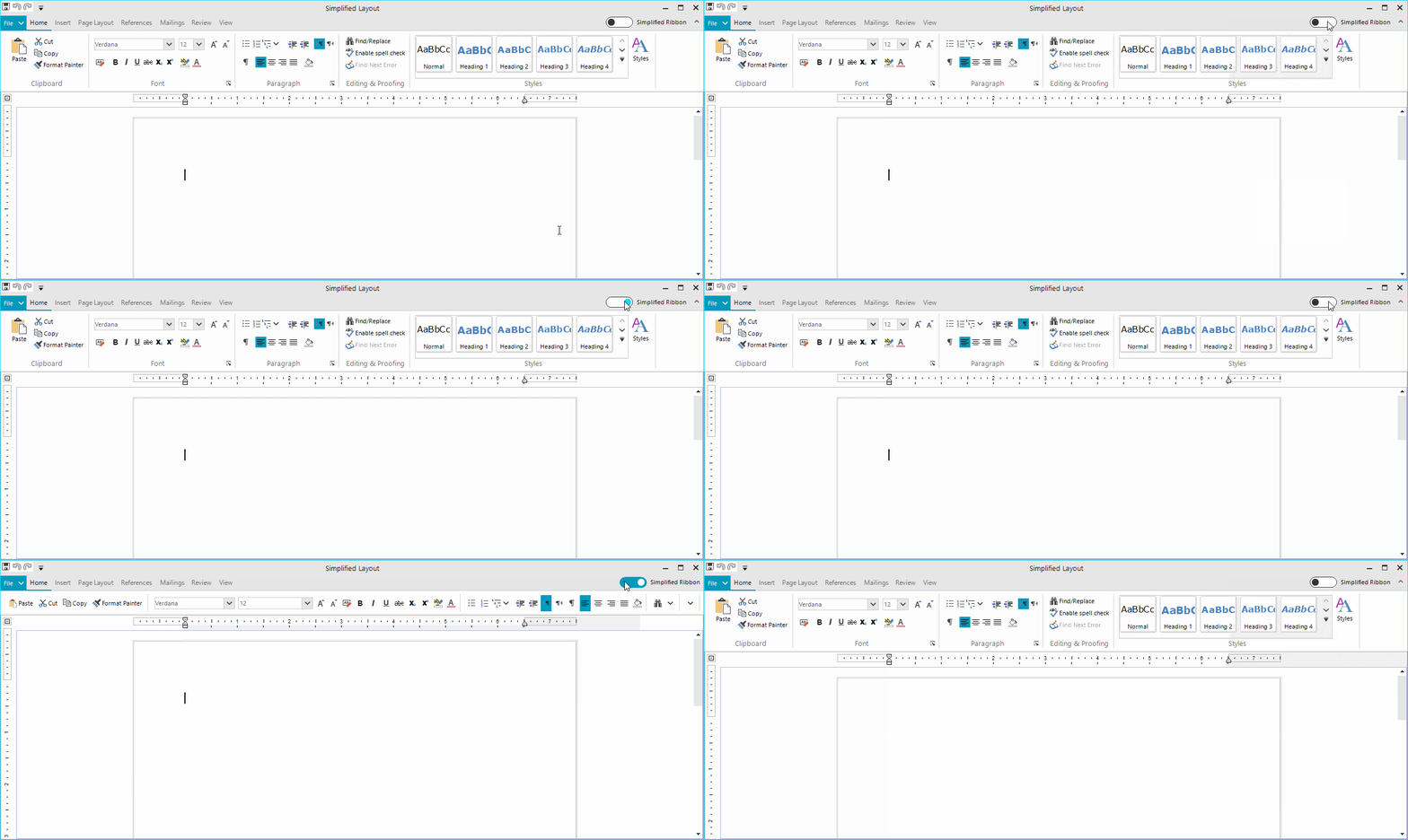
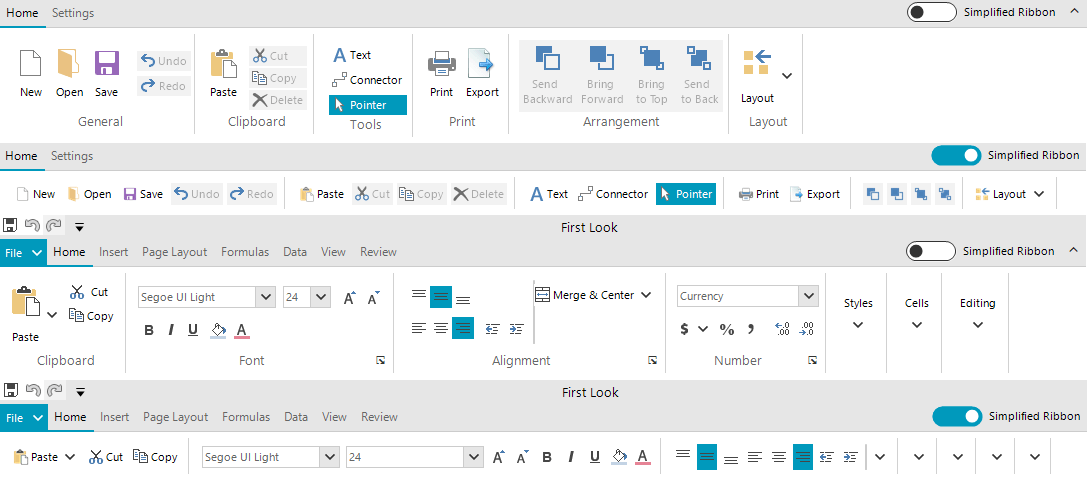
We introduced the new Simplified mode in RadRibbonBar in the Telerik UI for WinForms R2 2019 release. This powerful feature allows modernizing new or existing ribbon controls to incorporate a more compact UI and save valuable screen space.

simplified-ribbon01

Concept of Simplified Ribbon

The RadRibbonBar control has been around for quite some time. The control has served its purpose well, which is to provide the end user with a convenient UI allowing them to easily and intuitively invoke commands. UI Design and UX in general have also evolved through the years and now some people may say that the traditional layout of the ribbon control is bulky and not following the latest design trends. To be honest, that seems to be fair. Recently Microsoft introduced a new Simplified mode in their online Office suite. Hopefully, we will soon see this in the desktop versions of the same products. The Simplified mode of the ribbon bar is cool and sleek, moreover it is compact.

Such UI is invaluable when the screen space is limited, not to mention it is more user friendly as it puts only the most important commands at focus, and I personally enjoy it when working with Word in Office 365. This inspired us to implement a new layout mode in RadRibbonBar so that the control catches up to the modern UI trends.

How the Simplified Ribbon Bar Works

We wanted to provide a solution which would work equally well with ribbon controls already part of existing applications as it would with ribbons in new projects. It was imperative that the new feature did not impose limitations on the existing APIs in the control. We wanted the developers to keep on using the ribbon the way they were already doing it and to have the new option for switching the layout available at run-time. I should also say that the new feature is not built for a specific theme and it is supported equally well by all of our 27 themes.

Layout Mode

RadRibbonBar now has a LayoutMode property which is an enumeration with the available layouts. Currently the possible ones are Default and Simplified:

this.radRibbonBar1.LayoutMode = RibbonLayout.Simplified;

Simplified Ribbon Height

A single property controls the height of the entire ribbon control when it is in Simplified mode. This allowed us to have different heights depending on the applied theme. This property also gives freedom to change the height depending on their actual scenario.

this.radRibbonBar1.SimplifiedHeight = 105;

Layout Toggle Button

This button is responsible for switching the layout. It is located in the top right corner of the control. By default, the button is not visible, yet it can be easily displayed by setting a single property:

this.radRibbonBar1.ShowLayoutModeButton = true;

We decided to set the ShowLayoutModeButton property to true, in our own RadRibbonBar implementations part of the RadRichTextEditor, RadSpeadsheet, and RadDiagram controls. The animation at the beginning of the blog shows the default and simplified layouts in RadRichTextRibbonBar. Here is a screenshot showing the ribbon in the diagram and spread controls.

simplified-ribbon02

Run-time support

The Simplified layout mode is available only at run-time. The Developer still needs to set up the UI building groups and sub groups in the traditional layout mode. Then at run-time they can switch the layout and have the new modern look. This approach allowed us to support ribbon controls which were already shipped. For the developer, this meant that they could provide their end users with a new cool feature without having to do anything on their side.

Simplified Layout

The main idea in the Simplified layout mode is to have all the items building the various groups in RadRibbonBar arranged in a single row. This posed several challenges while implementing the feature.

  • Infinite Nesting: The traditional layout can be really complex, and groups can be nested in each other. The first thing we did is to flatten the structure and reparent all of the elements to be direct children of the main ribbon group. This can be seen clearly in the Clipboard and Font groups of the screenshot above. It was also a challenge to implement the transition from Simplified to the Default mode and restore the original arrangement.
  • Element Properties: We did our best to handle as many scenarios as possible so that the control looks good when switched to the Simplified mode. In order to achieve this, we had to change some of the element properties so that they look good in a single row. For example, the Paste drop-down button in the Clipboard group originally had the TextImageRelation property set to ImageAboveText and this looks perfect in the default layout. Such text-image relation, however, did not make sense in the Simplified mode, so we changed the element to display the image before the text. We also changed some other properties as well as the images in order to decrease the height of the various elements and fit them in a single row. We have a documentation article listing them.
  • Customization: As many element properties were being changed while switching the layout mode, we had to provide the developers an API to control this process. The ItemStyleChanging event is firing for each of the changed properties and it can be subscribed via the main element of the control: RadRibbonBar.RibbonBarEelement. The event is cancellable as in certain scenarios the developer might decide that that a particular property for a particular element should not be changed. The arguments provide information about the element, the group where it is located, the property, the old and new property values as well as the context in which the change operation is being executed. For example, we have decided that the gallery items in the Simplified mode will display only text, however, in certain cases one may need to use a different display mode. If that is working well in a client's application, the event's NewValue argument can be changed. We have a nice documentation article on Customizing the Simplified Ribbon demonstrating this with the RichTextEditorRibbonBar:
privatevoidRibbonBarElement_ItemStyleChanging(objectsender, Telerik.WinControls.UI.ItemStyleChangingEventArgs args)
{
    if(args.Context == ItemStyleContext.DefaultToSimplified)
    {
        if(args.Element isRadGalleryItem && args.Property == RadButtonItem.DisplayStyleProperty)
        {
            args.NewValue = DisplayStyle.Image;
        }
    }
}

Try it Out

Make sure to download and try the latest version of Telerik UI for WinForms to explore all the new features and themes. It is available jn your Telerik Account, or if you are new to Telerik UI for WinForms, you can get a fully featured 30 day free trial here.  

We'd love to hear how this all works for you, so please let us know your thoughts by visiting our Feedback portal or by leaving a comment below.

Accessibility Regulations You Need to Follow: Section 508

$
0
0

What is Section 508 of the Rehabilitation Act of 1973, and why should you adhere to it when developing your product or services? Learn what you need to know in this article.

Accessibility means ensuring access to information or products for individuals who have a disability. On a webpage, this includes all text, images, sounds, code, and markup. The Web Content Accessibility Guidelines, or WCAG, represent the foundation used worldwide for assessing a website’s accessibility.

This article covers Section 508 of the Rehabilitation Act of 1973 and why it’s important to adhere to for your visitors and your business. The act regulates physical, sensory, or cognitive accessibility for federal hardware and software products in the United States.

Software Applications

Section 508 has relevant up-front requirements for all software applications. First, the software must not interfere with the accessibility features of the operating system it runs on, nor may it disable any of the operating system's activated accessibility features developed and documented in compliance with industry standards.

We strongly recommend learning about your operating system’s documented accessibility features (here are descriptions for macOS and Windows) and testing them with your software as part of your development workflow.

If you’re able to use existing features that conform to the regulations, a big part of the work may already be complete.

Second, all visual content must have a text alternative. If you use an image as a program element, the information that image contains must also be available in text form. Try creating titles and descriptions for all images and visual content in your software. After a while, you may find it becomes an effortless part of your workflow.

Third, use other techniques in addition to color-coding to convey information, not color alone. When displaying a graphic or asking the viewer to make a choice, use other elements to distinguish the different options. Experiment with text on the controls, varying shapes or placement for best results.

Finally, all essential application functionality must be executable using a keyboard. Here you can take advantage of the many shortcuts keyboards offer and map them to essential functions in your application.

Websites and Web-based Applications

In the previous section, we looked at the four main technical standards that apply to software applications and operating systems. Now let’s examine the requirements for a website or a web-based application.

The major milestones for software applications mentioned above also apply here: The website must provide text alternatives to visual content, must avoid exclusively using color-coding as a way to differentiate controls, and must be entirely usable with a keyboard alone. To test compliance with these regulations, you can simplify your layout, add text to every visual element, and try navigating your web content with only a keyboard.

In addition to these, a website must also adhere to the WCAG standards mentioned at the beginning of this article. Section 508 is built on the foundations of the WCAG. When building a webpage, consult the W3C website to gain a better understanding of how these accessibility guidelines apply to your website or web-based application.

Telecommunications Products

Finally, let’s consider telecommunications products. This class of products, which includes telephones and other products that allow voice communication, are regulated by Section 508 and also fall under the Section 255 accessibility guidelines of the Telecommunications Act. As with the other product classes, the goal for telecommunications products is to ensure that any individual, regardless of disability, can have full use of the product or service.

In regulating telecommunications products, Sections 508 and 255 require that the device is operable without vision, with low vision, with little or no color perception, without hearing, without speech, and more. Many telecommunications products meet these standards by providing TTY (“teletypewriter”) functionality, which refers to interactive text-based communications using coded signal transmission. This functionality allows all audio commands and inputs to be translated into text and back again for individuals with disabilities.

Navigating accessibility in these three different avenues is important in ensuring that your content can reach the widest audience possible. An inaccessible interface is a quick way to ensure your audience searches elsewhere for their content.

Conclusion

At the beginning of this article, we asked why it’s worth spending time on accessibility when working with technology products.

If you’re a government agency, compliance with these regulations is compulsory, and you’re breaking the law if you don’t. Next, it’s worth noting that making your software and web applications accessible to everyone significantly increases your market. More individuals who can use your web application means more business.

Think about accessibility early in the development process, because after your product is complete, addressing accessibility issues is more costly and time-consuming. Even if you’re a government agency, meeting the regulations set forth by Sections 508 and 255 from the beginning allow your applications to be procured by government agencies without having to jump through more hoops.

Adherence to accessibility standards is good for business and good for all web users. The more individuals who can access information and web content, the closer we get to a well-informed and connected society, and we can all agree that’s a goal worth working toward.


Learn More about Accessibility

We have created a comprehensive whitepaper on accessibility for developers that covers everything from laws to coding to testing.

Download the whitepaper:Accessibility for Developers

Adding Accessibility to Your Apps

One easy way to make sure that you are creating accessible web apps is to start with components from the Kendo UI libraries. Our components are all WCAG complaint and give you great functionality from grids and charts to schedulers and pickers. Get a head start on your app's UI and a head start on accessibility compliance at the same time.

Learn more about: Kendo UI

Implementing Chat Interactions in Vue Applications with the Kendo UI Chat Component

$
0
0

In this post, we demonstrate how to easily get started implementing chat interactions in your Vue applications using the Kendo UI Chat component.

The need for chat functionalities in modern day web applications has grown from friends talking to each other to more useful features that power real-time collaboration platforms for individuals and teams. One out of every five websites today has a chat feature that allows visitors speak with admins to convey their concerns and get direct feedback from the site owners.

Over time, this has improved the communication loop between service providers and consumers. Kendo UI provides a chat component that makes it possible to implement chat functionalities in your Vue.js application in a matter of minutes. In this post, we are going to demonstrate the steps involved in setting it up.

Create a Vue Project

First we have to create a Vue.js project with which we can demonstrate the implementation of our task scheduler. Without further ado, open a terminal window on your preferred directory and run the command below:

vue create chat-demo

If you don’t have Vue CLI installed globally, please follow this guide to do so and come back to continue with this lesson afterward.

When you’re done bootstrapping your Vue application, change into the new Vue application directory and start the development server.

cd chat-demo
npm run serve

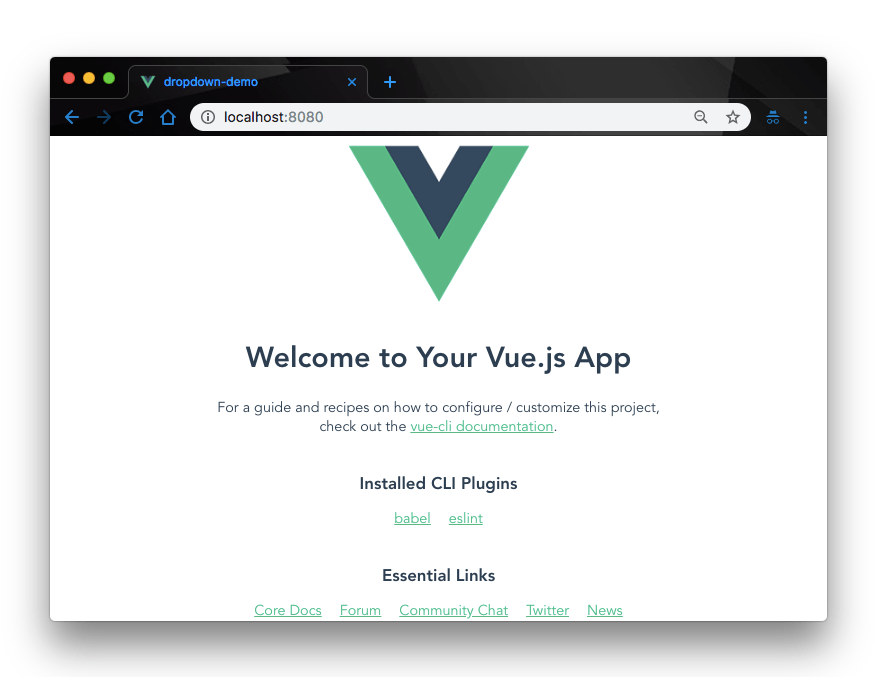
This will serve your Vue application on localhost:8080. Navigate to it on your browser and you will see your Vue application live:

S_B221~1

Add Kendo UI to Project

Next let’s add Kendo UI to our new Vue project. For the scope of this demonstration, we’ll need:

  1. The Kendo UI package
  2. The Kendo UI default theme package
  3. The Kendo UI chat wrapper for Vue

To add those three items, open a terminal window in the project’s root directory and run the commands below:

// Install kendo ui vue package
npminstall --save @progress/kendo-ui
// Install kendo ui chat wrapper for vue
npminstall --save @progress/kendo-chat-vue-wrapper
// Install kendo ui default theme package
npminstall --save @progress/kendo-theme-default
  1. Finally, we add the necessary Kendo UI packages from the CDN service. Open the index.html file in the public directory and add this snippet within the <head> tag:
<!-- public/index.html --><!--Load Kendo styles from the Kendo CDN service--><linkrel="stylesheet"href="https://kendo.cdn.telerik.com/2017.3.913/styles/kendo.common.min.css"/><linkrel="stylesheet"href="https://kendo.cdn.telerik.com/2017.3.913/styles/kendo.default.min.css"/><!--Load the required libraries - jQuery, Kendo, Babel and Vue--><scriptsrc="https://code.jquery.com/jquery-1.12.4.min.js"></script><scriptsrc="https://kendo.cdn.telerik.com/2017.3.913/js/kendo.all.min.js"></script><scriptsrc="https://cdnjs.cloudflare.com/ajax/libs/babel-core/5.6.15/browser-polyfill.min.js"></script><scriptsrc="https://unpkg.com/vue/dist/vue.min.js"></script><!--Load the required Kendo Vue package(s)--><scriptsrc="https://unpkg.com/@progress/kendo-dateinputs-vue-wrapper/dist/cdn/kendo-dateinputs-vue-wrapper.min.js"></script><scriptsrc="https://unpkg.com/@progress/kendo-chat-vue-wrapper@2018.3.911/dist/cdn/kendo-chat-vue-wrapper.min.js"></script>

Create the Chat Template

In the src folder of your Vue project, open the App.vue file and update the template section with the Kendo UI chat widget like so:

<!-- App.vue -->
<template>
  <div id="app">
    <img alt="Vue logo" src="./assets/logo.png">
    <div id="vueapp">
      <h3>Kendo Chat Demo </h3>
    <kendo-chat ref="chat"
                @post="post"
                @sendmessage="sendMessage"
                :messages-placeholder="'... Type your message ...'"
                :user-name="'MyName'">
    </kendo-chat>
    <div><p id="typing"></p></div>
  </div>
  </div>
</template>

Here, we are rendering the Kendo UI chat widget that gives us a simple chat layout. It provides a text input field for users to type their chat messages and a display field to view sent messages. We have also defined some message events to post our sent messages.

Create the Chat Logic

Next, update the script section of the App.vue file with the code below.

<!-- App.vue -->
<script>
export default {
  name: 'app',
  methods: {
  post: function (ev) {
      console.log("A message has been posted to the Chat widget! " );
  },
  sendMessage: function (ev) {
      console.log("A message has been posted to the Chat widget using the message box!");
  },
  onActionClick: function (ev) {
      console.log("The user clicked an action button in attachment template, or selected a suggestedAction!");
  },
  onTypingStart: function (ev) {
    console.log("User started typing...")  },
  onTypingEnd: function (ev) {
      console.log("The user cleared the Chat message box!");
  }
}
}
</script>

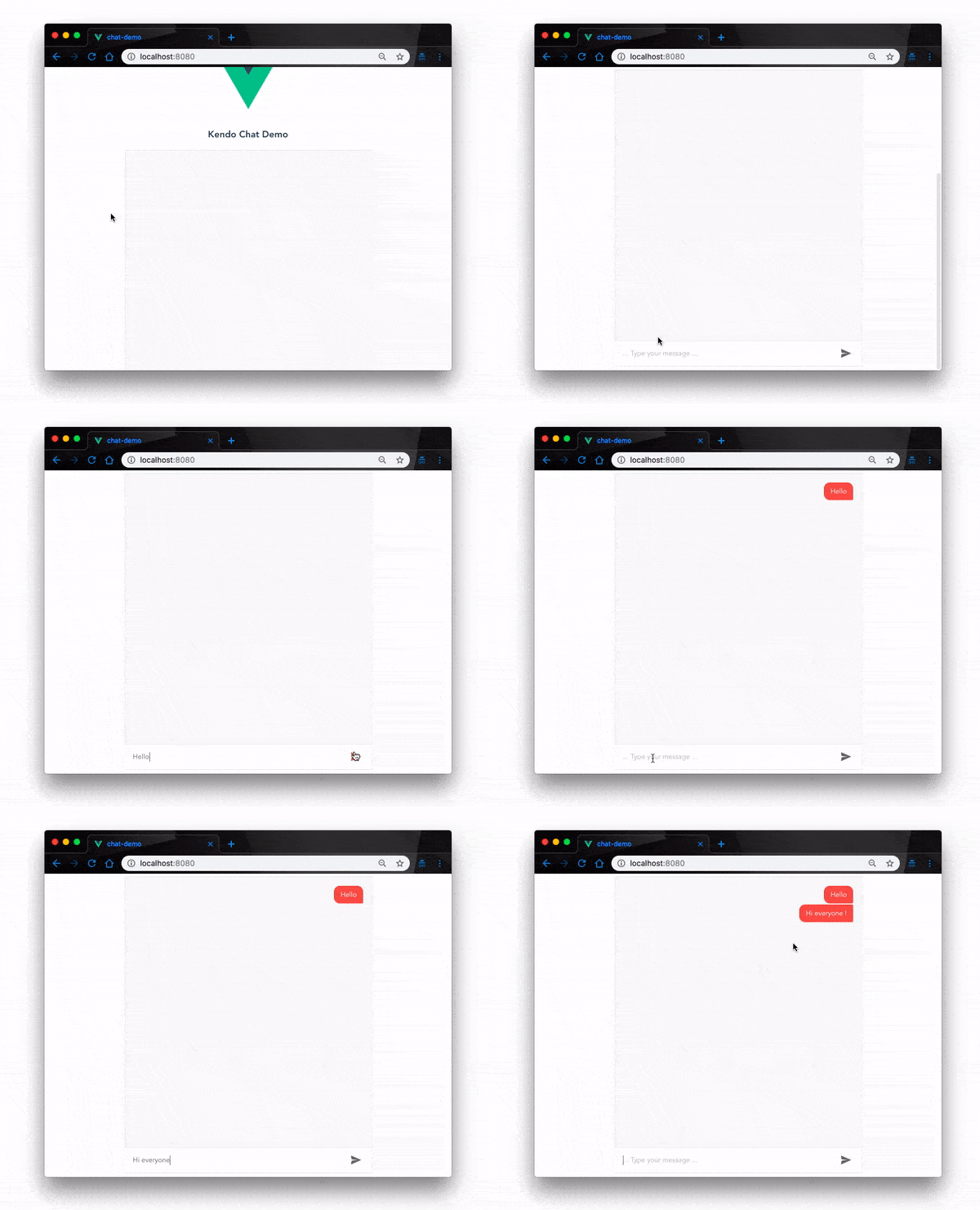
Here, we have defined the functions that will fire when user operations happen on the chat widget we rendered. If the user types and sends a message, the post function is called and it logs a message to the console.

s_7FE44C0477642829BD2EEE7C098AB5AAB4EBED27C8F67AAD10B8635322DDCE95_1551179842389_ezgif.com-video-to-gif+74

Events

Other than the post events, the kendo-chat widget lets you define other chat events to customize your chat features and improve user experience. Here are a few of the available chat events you can subscribe to:

<div id="vueapp" class="vue-app">
    <kendo-chat ref="chat"
                v-on:post="onPost"
                v-on:sendmessage="onSendMessage"
                v-on:actionclick="onActionClick"
                v-on:typingstart="onTypingStart"
                v-on:toolClick="onToolClick"
                v-on:typingend="onTypingEnd">
    </kendo-chat>
</div>

You can subscribe to all these events by their handler names in the script section like so:

export default {
  name: 'app',
        methods: {
        post: function (ev) {
            console.log("A message has been posted to the Chat widget! ");
        },
        sendMessage: function (ev) {
            console.log("A message has been posted to the Chat widget using the message box!");
        },
        onActionClick: function (ev) {
            console.log("The user clicked an action button in attachment template, or selected a suggestedAction!");
        },
        onTypingStart: function (ev) {
          console.log("User started typing ...");
        },
        onTypingEnd: function (ev) {
            console.log("The user cleared the Chat message box!");
        },
        onToolClick: function(ev){
            console.log("User clicked a tool")
        }
    }
}

Conclusion

The need for chat functionalities cannot be overemphasized. In this post we have demonstrated how to quickly add a chat feature to your Vue.js applications using Kendo UI’s chat component. This does not scratch the surface of what this component does. It can be scaled up to perform more extended functions like integration with Tensorflow for AI and chatbot development. To learn more about this component, check out the official documentation.


Great Apps Start with a Great UI

Want to learn more about creating great web apps? It all starts out with Kendo UI - the complete UI component library that allows you to quickly build high-quality, responsive apps. It includes everything you need, from grids and charts to dropdowns and gauges.

KendoJSft

Testing React with Jest & React Testing Library

$
0
0

Learn how we can test our components and React Hooks to have better quality code within our applications, improving code reuse and removing errors.

In this article, we're going to learn about tests in React, how we can use the Jest library to test our components and write the right tests to make sure it's all working the way we expect. Also, we're going to learn more about the React Testing Library, which is a library that can help us write better tests, with some exceptional functions and methods, that guarantee us that our code is well-tested and safe.

Testing?

Does this scenario sound familiar? You learned JavaScript, created your first functions and objects, then you started to learn React, created your first React components, learned about patterns and created some real-world apps examples to release to the world and learn more. Your code isn't the best code out there, you don't care about having good code readability, don't have a lot of code reuse in your applications, you repeat a lot of logic within your application, and don't write any tests to test your components and state logic to see if it's all working as expected. You don't know for sure if your functions and components are returning and rendering the exact data that you want, but, for you, it's all perfect.

For a long time, tests in development were hidden and neglected. We didn't care about testing when talking about building huge applications that require better code patterns. We were too busy thinking about new ways to create the same thing using something new, and didn't care about testing our code. But now, tests are more and more important, and are play an important role in our applications, making sure that everything is working fine.

When we're starting to program, we don't care about tests at first, but then when we're at some level of development we must start to care and think about it. Especially when we want to start to contribute to open source, or when we're going to start in a new position at a company, we must (and even sometimes we're forced to) learn to start testing our code to make sure that everything is working fine.

A lot of people think that testing code is a waste of time and that we shouldn't be doing tests, but they're wrong or they don't understand how tests can improve our code and our projects. Tests are a vital part of our application. With testing, we can guarantee that our code is working well and isn't causing any problems. There are many benefits of testing. Maintaining good tests in your applications means that your code is exactly the way you want, and you won't have any unexpected errors or side-effects when running your application.

Getting Started

To test a real application here, we're going to test a task app! It's called Cactus, and it's a basic task app built using React Hooks. If you don't know exactly how Hooks work yet, you can also learn more about it just looking at the code. All you need to do to start the project is clone it, install and run it.

This is the link to the repo, so all you need to do is clone it, and install it using yarn:

yarn install
yarn start

Or, if you use npm:

npm install
npm start

Now the application should be running fine for you at localhost:3000, and as you can see it's a pretty simple task app. You can add a to-do and then delete a task if you want it, not too fancy, but it's the core idea of any task app! Now, we're going to learn more about Jest so we can start to write our tests.

Jest

Whether you're a beginner or you've been working with React for some time now, you may have heard of Jest. Jest is a JavaScript testing framework, which helps us to write tests and see if it's all working fine in our applications. Jest is not limited to React, so you can use it in any JavaScript project that you want, with any libraries or frameworks like Vue or Angular, but in React it's the most used testing framework. So now, let's see how Jest tests work and how we can benefit from them in our code by writing our first test.

Let's write a simple test here just to see it how Jest works. So now let's create a simple file inside our cloned project called fullName.test.js. Inside this fullName.test.js we're going to create a function called fullName, which is going to look like this:

const fullName = (firstName, lastName) => `Hey ${firstName} ${lastName}, this is your first test using Jest!`;

Well, pretty basic, this function is just taking the firstName and the lastName passed and return a string to us as a result. So now, let's test this function to see if it's going to work the way we want. Below the function, let's put the following code:

describe('Testing the fullName function', () => {
  // ...
});

The describe function here creates a test suite. It's a good way to test because with it you can create one test suite for each part of your code as functions, components, objects, modules, etc. So, since in this example we're going to test a specific function, we're going to create a specific test suite for it. Inside that describe function, we're going to pass a string to define what we're testing and a callback function. Inside that callback function, we're going to create another function, this time called it:

describe('Testing the fullName function', () => {
  it('Should return the full name', () => {
  });
});

The it function is where we're going to write our tests, and you should pass a string as the first argument. This string should be a description of what are you testing exactly. You want your code to be legible so others can understand it, so for a cleaner and more legible code, you should describe shortly what are you testing. In our example, we're going to test if the function is returning the full name that we expect, so we pass that specific string. The it function also takes a callback function, and inside that callback function, we're going to write our test.

Remember, the it function is where we're going to write our tests, and each describe function can have as many functions as you want. The describe function's just to create a test suite and help us organize our test code.

Now, let's write our test. First, we're going to write what we're expecting as a result. I'm going create a const called result; this const is going to be a string, with the exact data that we're to be expecting as a result. I'm going to pass my name as arguments, so the const result should look like this:

const result = `Hey Leonardo Maldonado, this is your first test using Jest!`;

Now, we're going to use the expect function which is imported from Jest. This function allows us to use matchers. Basically, matchers are functions that allow us to test values in different ways. If you want to see all matchers available, you can click here.

Our expect function is going to look like this:

expect(fullName("Leonardo", "Maldonado")).toBe(result);

We're passing our fullName function inside of it, and passing my name as arguments. After the expect, we use the toBe matcher, which is going to test if the result of the fullName function matches the const result that we created.

Now, let's run our test and see the result, all we need to do is give a yarn test or an npm test and our test should pass!

Our test passes, as you can see, and it's working pretty well! Now, let's learn more about what React Testing Library is and how it can help us to test our React components.

Testing React Components

To test our React components, we're going to use a library called React Testing Library, which is a React DOM testing utilities library focused on good practices. The project is already using it so you don't need to install.

Now, we're going to start to write our React component tests. I defined some goals and tests that we're going to write, to see if everything is working fine. To test our application, I thought of some obvious test that should be written and it'll help us understand how to use them in real-world applications. These are the tests that we're going to write:

  • Test if we're getting the correct value on input: After typing something on the input we should get a correct value.
  • Test if it's adding a task when you click the button: After typing something on the input and clicking on the button, it should add the task to the tasks state.
  • Test if it's deleting a task when you click on the X icon: Should delete the task after you click on the X icon.

Test 1: Correct Value on Input

Now, let's write our first test. Go to our components folder and inside our AddTask folder, we're going to create a file called AddTask.test.js, which is going to contain all of our tests for this component.

Inside that file, let's write our first test. We're going to test if it's rendering our component correctly. First, let's import some things that we're going to need:

import React from 'react';
import { render, fireEvent } from 'react-testing-library';
import AddTask from './AddTask';

Our test is going to be a simple test using the render function that we imported from react-testing-library. It's going to look like this:

it('renders the AddTask', () => {
  const { getByText } = render(</>)
  const button = getByText('Add')
  expect(button.innerHTML).toBe('Add')
});

Let's write another test for this component. This time we're going to test if we're getting the exact value of input expected. Our test is going to look like this:

it('Get value of the input', () => {
  const { getByTestId } = render(</>)
  const input = getByTestId('input');
  fireEvent.change(input, { target: { value: 'task' } });
  expect(input.value).toBe('task')
})

In this test, we're using the fireEvent function which is a function provided by the react-testing-library to simulate a DOM event. In this case particularly, we're simulating a change on the value of the input.

Test 2: Adding a Task on Button Click

Let's write our last test for this component, but first we need to know some things. This project is using React Hooks, which is a new way to manage state in React. To test Hooks, we're going to use a library called react-hooks-testing-library, which is a library to help us test our React Hooks and see if everything is working fine.

Now, we're going to export some things from the react-hooks-testing-library:

import { renderHook, act } from "react-hooks-testing-library";

And import our useTasks Custom Hook to our test file:

import useTasks from '../../hooks/useTasks';

Now let's write our test. It's going to be a pretty simple test. We're going to test if it's adding a new task every time we call the addTask function. Our test is going to look like this:

it('Should add a Task after clicking the Add button', () => {
  const { result } = renderHook(() => useTasks());
  expect(result.current.tasks.length).toBe(0);
  act(() => result.current.addTask());
  expect(result.current.tasks.length).toBe(1);
})

We used the renderHook function from the react-hooks-testing-library to render our Custom Hook, and then we tested some things: the length of the tasks should be 0, then after we called the addTask, it should be 1. Pretty simple and readable, even someone who is starting with React Hooks and tests can totally understand what's going on.

Now, let's write the tests for the Task component. Inside our Task folder, we're going to create a file called Task.test.js and start to write our tests.

First, we're going to write a test to check if it's rendering everything ok, so it's going to look like this:

describe('Task', () => {
  it('renders the Task', () => {
    const props = { text: "A simple task", index: 1, deleteTask: jest.fn() };
    render(<Task {...props} />)
  });
})

Test 3: Deleting a Task with X Icon

Now, for our last test for this Task file, we're going to test if it's deleting a task after we call the deleteTask function. Like we did before, we're going to import some things from the react-hooks-testing-library:

import { renderHook, act } from "react-hooks-testing-library";

Now, let's import our useTasks Custom Hook to our test file:

import useTasks from '../../hooks/useTasks';

This test is going to be pretty similar to the previous one, but this time we're going to use the addTask to add a task, and then we're going to call the deleteTask to delete this task, so our test is going to look like this:

it('Should delete a Task after clicking the X button', () => {
  const { result } = renderHook(() => useTasks());
  expect(result.current.tasks.length).toBe(0);
  act(() => result.current.addTask());
  expect(result.current.tasks.length).toBe(1);
  act(() => result.current.deleteTask());
  expect(result.current.tasks.length).toBe(0);
})

Now that we tested our Hooks, we're going to write the tests for the Tasks component. Inside our Tasks folder, we're going to create a file called Tasks.test.js. In this component, we're going to write just one single test.

We're going to test if it's rendering a list of tasks. So, our test will look like this:

it('Renders the Tasks ', () => {
  const tasks = [{ text: "A simple task", deleteTask: jest.fn() }];
  const { getAllByTestId } = render(<Tasks tasks={tasks} />)
  const task = getAllByTestId('task').map(li => li.textContent);
  const fakeTasks = tasks.map(task => task.text);
  expect(task).toEqual(fakeTasks);
})

And we're done! We tested our useTasks Custom Hook using the react-testing-library, and now we won't get any errors when using our application and we left our code safer. In this example we only wrote three tests. We could have written a lot more to cover a lot more of our application.

You should start to test your code now because, with it, you guarantee that your code is safer, you're free of errors in production, and your code readability is improved, as you'll need to write better code to write the right tests for it. Don't panic and start to test everything in your application because sometimes it doesn't make any sense to test. You should test the critical parts of your applications, imagining some real cases that might occur with your users.

Conclusion

In this article, we've seen how to write tests using Jest and also how to test components using the React Testing Library. Also, we learned about how we can test our Custom Hooks using the react-hooks-testing-library. We've seen how to test our React components using the react-testing-library and its functions as the fireEvent or the render, and how to test our React Hooks properly.

Thank you for reading, see you at the next article!

Building a GitHub Gist Download Chrome Extension With jQuery

$
0
0

In this tutorial, we build a Chrome extension to download gists from GitHub Gist and explore the different parts that make up a Chrome extension, effectively harnessing the power of jQuery and JavaScript to build an extension.

Chrome extensions are browser programs made to customize functionality and modify behavior in the Google Chrome browser. They are written in HTML, JavaScript and CSS. With Chrome extensions, you can do more than just customize web pages—you can also add custom behaviors and functionality to suit your needs by harnessing the power of JavaScript. In short, any JavaScript program that can be created in the browser can be written as a Chrome Extension.

GitHub Gist is a simple way to share code snippets and pastes with others. It is a platform where you can share single files, parts of files or full applications with other people. Gists are driven by git version control, so they also have complete revision histories.

In this tutorial, we will create a Chrome extension to download code snippets from GitHub gists.

Prerequisites

To follow along, a basic understanding of JavaScript / ES6 and jQuery is required. Knowledge of HTML and CSS is recommended but not mandatory. You should also have at least Node version 6+ installed on your system. For a guide on how to install Node, check out the official docs.

Deep Dive

First we need to create a project directory to work from. Create a folder called gistdownloader and open it in your favorite text editor. Create an index.html file in the root directory and create a js directory with a main.js file.

Let’s start by creating the manifest.json file. The manifest file simply describes the extension’s content. Every Chrome extension is required to have a manifest``.json file. In the root of your project, create a manifest.json file and add the following code to it.

    // manifest.json
    {
      "manifest_version": 2,
      "name": "GitHub Gist downloader",
      "description": "An extension used for downloading github gists",
      "version": "1.0",
    
      "browser_action": {
        "default_icon": "icon.png"
      },
    
      "permissions": [
        "activeTab",
        "download"
      ],
    
      "content_scripts": [
        {
          "matches": ["https://gist.github.com/*"],
          "js": ["js/main.js"],
          "run_at": "document_end"
        }
      ]
    }

Chrome manifests are JSON Objects with various properties. Some are required, while some are optional, and which to use depends on the function of your extension. Our manifest file expects to have a manifest_version of 2.

Every Chrome extension needs an identifier. This is usually the extension’s icon. The browser_action object tells the extension which icon to use. It also has other values that can be found here.

The permissions property is an array of permissions our extension needs. Since we need access to the current tab and the ability to download when the gist is opened, we set the value to activeTab and download.

Finally, the content_scripts array contains an object with three properties.

  • matches: This is Required. It specifies which pages this content script will be injected into (which is https://gists.github.com in our case).
  • js: This is Optional. It specifies the list of JavaScript files to be injected into matching pages. These are injected in the order they appear in this array.
  • run_at: This basically tells the extension when to inject the script. In our case, we want it to be injected after the page has successfully loaded.

More info on this can be found here.

At this point, our folder structure should look like this:

    gistdownloader/
        js/
            main.js
        icon.png
        index.html
        manifest.json

The main.js file will be the main entry file for the project and will update the relevant DOM elements in the html file when needed.

Copy the following code into the index.html file:

<!-- ./index.html -->
    <!doctype html>
    <html lang="en">
      <head>
        <!-- Required meta tags -->
        <meta charset="utf-8">
        <meta name="viewport" content="width=device-width, initial-scale=1, shrink-to-fit=no">
    
     <!-- Bootstrap CSS -->
    <link rel="stylesheet" href="https://stackpath.bootstrapcdn.com/bootstrap/4.3.1/css/bootstrap.min.css" integrity="sha384-ggOyR0iXCbMQv3Xipma34MD+dH/1fQ784/j6cY/iJTQUOhcWr7x9JvoRxT2MZw1T" crossorigin="anonymous">
    
       <title>Gist Downloader</title>
      </head>
      <body>
         <div class="file">
            <div class="file-header">
              <div class="file-actions">
              </div>
            </div>
        </div>
        <script src="./js/main.js"></script>
      </body>
    </html>

In the index.html file, we do three things:

  1. We load in bootstrap in the head of the page.
  2. We create div with classes. This is where we will load in the button to download the gist.
  3. Finally we load in our main.js file.

We haven’t created our main.js file yet, so let’s go ahead and do that. Copy the following code into the main.js file:

    // js/main.js
    
    $(window).on('load', function() { 
      const fileActions = document.body.querySelectorAll(
        '.file .file-header .file-actions '
      );
    
      $.each(fileActions, function(i, val) {
        const containerEl = document.createElement('span');
        $(containerEl).append(
          "<button type='submit' onclick='prepareDownload()' class='customName btn btn-sm copy-pretty tooltipped tooltipped-n BtnGroup-item' aria-label='Download the file'>Download file</button>"
        );
        $(this).prepend(containerEl);
      });
    
      addEventListenerForRawLinks()  
    });
    
    function download(filename, text) {
      const element = document.createElement('a');
      element.setAttribute(
        'href',
        'data:text/plain;charset=utf-8,' + encodeURIComponent(text)
      );
      element.setAttribute('download', filename);
      element.style.display = 'none';
      document.body.appendChild(element);
      element.click();
      document.body.removeChild(element);
    }
    
    // when button is clicked
    function prepareDownload() {
      const gistText = document.getElementsByClassName('highlight tab-size js-file-line-container')[0].innerHTML;
      download("gist", gistText )
    }
    
    function addEventListenerForRawLinks() {
        var links = document.getElementsByClassName("customName");
        if (links !== null) {
            links[0].addEventListener('click', prepareDownload);
        }
    }

Let’s go over the file. First we use the window.load function to make sure the scripts start running when the page is fully loaded.

Next, we select all the elements matching the classes '.file .file-header .file-actions '. That is where we intend to put our download button.

After we loop through all the matching div’s, we then create a span tag and append a button to it. Finally, we prepend the button to the outer div.

Notice the onclick=``"``prepareDownload``" function inside the button, as that is the method that will trigger the download when clicked.

We finally end that function by adding an event listener to grab raw links from the page. (Raw links are the absolute links to the gist files.) We do this so as to comply with GitHub’s content script policy.

Outside that block, we define three functions:

  • download : The actual function for downloading the file. It accepts two parameters: a file name and the contents to download.

  • prepareDownload : This is the function that is called when the button is clicked. It grabs the text of the gists by getElementsByClassName method. It then calls the download function and passes in the required parameters.

  • addEventListenerForRawLinks : This is the function called when the download button is clicked. Its purpose is to call the prepareDownload function.

And that’s all! We have our extension. However, one thing is left. We have been using jQuery without having it in our file, which will cause some errors if we try to load the file. So we need to include jQuery in our main.js file.

To do that, first grab the jQuery code from this page and save it into a file called jquery-3.1.1.js in our js directory.

Next we need to concatenate the two JavaScript files together and build our final project files. For that we will use gulp, a lightweight JavaScript task runner.

Under your project directory in your terminal type in the following:

npm install --save dev gulp gulp-concat

That command will create a package.json file. The file should look like this:

    // ./package.json
    {
      "name": "gistdownloader",
      "version": "1.0.0",
      "description": "",
      "main": "index.js",
      "scripts": {
        "test": "echo \"Error: no test specified\" && exit 1"
      },
      "keywords": [],
      "author": "",
      "license": "ISC",
      "devDependencies": {
        "gulp": "^4.0.0",
        "gulp-concat": "^2.6.1"
      }
    }

Finally we need to create a gulpfile.js to run the functions. Create a gulpfile.js in the root of your project and add the following to it:

    // ./gulpfile.js
    
    var concat = require('gulp-concat');
    var gulp = require('gulp');
    
    gulp.task('addJs', function() {
      return gulp.src(['./js/jquery-3.3.1.js', './js/main.js'])
        .pipe(concat('main.js'))
        .pipe(gulp.dest('./build/js'));
    });
    
    gulp.task('copyFiles', function () {
       return gulp.src(['*.html', '*.png', 'manifest.json'])
            .pipe(gulp.dest('./build/'));
    });

In this file we create two tasks—one to add our Js files together (with the help of the gulp-concat plugin), and one to copy our files to a **build** directory.

In your terminal under the root folder, run the following commands:

****
    gulp addJs 
    gulp copyFiles

Once that is successful, you will see a build directory created with our files in it.

Testing Our Extension

Now it’s time to test what we have done so far. Open your Chrome browser and go to Settings > Extensions. Next, turn on developer mode by toggling the button. You should now see a button on the left side that says load unpacked. Click it to upload your build folder.

s_0331D6F0B6B9A9F5A93946DE6A751DF3EC4F585DE527C2043F218D83A76C24F5_1551952491477_1

After uploading the build folder, you should now see your extension loaded.

s_0331D6F0B6B9A9F5A93946DE6A751DF3EC4F585DE527C2043F218D83A76C24F5_1551952552825_1

To test our extension, go to gists.github.com and select a gist. You should see a download button next to the raw button. Click it and it will download the gist!

s_0331D6F0B6B9A9F5A93946DE6A751DF3EC4F585DE527C2043F218D83A76C24F5_1551952716676_1

Note: All the files for this extension can be found here.

Conclusion

In this tutorial, you have learned how to create Chrome extensions that can manipulate page data. There’s a whole lot you can do with Chrome extensions! Be sure to check out the official documentation. Happy coding.


Great Apps start with a Great UI

Want to learn more about creating great web apps? It all starts out with Kendo UI, a complete UI component library that allows you to quickly build high-quality, responsive apps. It includes everything you need, from grids and charts to dropdowns and gauges.

KendoJSft

Build a Real-Time Data Visualization Dashboard with Kendo UI and Vue

$
0
0

Learn how to build real-time data visualization dashboards using Kendo UI and Vue.js. We'll create a custom Node server with Socket.io to power the real-time functionalities of the app.

The need for real-time functionalities in modern day web applications and software cannot be overemphasized. They’re used everywhere, from social media applications that need to update all connected users with new data, to data visualization applications, communication channels and so on.

Due to the high demand for real-time functionalities and features, developers are always in search of ways to better automate the process of incorporating them to build better real-time apps. This regular search gave rise to technologies like Pusher, PubNub and the like, whose major idea is to power real-time features in web and mobile applications.

In this post, we’ll demonstrate how to leverage the power of the Kendo UI chart component and Socket.io to build a realtime data visualization dashboard with Vue.js.

Note: Interested in building a similar dashboard with Angular? Check out that guide here.

Create a Vue Project

First we have to create a Vue.js project with which we can demonstrate the implementation of our task scheduler. Without further ado, open a terminal window on your preferred directory and run the command below:

 vue create realtime-chart

If you don’t have Vue CLI installed globally, please follow this guide to do so and come back to continue with this lesson afterwards…

When you’re done bootstrapping your Vue application, change into the new Vue application directory and start the development server.

cd realtime-chart
npm run serve

This will serve your Vue application on localhost:8080. You can navigate to it on your browser and you should see your Vue application.

Set up Node Server

Next, let’s set up our custom Node server. The logic behind our implementation is pretty simple and straightforward. On the server, we open a Socket.io connection and emit data after some specified seconds. Then on the client, we listen for the event coming from the server which sends us new values every few seconds. With these values, we can update the stockchart on the client.

Install Dependencies

We need to install some dependencies for the packages we’ll need both for our server and the client. Open a terminal window in the projects root directory and run the command below:

npminstall --save  express socket.io socket.io-client @progress/kendo-ui @progress/kendo-theme-default @progress/kendo-charts-vue-wrapper

You can also add the Kendo UI package via CDN to ensure that it is always available in your application. Open the index.html file in your project’s public directory and update the <head> section with the script below:

<scriptsrc="https://unpkg.com/@progress/kendo-charts-vue-wrapper/dist/cdn/kendo-charts-vue-wrapper.js"></script><scriptsrc="https://kendo.cdn.telerik.com/2017.3.913/js/kendo.all.min.js"></script><scriptsrc="https://cdnjs.cloudflare.com/ajax/libs/babel-core/5.6.15/browser-polyfill.min.js"></script><scriptsrc="https://unpkg.com/vue/dist/vue.min.js"></script>

Now, create a server.js file in the project’s root directory and update it with the code below:

//server.jsconst express =require("express");const app =express();const port =4000;const server = app.listen(`${port}`,function(){
  console.log(`Server started on port ${port}`);});const io =require("socket.io")(server);functiongetRandomValue(){return Math.floor(Math.random()*90)+20}
io.on("connection", socket =>{setInterval(()=>{
        socket.broadcast.emit("newdata",getRandomValue())},9000)});

Here, we define a getRandomValue() function that returns a random integer. Then we open a Socket.io connection and emit a newdata event with the random integer we generated from the getRandomValue() function every 9 seconds. On the client, all we have to do is listen for this event and update our chart with these values.

Finally to install the ChartInstaller component globally in our Vue app, open the main.js file in the project’s root directory and update it with the code below:

import{ChartInstaller }from'@progress/kendo-charts-vue-wrapper'
Vue.use(ChartInstaller)

Set up Kendo UI Chart on the Client

For data visualization on the client, we’ll use the Kendo UI chart component. It lets you use charts without much hassle inside Vue and other frameworks like React and Angular. It is a good tool for people who need to get simple charts up and running as fast as possible.

Open the App.vue file in your project’s src directory and update the <template> section with the code below:

<template><div id="app"><div id="vueapp"class="vue-app"><kendo-chart :title-text="'Realtime Stockchart'":legend-position="'bottom'":series="series":category-axis-categories="categories":value-axis="axis":theme="'sass'"></kendo-chart></div></div></template>

Here, we’ve just rendered the Kendo UI <kendo-chart/> component with some basic chart events and their handlers. In the <script> section of the component, we’ll subscribe to the chart events by the handler names. So update the script section of the component with the code below.

<script>import'@progress/kendo-theme-default/dist/all.css'import{ Chart }from'@progress/kendo-charts-vue-wrapper'import io from"socket.io-client";var socket = io.connect("http://localhost:4000");exportdefault{
name:'app',
components:{
Chart
},mounted(){this.getSeriesData()},created(){this.getRealtimeData()},data(){return{
  series:[],
    categories:["Product1","Product2","Product3"],
    axis:[{
        name:"stockrange",
        labels:{
            format:"{0}%"}},]}},
methods:{getSeriesData(fetchedData){this.series =[{
      name:'Microsoft',
      data:[this.getRandomChartValues(fetchedData),this.getRandomChartValues(fetchedData),this.getRandomChartValues(fetchedData)],
      axis:"stockrange"},{
      name:'Google',
      data:[this.getRandomChartValues(fetchedData),this.getRandomChartValues(fetchedData),this.getRandomChartValues(fetchedData)],
      axis:"stockrange"},{
      name:'Sealuse',
      data:[this.getRandomChartValues(fetchedData),this.getRandomChartValues(fetchedData),this.getRandomChartValues(fetchedData)],
      axis:"stockrange"}]},getRealtimeData(){
  socket.on("newdata", fetchedData =>{this.getSeriesData(fetchedData)})},getRandomChartValues(number){return Math.floor(Math.random()* number)+10}}}</script>

Here, we import the necessary chart packages we’ll need to render our chart. We also imported the Socket.io client package that will help us establish communications with the server.

In the application’s methods object, we defined a getSeriesData() method that will help us populate our chart with the data fetched from the server. Since we need different sets of values for different parts of the chart, we also defined a getRandomChartValues() function that takes in the value we fetched from the server and multiplies it with a random number. This way, we can have different values for all the different parts of our charts.

In the getRealtimeData() method, we listen for the newdata socket event from the server. Once received, we call the getSeriesData() method, with fetchedData passed as parameter to populate our chart’s series object.

Testing the Application

Now we are all set to try out our application. You can run the server in a separate terminal window in the projects root directory with:

node server
OR
nodemon server // if you have nodemon installed globally

Your Vue app is already running on localhost:8080 in the browser. Navigate to it and watch how the stock data updates with different values in real time.

s_3D8E1CB92A3A3B1664D72B7FF373385B796FD9F8132D86BF1BC09DA9CA44210C_1553093058536_ezgif.com-video-to-gif+89

Conclusion

In this post, we have demonstrated how to implement real-time data visualization with Socket.io and Vue.js using the Kendo UI chart component. There’s a lot more you can do with this application — you can extend this feature to work with real-time data APIs to monitor stock exchange rates and so on. Feel free to look up documentation on Socket.io, Vue.js and Kendo UI to learn more.


This blog has been brought to you by Kendo UI

Want to learn more about creating great web apps? It all starts out with Kendo UI - the complete UI component library that allows you to quickly build high-quality, responsive apps. It includes everything you need, from grids and charts to dropdowns and gauges.

KendoJSft

Getting Started with Telerik Map Control for Xamarin.Forms

$
0
0

Have you ever had to display a map representing geographical data inside your mobile application? Or to provide seat selection options to your users for an event or airplane boarding? If so, the latest addition to the Telerik UI for Xamarin suite - the Map component - will come in handy. 

In short, RadMap for Telerik UI for Xamarin is a data visualization control used to render shapes consisting of points, lines and polygons (areas). The shapes are read from ESRI shape files. The shape file format is now a common format for storing geometric location along with associated attribute data of spatial features. If you’d like to learn more about the shape file format, you can go through its specification here.

In this post I am going to briefly introduce you to the Map control and its main features, such as support for multiple layers, selection, pan and zoom as well as conditional styling.

Set up the Xamarin Map Control

As I mentioned in the introduction, RadMap works with shape files. Shape files usually represent maps, but they can be used in other scenarios as well. For example, they can store information for various types of schemes – like theater seats, airplane seats distribution or floor plans, just to name a few.

You can download ready-to-use shape files or create your own (if you’d like to visualize a specific scheme) with any of the GIS software available on the market.

A good collection of free and ready-to-use shape files presenting the world map can be found on the Natural Earth website.

In the example we're going to create in this post we will use the Countries shape file from the resource referred to above. Keep in mind that although its name indicates a singular file, a shape file is actually a collection of at least three basic files: .shp, .shx and .dbf. For our purposes we would need only the .shp and the .dbf files.

So, let’s stop talking and start coding. 

First, we will need to include the .shp and .dbf files to our Xamarin.Forms project and set their Build Action to “Embedded resource.” Setting the build action is an important step as otherwise the files can't be read.

Then, the Countries shape file should be assigned to the Map through a ShapefileLayer instance. Check below the Map XAML definition with the ShapefileLayer added:

<telerikMap:RadMapx:Name="map">
    <telerikMap:RadMap.Layers>
        <telerikMap:ShapefileLayer>
            <telerikMap:ShapefileLayer.Reader>
                <telerikMap:MapShapeReaderx:Name="countriesReader"/>
            </telerikMap:ShapefileLayer.Reader>
        </telerikMap:ShapefileLayer>
    </telerikMap:RadMap.Layers>
</telerikMap:RadMap>

You would also need to add the telerikMap namespace:

xmlns:telerikMap="clr-namespace:Telerik.XamarinForms.Map;assembly=Telerik.XamarinForms.Map"

And here is how the .shp file and the corresponding data file (.dbf) are loaded through the reader:

var source = MapSource.FromResource("XamarinApp.ne_10m_admin_0_countries.shp");
this.countriesReader.Source = source;
 
var dataSource = MapSource.FromResource("XamarinApp.ne_10m_admin_0_countries.dbf");
this.countriesReader.DataSource = dataSource;

At this point, if we run the app on iOS emulator, we see this:

Map First Look

Display Labels in a Xamarin Map Control

The dbf file that we just loaded through the DataSource of the map reader contains additional information for each shape in the form of attributes. We could show shapes labels, for example, or apply different styling to the shapes according to some criteria taken from the attribute’s details.

You could check all the loaded shapes and their attributes by looking into the Shapes property of the MapShapeReader instance:

var countries = countriesReader.Shapes;

In our case, there is an attribute with key “NAME” which holds the name of the country represented by each shape. So, we can easily display labels and customize their appearance through the LabelAttributeName and ShapeLabelStyle properties, respectively, like this:

<telerikMap:RadMapx:Name="map">
    <telerikMap:RadMap.Layers>
        <telerikMap:ShapefileLayerLabelAttributeName="NAME">
            <telerikMap:ShapefileLayer.Reader>
                <telerikMap:MapShapeReaderx:Name="countriesReader"/>
            </telerikMap:ShapefileLayer.Reader>
            <telerikMap:ShapefileLayer.ShapeLabelStyle>
                <telerikMap:MapShapeLabelStyleTextColor="#1E1E1E"                                            
                                           FontSize="10"/>
            </telerikMap:ShapefileLayer.ShapeLabelStyle>
        </telerikMap:ShapefileLayer>
    </telerikMap:RadMap.Layers>
</telerikMap:RadMap>

When viewed in the iOS device simulator, the map should look something like this:

Map with Labels

Apply Different Styles

The appearance of the rendered shapes can be customized through the ShapeStyle property, which provides the means for defining FillColor, StrokeColor and StrokeWidth for each shape. In addition, different styles could be applied to distinguish different areas through the ShapeStyleSelector.

In our example we will use the “INCOME_GRP” attribute which holds information about each country’s income to set separate colors to the countries according to the income value.

First, let's create the custom style selector that should inherit from MapShapeStyleSelector class:

publicclassIncomeShapeStyleSelector : MapShapeStyleSelector
{
    publicMapShapeStyle HighIncomeShapeStyle { get; set; }
    publicMapShapeStyle LowerHighIncomeShapeStyle { get; set; }
    publicMapShapeStyle MiddleIncomeShapeStyle { get; set; }
    publicMapShapeStyle LowerMiddleIncomeShapeStyle { get; set; }
    publicMapShapeStyle LowIncomeShapeStyle { get; set; }
 
    publicoverrideMapShapeStyle SelectStyle(objectshape, BindableObject container)
    {
        var attributesShape = shape asIShape;
        if(attributesShape != null)
        {
            var scaleRank = Double.Parse(attributesShape.GetAttribute("INCOME_GRP").ToString().Substring(0, 1));
 
            switch(scaleRank)
            {
                case1: returnthis.HighIncomeShapeStyle;
                case2: returnthis.LowerHighIncomeShapeStyle;
                case3: returnthis.MiddleIncomeShapeStyle;
                case4: returnthis.LowerMiddleIncomeShapeStyle;
                default: returnthis.LowIncomeShapeStyle;
            }         
        }
        returnnull;
    }
}

Then, we would need to define It in XAML as a resource:

<ResourceDictionary>
    <local:IncomeShapeStyleSelectorx:Key="IncomeShapeStyleSelector">
        <local:IncomeShapeStyleSelector.HighIncomeShapeStyle>
            <telerikMap:MapShapeStyleFillColor="#DE796C"StrokeColor="#BC9896"/>
        </local:IncomeShapeStyleSelector.HighIncomeShapeStyle>
        <local:IncomeShapeStyleSelector.LowerHighIncomeShapeStyle>
            <telerikMap:MapShapeStyleFillColor="#E49388"StrokeColor="#BC9896"/>
        </local:IncomeShapeStyleSelector.LowerHighIncomeShapeStyle>
        <local:IncomeShapeStyleSelector.MiddleIncomeShapeStyle>
            <telerikMap:MapShapeStyleFillColor="#E9ACA4"StrokeColor="#BC9896"/>
        </local:IncomeShapeStyleSelector.MiddleIncomeShapeStyle>
        <local:IncomeShapeStyleSelector.LowerMiddleIncomeShapeStyle>
            <telerikMap:MapShapeStyleFillColor="#EFC7C1"StrokeColor="#BC9896"/>
        </local:IncomeShapeStyleSelector.LowerMiddleIncomeShapeStyle>
        <local:IncomeShapeStyleSelector.LowIncomeShapeStyle>
            <telerikMap:MapShapeStyleFillColor="#FBE9E7"StrokeColor="#BC9896"/>
        </local:IncomeShapeStyleSelector.LowIncomeShapeStyle>
    </local:IncomeShapeStyleSelector>
</ResourceDictionary>

And lastly, apply it to the ShapefileLayer instance:

<telerikMap:RadMapx:Name="map">
    <telerikMap:RadMap.Layers>
        <telerikMap:ShapefileLayerLabelAttributeName="NAME"
                         ShapeStyleSelector="{StaticResource IncomeShapeStyleSelector}">
            <telerikMap:ShapefileLayer.Reader>
                <telerikMap:MapShapeReaderx:Name="countriesReader"/>
            </telerikMap:ShapefileLayer.Reader>
            <telerikMap:ShapefileLayer.ShapeLabelStyle>
                <telerikMap:MapShapeLabelStyleTextColor="#1E1E1E"                                            
   FontSize="10"/>
            </telerikMap:ShapefileLayer.ShapeLabelStyle>
        </telerikMap:ShapefileLayer>
    </telerikMap:RadMap.Layers>
</telerikMap:RadMap>

Running the application after the latest changes should look like this:

Map Shapes Styling

Select Shapes

RadMap supports single and multiple selection of shapes to help draw users’ attention on specific areas. By default, the selection is turned off, so we would need to enable it by setting the SelectionMode property of the ShapefileLayer instance to either “Single” or “Multiple” per our preferences.

In addition, we can access the selected elements through SelectedShape / SelectedShapes properties according to the chosen selection mode.  

Check the needed changes below:

<telerikMap:RadMapx:Name="map"Grid.Row="1">
    <telerikMap:RadMap.Layers>
        <telerikMap:ShapefileLayerLabelAttributeName="NAME"
                        ShapeStyleSelector="{StaticResource IncomeShapeStyleSelector}"
                        SelectionMode="Single"
                        SelectedShape="{Binding SelectedShape, Mode=TwoWay}">
            <telerikMap:ShapefileLayer.Reader>
                <telerikMap:MapShapeReaderx:Name="countriesReader"/>
            </telerikMap:ShapefileLayer.Reader>
            <telerikMap:ShapefileLayer.ShapeLabelStyle>
                <telerikMap:MapShapeLabelStyleTextColor="#1E1E1E"                                            
           FontSize="10"/>
            </telerikMap:ShapefileLayer.ShapeLabelStyle>
            <telerikMap:ShapefileLayer.SelectedShapeStyle>
                <telerikMap:MapShapeStyleFillColor="#FFF399"
                               StrokeColor="#FFFBAE"/>
            </telerikMap:ShapefileLayer.SelectedShapeStyle>
        </telerikMap:ShapefileLayer>    
    </telerikMap:RadMap.Layers>
</telerikMap:RadMap>

Where SelectedShape property is defined like this;

privateIShape selectedShape;
 
publicIShape SelectedShape
{
    get
    {
        returnthis.selectedShape;
    }
    set
    {
        if(this.selectedShape != value)
        {
            this.selectedShape = value;
            if(this.selectedShape != null)
            {
                this.CountryName = this.selectedShape.GetAttribute("NAME").ToString();
                this.CountryIncome = this.selectedShape.GetAttribute("INCOME_GRP").ToString();                      
            }
            this.OnPropertyChanged();
        }
    }
}

Here is the result after running the updated code on iOS:

Map Shapes Selection

Xamarin Map Layers Support 

RadMap has a multi-layered architecture, so we could add more layers displaying different types of elements on the same map.  Let’s explore this option by adding, for example, the Roads shape file (from the Natural Earth collection) in our example.  

<telerikMap:RadMapx:Name="map">
    <telerikMap:RadMap.Layers>
        <!-- countries layer -->
        <telerikMap:ShapefileLayer>
            <telerikMap:ShapefileLayer.Reader>
                <telerikMap:MapShapeReaderx:Name="roadsReader"/>
            </telerikMap:ShapefileLayer.Reader>
        </telerikMap:ShapefileLayer>
    </telerikMap:RadMap.Layers>
</telerikMap:RadMap>

Add the shp file to the roadsReader:

var roadsSource = MapSource.FromResource("XamarinApp.ne_10m_roads.shp");
this.roadsReader.Source = roadsSource;

And we will have the roads visualized on the map:

Map with multiple layers

Configure Pan and Zoom

Last but not least, I would like to mention the interaction feature of the Map – the control provides pan and zoom functionality that will help the end users of your app interact with the view and inspect it in more details. 

You can choose between a few interaction modes to provide the needed user experience. The available options are only Pan, only Zoom, PanAndZoom (which is the default value) as well as None. The selected one is applied through the InteractionMode property of the Map.

In addition, you can configure the minimum and maximum allowed zoom levels. Please check the Key Features documentation topic for more details on this.

Try it out and Share your Feedback

I hope I have managed to give you an overview on the basic features of the Map control in Telerik UI for Xamarin. Don’t forget to check out the various demos of the controls in our Sample Browser and the Telerik UI for Xamarin Demos application.

As always, we would love to hear your feedback about the Map control and how we can improve it. If you have any ideas for features to add, do not hesitate to share this information with us on our Telerik UI for Xamarin Feedback portal.

Still haven't tried Telerik UI for Xamarin? The free trial is right here waiting for you to give it a try and explore all the components provided in the suite.

Solving the Accessibility Puzzle

$
0
0

Staying on top of your needs, running regular accessibility scans and working with or training accessibility experts can ensure you deliver the best, and most compliant, user experience possible.

Following accessibility guidelines is tough, especially if a lawyer is breathing down your neck. But you can do it, and without sacrificing overall UX.

Businesses in many industries get more than their fair share of emails from legal types threatening lawsuits if the organization’s site or app doesn’t work well for those with disabilities. They typically cite lack of compliance with WCAG AA accessibility guidelines, the accepted standard.

Accessibility is a worthy goal and good business. Naturally, organizations want to avoid lawsuits and serve their customers. But improved accessibility can seem like a massive effort. How do you even begin?

Get a Good Site Scanner

Law firms use site scanners to flag non-accessible sites. More aggressive law firms may flag you for items that aren’t actually accessibility violations. Don’t just rely on a letter from an overzealous attorney. You’ll want to get your own scanner and check for yourself.

Find an accessibility scanner that will check your entire site, do a comprehensive job, and provide thorough reporting. At truematter we use Powermapper Accessibility Checker and Validator. It is excellent and the fees are modest.

Ask For Advice

You need someone with legitimate accessibility experience to interpret the gray areas in the WCAG guidelines. This is not an exact science. Larger banks with internal web teams may have an accessibility expert on staff. Regional banks tend to work with external web consultants of some kind.

Either way, the bulk of your accessibility effort will be interpreting your scanner’s findings and determining the best way to fix any issues. It will take user experience know-how to decide how to fix these problems without negatively impacting your site visitors. Experts can also help you document your unique solutions to gray-area problems for future reference.

Of course, the aforementioned law firms will likely suggest their partners as help for hire. You may or may not wish to put your trust in these recommendations.

Determine the Extent of the Problem

Run an initial scan to assess the problem yourself. Get your accessibility expert to interpret it. Together, take stock of the situation. Yes, you may be looking at significant changes to your code and content, especially if your site is more than three years old. If you are in the middle of a redesign, stop and ensure you are building accessibility into your new site.

Build In-House Accessibility Expertise

Your team can learn a great deal about accessibility for themselves. It will take some research and reading to understand how to interpret your scanner’s findings and the WCAG 2.0 AA guidelines. Assign a team member to become strongly familiar with accessibility. Have your newly minted guru teach the rest of the team at a lunch and learn, or during the course of fixes.

Keep in mind that if your accessibility point person is not a developer, you will still need an internal or external expert to help with code-based accessibility changes.

Keep Up With Your Scans

Run scans monthly and after every major site change. This way, you’ll stay on top of the situation.

Don’t Panic

A letter or suit from an aggressive law firm can be a day ruiner. Employ accessibility and UX experts, fix existing problems, watch for future issues, and document your solutions diligently. You’ll not only protect your legal backside, you’ll be serving your customers better than ever before.


Learn More about Accessibility

We have created a comprehensive whitepaper on accessibility for developers that covers everything from laws to coding to testing.

Download the whitepaper:Accessibility for Developers

Adding Accessibility to Your Apps

One easy way to make sure that you are creating accessible web apps is to start with components from the Kendo UI libraries. Our components are all WCAG complaint and give you great functionality from grids and charts to schedulers and pickers. Get a head start on your app's UI and a head start on accessibility compliance at the same time.

Learn more about: Kendo UI
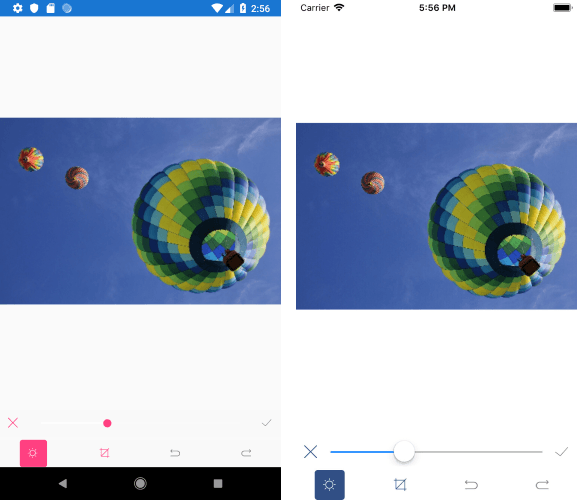
Creating a Web Editor Using Kendo UI and Angular

$
0
0

Sponsored by the Kendo UI for Angular team

KUI_Angular_670x150

Want to learn more about creating great Angular web apps? It all starts out with Kendo UI for Angular - a complete UI component library that allows you to quickly build high-quality, responsive apps. It includes everything you need, from grids and charts to dropdowns and gauges.

We on the Kendo UI for Angular team are committed to bringing you the latest tips and tricks in the world of Angular development. We hope you enjoy the post!


In this tutorial, you’ll see how easy it is to get started using Kendo UI components for Angular, and how to create a rich editor using the Editor component from Kendo UI.

Angular is a JavaScript framework for creating web applications. It promotes best practices and provides tools to ease the development process for software developers. Angular uses declarative templates, dependency injection and Observables to power applications that can be run on several platforms.

We’ll be using Kendo UI’s Editor component to create a web rich editor application. With this application, users can directly convert text to markup.

To follow this tutorial, you need a basic understanding of Angular. Ensure that you have Node and npm installed before you get started.

If you have no prior knowledge of Angular, kindly follow the official tutorial here. You can return to the article when you’re done.

We’ll be building the application using the following tools:

Here’s a screenshot of the application we’ll be building:

s_A29EA86E25D6C99412A640860E523AD32667D2C0723B35FA4AD3EFF7DE67EDBA_1555312767160_Screenshot+2019-04-15+at+4.55.01+AM

Initializing Application and Installing Dependencies

To get started, we will use the CLI (Command Line Interface) provided by the Angular team to initialize our project.

First, install the CLI by running npm install -g @angular/cli. npm is a package manager used for installing packages. It will be available on your PC if you have Node installed; if not, download Node here. To create a new Angular project using the CLI, open a terminal and run:

ng new angular-editor --style=scss

This command is used to initialize a new Angular project; the project will be using SCSS as the pre-processor. Next, run the following command in the root folder of the project to install dependencies:

ng add @progress/kendo-angular-editor

Start the Angular development server by running ng serve in a terminal in the root folder of your project.

Header Component

The header component will display the application logo and very little information. This component is mostly a display component. Run the following command to create the header component:

ng generate component header

Next, open the src/app/header/header.component.html file and update it with the code below:

<!-- src/app/header/header.component.html --><header><divclass="brand"><imgsrc="/assets/document.svg"alt="avatar"><h5>Come Edit</h5></div></header>

Note: Image asset used can be found here in the GitHub repository. The logo is from https://flaticon.com.

Next, we’ll style the header. Open the header.component.scss file and update it with the snippet below:

header {display: flex;background-color: white;margin:0;padding:17px 5%;color: whitesmoke;box-shadow:02px 4px 0rgba(0, 0, 0, 0.1);background:#fbf3f259;.brand {flex:1;display: flex;align-items: center;img {height:35px;border-radius:50%;margin-right:17px;}h5 {font-size:18px;margin:0;font-weight: normal;letter-spacing:0.4px;color:#d8625e;opacity:0.7;text-transform: capitalize;}}}

Here, we’ve added a couple of styles to beautify the header. Next, we’ll render the header component in the app.component.html file, open the file and replace the contents with the snippet below:

<main><app-header></app-header></main>

Since we’ll be using external fonts, we’ll update the src/index.html file with a link tag alongside the src/styles.scss file.

<!-- index.html --><!doctype html><htmllang="en"><head><metacharset="utf-8"><title>AngularEditor</title><basehref="/"><metaname="viewport"content="width=device-width, initial-scale=1"><linkhref="https://fonts.googleapis.com/css?family=Rubik:400,500"rel="stylesheet"><linkrel="icon"type="image/x-icon"href="favicon.ico"></head><body><app-root></app-root></body></html>

Then we’ll select Rubik as our default font family. We’ll also negate the default padding and margin on the body and html elements. Open the styles.scss file and update it with the following content:

// styles.scssbody, html{margin:0;padding:0;font-family:'Rubik', sans-serif;background-color: whitesmoke;}

This is the current view of the page after rendering the header component:

s_A29EA86E25D6C99412A640860E523AD32667D2C0723B35FA4AD3EFF7DE67EDBA_1555332743041_Screenshot+2019-04-15+at+1.52.06+PM

Next, we’ll create the editor component to enable users to create rich textual content.

Editor Component

Kendo UI provides a component that is useful for creating content using a simple WYSIWYG interface. The component features a rich set of controls for generating markup language elements.

Since we’ve already installed the @progress/kendo-angular-editor package using the CLI, it’ll be available in the app.module.ts file.

We’ll create an editor component that will render the component from Kendo UI. To create the component, run the following command:

ng generate component editor

Open the editor.component.html file and copy the following content into the file:

<!-- src/app/editor/editor.component.html --><section><div><kendo-editor(valueChange)="valueChange($event)"></kendo-editor></div><div><textareaname="editorOutput"id=""cols="30"rows="10"[innerHTML]="value"></textarea></div></section>

The template will render the editor component from Kendo UI and a textarea element that shows the generated markup for the content created in the editor interface. We attached an event listener on the kendo-editor component, so whenever the content is updated, the innerHTML of the textarea component is updated too.

The editor component can take several controls alongside custom controls that can be rendered within the element. You can also use the component with forms by attaching the ngModel directive to the component.

Next, we’ll add some styles to the component. Open the editor.component.scss file and copy the styles into the file:

// src/app/editor/editor.component.scsssection {width:90%;margin:5% auto 0;display: flex;div:nth-child(1){width:57%;.k-editor {height:600px;}}div:nth-child(2){width:40%;margin-left:3%;textarea {height:100%;width:100%;border:2px solid rosybrown;border-radius:4px;font-size:14px;opacity:0.8;padding:10px 12px;}}}

Next, we’ll update the editor.component.ts file to declare the variables used in the template file. Open the file and update it to be similar to the snippet below:

import{ Component, OnInit }from'@angular/core';
@Component({
  selector:'app-editor',
  templateUrl:'./editor.component.html',
  styleUrls:['./editor.component.scss'],})exportclassEditorComponentimplementsOnInit{constructor(){}
  value ='';valueChange(e){this.value = e;}ngOnInit(){}}

Next, we’ll render the editor component in the main component file. Open the app.component.html file and render the editor component:

<main><app-header></app-header><app-editor></app-editor></main>

Now if you visit http://localhost:4200 you should see the editor displayed:

s_A29EA86E25D6C99412A640860E523AD32667D2C0723B35FA4AD3EFF7DE67EDBA_1555301364576_Screenshot+2019-04-15+at+4.55.01+AM

Conclusion

In this article, we saw how we could utilize one of Kendo UI’s collection of robust components to create a rich content WYSIWYG editor. Alongside this component, Kendo UI also provides components that can be easily integrated into any Angular application, like DatePickers, DropDown components, Chat interface, Dialogs, Grids and a load of other components. Visit their official documentation page to get started. You can find the source code for the demo here.


GraphQL: Schema, Resolvers, Type System, Schema Language, and Query Language

$
0
0

In this article, I cover some fundamental concepts of GraphQL and show how to build a server that responds to two query operations.

GraphQL has been gaining wide adoption as a way of building and consuming Web APIs. GraphQL is a specification that defines a type system, query language, and schema language for your Web API, and an execution algorithm for how a GraphQL service (or engine) should validate and execute queries against the GraphQL schema. It is upon this specification that the tools and libraries for building GraphQL applications are built.

In this post, I'll introduce you to some GraphQL concepts with a focus on GraphQL schema, resolver, and the query language. If you'd like to follow along, you need some basic understanding of JavaScript (especially arrow functions in ES6) and Node.js. Without further ado, let's get started setting up our development environment.

Creating the Project

We will be building a GraphQL server that will respond to requests to perform the different operation types in GraphQL. Open your terminal, navigate to the directory of your choice, and run the commands below:

mkdir graphql-intro && cd graphql-intro
npm init -y
npm install graphql-yoga

Those instructions were used to create a folder for the project, initialize a new Node.js project, and add the graphql-yoga dependency to the project. graphql-yoga is a library that helps you build GraphQL server applications easily by providing sensible defaults, and includes other GraphQL libraries such as subscriptions-transport-ws which is a WebSocket server for GraphQL subscriptions, apollo-server which is a web server framework, and graphql-playground which is an interactive GraphQL IDE that you can use to test your server.

With the dependencies installed, we will now go ahead and define our GraphQL schema.

The GraphQL Schema

The GraphQL schema is at the center of every GraphQL server. It defines the server's API, allowing clients to know which operations can be performed by the server. The schema is written using the GraphQL schema language (also called schema definition language, SDL). With it, you can define object types and fields to represent data that can be retrieved from the API as well as root types that define the group of operations that the API allows.

The root types are the query type, mutation type, and subscription type, which are the three types of operations you can run request from a GraphQL server. The query type is compulsory for any GraphQL schema, while the other two are optional. While we can define custom types in the schema, the GraphQL specification also defines a set of built-in scalar types. They are Int, Float, Boolean, String, and ID.

Let's go ahead and create a schema. Add a new file src/index.js with the following content:

const typeDefs = `
  type Book {
    id: Int!
    title: String!
    pages: Int
    chapters: Int
  }

  type Query {
    books: [Book!]
    book(id: Int!): Book
  }
`;

What we have above is the GraphQL schema. In it, we defined a Book type with four fields and a root Query type with two fields. The two fields in the root Query type defines what queries/operations the server can execute. The books field returns a list of Book type, and the book field will return a Book type based on the id passed as an argument to the book query.

Every field in a GraphQL type can have zero or more arguments. There's an exclamation mark that follows the scalar types assigned to some fields. This means that the field or argument is non-nullable.

Implementing Resolvers

Our API is able to run two query operations: one to retrieve an array of books and another to retrieve a book based on its id. The next step for us is to define how these queries get resolved so that the right fields are returned to the client.

The way to do this is by defining a resolver function for every field in the schema. Remember that I mentioned that GraphQL has an execution algorithm? The implementation of this execution algorithm is what transforms the query from the client into actual result, by moving through every field in the schema, and executing their “resolver” function to determine its result.

Add the code below to index.js:

const books = [{
  id: 1,
  title: "Fullstack tutorial for GraphQL",
  pages: 356
}, {
  id: 2,
  title: "Introductory tutorial to GraphQL",
  chapters: 10
}, {
  id: 3,
  title: "GraphQL Schema Design for the Enterprise",
  pages: 550,
  chapters: 25
}];

const resolvers = {
  Query: {
    books: function(root, args, context, info) {
      return books;
    },
    book: (root, args, context, info) => books.find(e => e.id === args.id)
  },
  Book: {
    id: parent => parent.id,
    title: parent => parent.title,
    pages: parent => parent.pages,
    chapters: parent => parent.chapters
  }
};

In the code you just added, we defined a variable to hold our data in memory. There'll be no database access in this post. The resolvers variable is an object that contains resolvers for our types. The fields in the properties are named after the types in our schema, and they're objects with the fields we defined for that type in the schema. The fields each define their resolver function, which will be executed by the GraphQL engine and it should resolve to the actual data for that field. You'll notice that the functions in the Query type have a declaration like this:

function (root, args, context, info) { // function implementation }

Note that I have used the arrow function syntax in ES6 to declare some resolver functions in the code.

Those are the four (4) arguments that every resolver function receives. They're described as:

  1. root: This argument is sometimes called parent. It contains the result of the previously executed resolver in the call chain. For example, if we call the book query, it'll start executing from the root field book in the Query root type. After that, it'll execute the resolvers in the Book type to get values for those fields. In the code above, I named the first argument for the resolvers of the fields in Book as parent. The value for the argument will be the Book object received from the parent resolver. This is why we're calling parent.title, for example, to return value for that field.
  2. args: These are the arguments provided to the field in the GraphQL query. Following our example, this will be the id argument for the book query book(id: Int!): Book.
  3. context: This is an object that every resolver can read from or write to. You can keep objects that give access to database or that contain information from the HTTP request headers here. Unlike the root and args parameters, their values vary based on what level in the execution chain the resolver is called from. The context object is the same across resolvers, and you can write contextual information to it as needed. We will use this argument in the next post, so stay tuned!
  4. info: Taking definition from here, it holds field-specific information relevant to the current query as well as the schema details. To learn more about it, you can read this excellent post on the subject.

Setting Up The Server

Having defined our schema and resolvers, we will go ahead and set up the GraphQL server. Still having index.js open, update it with the following code:

const { GraphQLServer } = require("graphql-yoga");
const typeDefs = ...// schema definition from previous section
const books = [
  // array of books object from previous section
];

const resolvers = { ... };

const server = new GraphQLServer({
  typeDefs,
  resolvers
});

server.start(() => console.log(`Server is running on http://localhost:4000`));

Here we imported GraphQLServer from the graphql-yoga library and used it to create a server object with our schema definition and resolvers. With this, our server is complete. It knows which API operation to process and how to process it. Let's go ahead and test the server.

GraphQL Query Language

Open the command line and run the command node src/index.js to start the server. You should see Server is running on http://localhost:4000 logged in the console. Open your browser to that URL. It will display a nice-looking interface. This is the GraphQL playground. It allows you to test the server operations. If you've built REST APIs, think of it as a Postman alternative for GraphQL.

Now let's ask the server to give us all the books it has. How do we do this? We do this using the GraphQL query language, another concept of GraphQL that makes it easy for different devices to query for data as they want, served from the same GraphQL API.

Go to the GraphQL playground and run the following query:

query {
  books {
    id
    title
    chapters
  }
}

You should get same result as follows

You'll notice that the query is structured similar to the schema language. The books field is one of the root fields defined in the query type. Then inside the curly braces we have the selection set on the books field. Since this field will return a list of Book type, we specify the fields of the Book type that we want to retrieve. We omitted the pages field, therefore it is not returned by the query.

We can test the book(id) query and see what it gives us.

In this query we set the id argument to a value of 3, and it returned exactly what we need. You'll notice I have two queries, books and book(id: 3). This is a valid query. The GraphQL engine knows how to handle it.

What's Next?

So far I've covered some basics of GraphQL. We looked at defining a schema using the schema definition language, writing resolver functions, and querying the GraphQL API. I explained the four parameters that every resolver function receives, and we used one of the parameters to resolve fields for the Book type. We created our server using graphql-yoga and used GraphQL playground to test our API. I explained that in GraphQL we have three operation types.

In this post, we worked with the query operation, and in the next post, we'll look at mutations and accessing a database to store and retrieve data. We will update our schema so we can query for related data, e.g Authors with their books, or books from a particular publisher. So stay tuned!

Here's a link to the GitHub project if you did not follow along writing the code yourself.

An Expense App with React and TypeScript

$
0
0

Types are now one of the most talked about topics in every developer community right now. People are starting to like to type their code and adapt it as a priority in their projects. By typing our code, we get our code safer, more concise, and free from some basic and dumb errors that we might face in development.

After creating an app in React with TypeScript, you'll find TypeScript so enjoyable, you'll not want to start another project without it. We can set up a modern app using React and TypeScript pretty easily - we can use create-react-app and add TypeScript to it. So, let's get started with our expense app.

Getting Started

To start our expense app, we're going to use create-react-app and add a --typescript in the end. So in your terminal, run the following command:

create-react-app expenses-app --typescript

Now that we have our project, we're going to install some dependencies that we're going to need. We'll use formik and yup for our form validation, and dinero.js to format our values. To get yup and dinero.js working with TypeScript, we need to add the TypeScript definitions for each dependency. So in your terminal, run the following command:

yarn add formik yup @types/yup dinero.js @types/dinero.js

Now that we have that all set up, we're going to create the components for our app. So, let's create our folder structure.

Helpers

First, we're going to set up the folders structure of our project. We're going to have the following structure:

expenses-app
|
|- build
|- node_modules
|- public
| |- favicon.ico
| |- index.html
| |- manifest.json
|- src
| |- components
| |- Add
| |- Budget
| |- Expenses
| |- helpers
| |- types
| |- hooks
|- .gitignore
|- package.json
|- tsconfig.json
|- README.md

This is going to be our folder structure. Inside our types folder, we're going to create an index.ts file. And inside that file we'll create an interface for each Expense that we're going to need:

export interface Expense {
  type: string;
  value: number;
  description: string;
}

So now, we have an interface for each Expense that we're going to create later. Each Expense can have the properties, type, value and description.

Inside the hooks folder, create a custom hook called useBudget. Also create a file, useBudget.ts where we'll import the useState hook from React, and our Expense interface:

import { useState } from 'react';
import { Expense } from '../types/index';

Next, let's create a custom hook called useBudget:

const useBudget = () => {
  const [expenses, setExpenses] = useState([]);
  // ...
};

Our expense app is going to be pretty similar to a todo: we're going to have a function to add an expense, and a function to delete an expense. Simple as that. Let's create a function called addExpense() to add an expense:

const addExpense = (expense: Expense) => {
  const newExpenses = [...expenses, { expense }];
  setExpenses(newExpenses);
  console.log(newExpenses);
};

Pretty similar to this function, we're going to create a function to delete an expense, called deleteExpense():

const deleteExpense = (index: number) => {
  const newExpenses = [...expenses];
  newExpenses.splice(index, 1);
  setExpenses(newExpenses);
};

Our final useBudget custom hook should look like this:

const useBudget = () => {
  const [expenses, setExpenses] = useState([]);
  const addExpense = (expense: Expense) => {
    const newExpenses = [...expenses, { expense }];
    setExpenses(newExpenses);
    console.log(newExpenses);
  };
  const deleteExpense = (index: number) => {
    const newExpenses = [...expenses];
    newExpenses.splice(index, 1);
    setExpenses(newExpenses);
  };
  return { expenses, addExpense, deleteExpense };
};

Now that we have our custom hook created, we're going inside the helpers folder and creating two (2) files: formatExpense.ts and totals.ts. formatExpense.ts will contain a function to format values:

import Dinero from 'dinero.js';

const formatExpense = (amount: number) =>
  Dinero({ amount }).setLocale("en-US").toFormat();
export default formatExpense;

Pretty simple. We imported Dinero, and created a function called formatExpense. We passed an amount as an argument to that function, and formatted it to en-US.

Now, let's go to the totals.ts file, and inside that file we're going to have two functions: totalValue() and totalAmount(). The totalValue() function is going to return to us the total value of each value that we have, whether an income or an expense. So now, inside our file, let's import our formatExpense() function that we created earlier and create our totalValue() function:

import formatExpense from './formatExpense';

export const totalValue = (expenses: any, type: string) => {
  const amount = expenses
    .filter(({ expense }: any) => expense.type === type)
    .map(({ expense }) => expense.value)
    .reduce((previousValue, currentValue) => previousValue + currentValue, 0);

  const formattedAmount = formatExpense(amount);
  return formattedAmount;
};

In that function, we have two arguments: the expenses state that we're going to pass, and the type of value — either a + that means income or a - that means expense. After that, we're going to return the total value formatted using the formatExpense function that we created.

Now, let's create our other function called totalAmount, which is going to return to us the total amount that we have. It's going to be pretty similar to the last one, so let's create our function:

export const totalAmount = (expenses: any) => {
  const totalIncomes = expenses
    .filter(({ expense }: any) => expense.type === "+")
    .map(({ expense }) => expense.value)
    .reduce((previousValue, currentValue) => previousValue + currentValue, 0);
  const totalExpenses = expenses
    .filter(({ expense }: any) => expense.type === "-")
    .map(({ expense }) => expense.value)
    .reduce((previousValue, currentValue) => previousValue + currentValue, 0);
  const totalAmount = formatExpense(totalIncomes - totalExpenses);
  return totalAmount;
};

We're getting our total income value and our total expenses value and calculating them to be our total amount.

Now that we have all of our helper functions ready, let's start to create our React components.

Components

Now, we'll go to our main file, index.tsx inside our src folder, and put in the following code:

import React, { Fragment } from 'react';
import ReactDOM from 'react-dom';
import App from './components/App';
import * as serviceWorker from './serviceWorker';

ReactDOM.render(<App />, document.getElementById('root'));

Now that we have our index.tsx all set up, let's go to our components folder and create an App.tsx file for our main React component. Inside that App.tsx file, we're going to import our custom useBudget hook, and pass it as a prop to our other components:

import React from 'react';
import Budget from './Budget/Budget';
import Add from './Add/Add';
import Expenses from './Expenses/Expenses';
import useBudget from '../hooks/useBudget';

const App = () => {
  const { expenses, addExpense, deleteExpense } = useBudget();
  return (
    <div>
      <Budget expenses={expenses} />
      <Add expenses={expenses} addExpense={addExpense} />
      <Expenses expenses={expenses} deleteExpense={deleteExpense} />
    </div>
  );
};

export default App;

We're passing our expenses to the Add and Expenses component, and also our functions to add and delete an expense. So now, let's go to our Budget folder, and inside that folder create a file called Budget.tsx and put the following code:

import React from 'react';
import Value from './Value/Value';
import Available from './Available/Available';
import Amount from './Amount/Amount';
import { Expense } from '../../types/index';
import { totalValue, totalAmount } from '../../helpers/totals';

interface BudgetProps {
  expenses: Expense[];
}

const Budget: React.FC<BudgetProps> = ({ expenses }) => (
  <div>
    <header>
      <Available month="June 2019" />
      <Value value={totalAmount(expenses)} />
    </header>
    <Amount type={"Income"}
            amount={totalValue(expenses, "+")}
            backgroundColor="#0EAD69" />
    <Amount type={"Expenses"}
            amount={totalValue(expenses, "-")}
            backgroundColor="#DD1C1A" />
  </div>
);

export default Budget;

Inside our Budget component, we have three components: Available which is going to display the actual month, Value which is going to be the component that displays the total amount that we have, and an Amount component which is going to render a specific value for each type that we have, income or expense.

So now, inside the Budget folder, let's create a folder for each component: Available, Value, and Amount. Inside the Value folder, create a file called Value.tsx, and put the following code:

import React from 'react';

interface ValueProps {
  value: number;
}

const Value: React.FC<ValueProps> = ({ value }) => (
  <h1>{value}</h1>
);

export default Value;

Now, inside our Available folder, let's create a file called Available.tsx and put the following code:

import React from 'react';

interface AvailableProps {
  month: string;
}

const Available: React.FC<AvailableProps> = ({ month }) => (
  <h1>Available budget in {month}:</h1>
);

export default Available;

Next, inside our Amount folder let's create a file called Amount.tsx and put the following code:

import React from 'react';
import AmountValue from './AmountValue/AmountValue';
import AmountType from './AmountType/AmountType';

interface AmountProps {
  amount: number;
  type: string;
}

const Amount: React.FC<AmountProps> = ({ amount, type }) => (
  <div>
    <AmountType amountType={type} />
    <AmountValue amountValue={amount} />
  </div>
);

export default Amount;

And inside our folder, we're going to create a folder called AmountValue, and a file inside that folder called AmountValue.tsx. Inside that file, we're going to put the following code:

import React from 'react';

interface AmountValueProps {
  amountValue: number;
}

const AmountValue: React.FC<AmountValueProps> = ({ amountValue }) => (
  <h1>{amountValue}</h1>
);

export default AmountValue;

Now, we're still in the Amount folder, and we're going to create the last folder: AmountType. Let's also create a file called AmountType.tsx with following code:

import React from 'react';

interface AmountTypeProps {
  amountType: string;
}

const AmountType: React.FC<AmountTypeProps> = ({ amountType }) => (
  <h1>{amountType}</h1>
);

export default AmountType;

With the Budget folder ready, create a file called Add.tsx in the Add folder. Inside that file, we're going to use formik and yup to validate our form, so let's import some things and create some interfaces to use in our form:

import React from 'react';
import * as Yup from 'yup';
import { withFormik, FormikProps } from 'formik';

interface FormValues {
  type: string;
  value: number;
  description: string;
}

interface OtherProps {
  expenses: any;
  addExpense: (expense: Expense) => any;
}

interface MyFormProps {
  expenses: any;
  addExpense: (expense: Expense) => any;
}

Then we're going to create a component called InnerForm:

const InnerForm = (props: OtherProps & FormikProps<FormValues>) => {
  const {
    values,
    errors,
    touched,
    handleChange,
    handleBlur,
    handleSubmit,
    isSubmitting
  } = props;

  return (
    <div>
      <form onSubmit={handleSubmit}>
        <select name="type"
                value={values.type}
                onChange={handleChange}
                onBlur={handleBlur}>
          <option value="" label="Select">Select</option>
          <option value="+" label="+">+</option>
          <option value="-" label="-">-</option>
        </select>
        <input width={100}
               maxWidth={120}
               placeholder="Value"
               type="number"
               name="value"
               onChange={handleChange}
               onBlur={handleBlur}
               value={values.value} />
        <input width={100}
               maxWidth={300}
               placeholder="Description"
               type="text"
               name="description"
               onChange={handleChange}
               onBlur={handleBlur}
               value={values.description} />
        <button width={100}
                type="submit"
                disabled={isSubmitting ||
                          !!(errors.type && touched.type) ||
                          !!(errors.value && touched.value) ||
                          !!(errors.description && touched.description)}>
          Add
        </button>
      </form>
    </div>
  );
};

In the same file, let's add the form validation using yup:

const Add = withFormik<MyFormProps, FormValues>({
  mapPropsToValues: () => ({
    type: "",
    value: 0,
    description: ""
  }),
  validationSchema: Yup.object().shape({
    type: Yup.string().required("Nome ' obrigat'rio"),
    value: Yup.number().required("Value obrigat'ria"),
    description: Yup.string().required("Description obrigat'ria")
  }),
  handleSubmit(
    { type, value, description }: FormValues,
    { props, setSubmitting }
  ) {
    setTimeout(() => {
      props.addExpense({ type, value, description });
      setSubmitting(false);
    }, 1000);
  }
})(InnerForm);

export default Add;

All right, we have our form all ready to go. So now we're going to create the last part of our app. Let's go to our Expenses folder, and inside that folder create a file called Expense.tsx and another two folders: Income and Expense. Inside our Expense.tsx file, let's put the following code:

import React from 'react';
import Income from './Income/Income';
import Expense from './Expense/Expense';

interface ExpensesProps {
  expenses: any;
  deleteExpense: (index: number) => any;
}

const Expenses: React.FC<ExpensesProps> = ({ expenses, deleteExpense }) => (
  <div>
    <Income expenses={expenses} deleteExpense={deleteExpense} />
    <Expense expenses={expenses} deleteExpense={deleteExpense} />
  </div>
);

export default Expenses;

In the Income folder, we're going to create a file called Income.tsx and a folder called IncomeItem. In Income.tsx, let's put the following code:

import React from 'react';
import IncomeItem from './IncomeItem/IncomeItem';

interface IncomeProps {
  expenses: any;
  deleteExpense: any;
}

const Income: React.FC<IncomeProps> = ({
  expenses,
  deleteExpense
}) => {
  const incomes = expenses.filter(({ expense }: any) => expense.type === "+");
  return (
    <div>
      <h1>Income</h1>
      <div>
        {incomes.map(({ expense }: any, index: number) => (
          <IncomeItem index={index}
                      key={index}
                      type={expense.type}
                      value={expense.value}
                      description={expense.description}
                      deleteExpense={deleteExpense} />
        ))}
      </div>
    </div>
  );
};

export default Income;

Now, inside the IncomeItem folder, let's create an IncomeItem.tsx file and put the following code:

import React from 'react';
import formatExpense from '../../../../helpers/formatExpense';

interface IncomeItemProps {
  index: number;
  type: string;
  value: number;
  description: string;
  deleteExpense: (index: number) => any;
}

const IncomeItem: React.FC<IncomeItemProps> = ({
  index,
  type,
  value,
  description,
  deleteExpense
}) => (
  <div onClick={() => deleteExpense(index)}>
    <h1>{description}</h1>
    <h3>{formatExpense(value)}</h3>
  </div>
);

export default IncomeItem;

Now, let's go to our Expense folder and create an Expense.tsx file:

import React from 'react';
import ExpenseItem from './ExpenseItem/ExpenseItem';

interface ExpenseProps {
  expenses: string;
  deleteExpense: (index: number) => any;
}

const Expense: React.FC<ExpenseProps> = ({
  expenses,
  deleteExpense
}) => {
  const newExpenses = expenses.filter(({ expense }: any) => expense.type === "-");
  return (
    <div>
      <h1>Expense</h1>
      <div>
        {newExpenses.map(({ expense }: any, index: number) => (
          <ExpenseItem index={index}
                       key={index}
                       type={expense.type}
                       value={expense.value}
                       description={expense.description}
                       deleteExpense={deleteExpense} />
        ))}
      </div>
    </div>
  );
};

export default Expense;

Finally, the last component of our app! Let's create a folder called ExpenseItem and inside that folder create a file called ExpenseItem.tsx and put the following code:

import React from 'react';
import formatExpense from '../../../../helpers/formatExpense';

interface ExpenseItemProps {
  index: number;
  type: string;
  value: number;
  description: string;
  deleteExpense: (index: number) => any;
}

const ExpenseItem: React.FC<ExpenseItemProps> = ({
  index,
  type,
  value,
  description,
  deleteExpense
}) => (
  <div onClick={() => deleteExpense(index)}>
    <h1>{description}</h1>
    <h3>{formatExpense(value)}</h3>
  </div>
);

export default ExpenseItem;

Building Apps with KendoReact

Now that we have our application working fine, if you want to build a great and beautiful interface for it, you can check out KendoReact. KendoReact is a complete UI component library for React, built with high-quality and responsive components.

It includes all the components that you need for everything from a simple basic app to complex apps, so with KendoReact you can focus on what matters in your app and stop trying to build complex UI components.

Conclusion

In this article, we created an expense app from the beginning with React and TypeScript, learned how we can integrate interfaces with React Components, and also used React Hooks to deal with our state management. This is a simple app just to show how powerful React with TypeScript can be.

Exporting Angular Page Content to PDF Using Kendo UI

$
0
0

Sponsored by the Kendo UI for Angular team

KUI_Angular_670x150

Want to learn more about creating great Angular web apps? It all starts out with Kendo UI for Angular - a complete UI component library that allows you to quickly build high-quality, responsive apps. It includes everything you need, from grids and charts to dropdowns and gauges.

We on the Kendo UI for Angular team are committed to bringing you the latest tips and tricks in the world of Angular development. We hope you enjoy the post!


In this tutorial, learn how to easily export pages with HTML content within your Angular application. This should be a complex task, but thanks to a Kendo UI component it is easy.

If you've found yourself looking for an easy solution to smoothly export the HTML content from your Angular application to a PDF, then this is the appropriate post for you. We may need to export HTML content to PDF for several reasons, ranging from sharing it with others without necessarily accessing the internet to saving it just for documentation purposes.

Building a solution for a component like this could be time-consuming if you are building all by yourself. In this post, I will show you how to easily achieve this by leveraging the PDF export component provided by Kendo UI.

We will build an Angular application with some dummy content and add a Kendo UI button to export the content directly to PDF as shown here:

s_81E46396DEFFD38445F7E8FA8EAADC7D2B1715FB305BCCD31D69688D8754CDF6_1552411575104_ezgif.com-video-to-gif+32

Install Angular CLI

Before creating an Angular application, you need to first install the Angular CLI if it doesn’t already exist on your machine. Open up a terminal and run the following command for that purpose:

npminstall -g @angular/cli

This will add the Angular CLI globally on your machine.

Creating Angular Application

You can now proceed to create a new app for the purpose of this post by running the command below to generate an application with the name kendo-angular-export-pdf:

ng new kendo-angular-export-pdf

Once the installation process is complete, change directory into the newly created project as shown below and start the application:

// change directory
cd kendo-angular-export-pdf
    
// start the application
ng serve

You may experience an error with the message below in your console:

ERROR in node_modules/rxjs/internal/types.d.ts(81,44): error TS1005: ';' expected.
node_modules/rxjs/internal/types.d.ts(81,74): error TS1005: ';' expected.
node_modules/rxjs/internal/types.d.ts(81,77): error TS1109: Expression expected.

This is a known issue on GitHub and it’s due to lack of compatibility between the current version of TypeScript on your machine and rxjs. The quick way to fix this is to delete the node_modules folder. Now, open the package.json file and within the dependencies object, edit the rxjs by removing ^ :

"dependencies":{..."rxjs":"6.0.0",// remove the `^`"zone.js":"^0.8.26"},

Save the file and run the npm install command again. Once the installation process is complete, you can now proceed to start the application with ng serve.

This will compile your application and start the development server. To view the default page of this Angular application, navigate to http://localhost:4200 from your favorite browser and you will see this:

s_DF2E6001AE266CB23B5234C20D691AF9A4FFB627861A5BB8A8C152F65CCBF98F_1551162429225_angular-home

Add PDF Export Component from Kendo UI

Next, we’ll need to add the PDF export component before we start using it in our application. To achieve that, we’ll use the ng add command to require and install the package as shown here:

ng add @progress/kendo-angular-pdf-export

This will import and add both PDFExportModule and BrowserAnimationsModule to the app.module.ts file:

// ./src/app/app/module.tsimport{ BrowserModule }from'@angular/platform-browser';import{ NgModule }from'@angular/core';import{ AppComponent }from'./app.component';import{ PDFExportModule }from'@progress/kendo-angular-pdf-export';import{ BrowserAnimationsModule }from'@angular/platform-browser/animations';
    
    
@NgModule({
  declarations:[
    AppComponent
  ],
  imports:[
    BrowserModule,
    PDFExportModule,
    BrowserAnimationsModule
  ],
  providers:[],
  bootstrap:[AppComponent]})exportclassAppModule{}

Use the Kendo PDF Export Component

After installing the PDF export package, you can now proceed to export content within our Angular application to PDF by placing it within the <kendo-pdf-export> component. Open ./src/app/app.component.html and replace its content with:

// ./src/app/app.component.html
    
<divclass="pageWrapper"><divclass="content"><kendo-pdf-export#pdf><divclass="size-a4"><p> Build Better JavaScript Apps Faster The ultimate collection of JavaScript UI components with libraries for jQuery,
          Angular, React, and Vue. Quickly build eye-catching and high-performance responsive web applications—regardless
          of your JavaScript framework choice.
        </p><p> Build Better JavaScript Apps Faster The ultimate collection of JavaScript UI components with libraries for jQuery,
          Angular, React, and Vue. Quickly build eye-catching and high-performance responsive web applications—regardless
          of your JavaScript framework choice.
        </p></div></kendo-pdf-export><div><buttonkendo-button(click)="pdf.saveAs('demo-content.pdf')">
        Export As PDF
      </button></div></div></div>

Here, we have added dummy content and wrapped it with the <kendo-pdf-export></kendo-pdf-export> component. Next we added a button and attached a click event to it. Once the button is clicked, we called the saveAs() method in order to save the generated file. The file will be saved as the name passed as an argument to the saveAs() method.

Finally, to give the page some default styling, add the following content to ./src/app/app.component.css file:

// ./src/app/app.component.css.pageWrapper{margin-top:50px;}button {padding:15px;}kendo-pdf-export {font-family:"DejaVu Sans", "Arial", sans-serif;font-size:16px;}.content{width:800px;margin:0 auto;line-height:20px;}

Now proceed to start the application again by running ng serve from the terminal within the application’s directory. Once the application is built and served on http://localhost:4200 you will see this:

export-home

The content displayed here is from our Angular application. To test the HTML content export functionality, click on the Kendo button with the text Export As PDF. Now open the downloaded PDF file:

s_81E46396DEFFD38445F7E8FA8EAADC7D2B1715FB305BCCD31D69688D8754CDF6_1552411333111_downloaded-pdf-kendo

Cool, right? This is the content of our page exported to PDF without much hassle. But with a close look at the PDF file, you will agree with me that something isn’t right. The content doesn’t look properly organized. We’ll change that by adding a little bit of margin in the next section.

Add Paper Size and Margin

The Kendo PDF export component API makes a provision for us to easily customize and specify the paper size of the PDF document. At the moment, it is set to the default auto which means that the paper size is determined by the content.

Let’s replace the content of ./src/app/app.component.html with:

// ./src/app/app.component.html
    
<divclass="pageWrapper"><divclass="content"><kendo-pdf-export#pdfpaperSize="A4"margin="2cm"><divclass="size-a4"><p> Build Better JavaScript Apps Faster The ultimate collection of JavaScript UI components with libraries for jQuery,
          Angular, React, and Vue. Quickly build eye-catching and high-performance responsive web applications—regardless
          of your JavaScript framework choice.
        </p><p> Build Better JavaScript Apps Faster The ultimate collection of JavaScript UI components with libraries for jQuery,
          Angular, React, and Vue. Quickly build eye-catching and high-performance responsive web applications—regardless
          of your JavaScript framework choice.
        </p></div></kendo-pdf-export><div><buttonkendo-button(click)="pdf.saveAs('demo-content.pdf')">
        Export As PDF
      </button></div></div></div>

We have added two data attributes to the <kendo-pdf-export>, which are:

  • paperSize: We set this to A4.
  • margin: We set this to 2cm.

Check the page again and click on the Export As PDF button. Now proceed to open your downloaded PDF file and you will notice that it looks much better as shown below:

s_81E46396DEFFD38445F7E8FA8EAADC7D2B1715FB305BCCD31D69688D8754CDF6_1552411387884_neat-export

Conclusion

The Kendo PDF export component as shown here is a solution for exporting and handling HTML content to PDF. This comes in handy whenever you need to quickly save a page as a PDF document from your Angular application.

We have barely scratched the surface here, because there is so much more functionality provided by the Kendo UI team when exporting HTML content to PDF. Feel free to explore the API by checking the link here for more details.

Hopefully you have learned a lot from this post. Check the source code here on GitHub.

Web Accessibility vs. Usability

$
0
0

Web accessibility and usability are closely related, but the terms are quite different. Learn the differences between them and how to optimize for each.

Web accessibility and usability are closely related, but the two terms are quite different. Although they’re commonly used interchangeably, it’s important to understand the differences between the two terms. In order to do so, we must establish the link between web accessibility and usability while outlining what makes each term unique. Let’s start off with looking at web accessibility and what it means.

What is Web Accessibility?

The World Wide Web Consortium (W3C) defines web accessibility as a way of ensuring people with disabilities are still able to understand, perceive, navigate, and interact with or contribute to the web. Essentially, web accessibility refers to the ability for people with any sort of disability, including auditory, visual, speech, cognitive, and neurological disabilities, to be able to access the web.

Web accessibility is also vital for those who don’t have disabilities. The concepts behind web accessibility are beneficial for those who:

  • Use mobile devices, smart TVs, smart watches, and other devices that have smaller screens.
  • Have temporary disabilities, such as a broken arm or ear infection resulting in loss of hearing.
  • Use a slow internet connection that results in lagging when it comes to specific types of media.
  • Have limitations based on situations, such as sitting in a noisy environment or bright sunlight.

This is where the Web Accessibility Initiative (WAI) comes into play. The World Wide Web Consortium created the WAI, which includes the Web Content Accessibility Guidelines (WCAG). It is a set of guidelines that should be followed to ensure web accessibility for all individuals.

Web Content Accessibility Guidelines

The Web Content Accessibility Guidelines are a set of recommendations to make web content of all types more accessible, especially for those who have disabilities of any type. Although the recommendations are designed with people with disabilities in mind, they are beneficial for all users. The Web Content Accessibility Guidelines are internationally recognized and widely adopted standards that should be considered during the development of all web content.

Similar to many sets of guidelines, the Web Content Accessibility Guidelines have evolved over the years. The first incarnation, the Web Content Accessibility Guidelines 1.0, was developed in 1999. At the time, the guidelines made a significant impact in terms of web accessibility—outlining 14 separate guidelines divided into three main priority levels, including:

  • Priority 1: the most basic, bare minimum level of web accessibility—web developers must satisfy or meet these requirements.
  • Priority 2: a more advanced level to address large barriers for users with disabilities—website developers must satisfy or meet these requirements.
  • Priority 3: a level that aims to significantly improve web accessibility—web developers need to meet these requirements.

In 2008, the Web Content Accessibility Guidelines 2.0 were published, consisting of 12 guidelines organized under four principles: robust, understandable, operable, and perceivable. Each of the four principles is related to one or more guidelines. If those guidelines are followed, they will lead to more accessible web content for all individuals, including those with disabilities. For example:

  • Principle 1 (perceivable): All user interface components or perceivable information must be presented to users in ways they’re able to perceive.
    • Guideline 1.1 text alternatives: Text alternatives must be provided for any non-text content, in order to ensure it’s able to be altered into forms, such as large print, symbols, etc.
  • Principle 2 (operable): All user interface components or operable navigation must be operable for all individuals.
    • Guideline 2.1 keyboard accessible: Functionality on any given website should be available via a keyboard for those who require it.
  • Principle 3 (understandable): Information and user interface operation must be understandable for all individuals.
    • Guideline 3.1 readable: Text content must be readable and understandable for all individuals.
  • Principle 4 (robust): All content must be robust enough so it is understandable for all users, and that includes assistive technologies.
    • Guideline 4.1 compatible: Compatibility should be maximized with current and future user agents in mind, including assistive technologies.

For a complete list of guidelines, see the W3C website here. Every individual guideline has specific criteria for success that can be tested to ensure the guideline is met. Web developers and other persons working on the website can use the criteria to ensure their design meets the specifications necessary. In addition, the WCAG 2.0 offers instructions on how to code for accessibility for each guideline and success criteria listed.

WCAG 2.0 introduced an important concept wherein it has three levels of conformance that must be considered, including:

  • Level A: Some or all of the web content is completely inaccessible to some segment of the population.
  • Level AA: Some or all of the content will be difficult for some segment of the population to use.
  • Level AAA: The content is as accessible as possible given the current state of web content and/or technology.

For an organization to claim compliance at any given level, all of the relevant requirements for that specific level and all lower levels must be met. For web developers, meeting the requirements should be quite simple from a technical standpoint. More often than not, web developers run into issues when they don’t understand how people with disabilities use the web.

The Benefits of Having an Accessible Website

Technology, and more specifically the internet, is an incredibly important resource that we rely on in our day-to-day lives. In fact, we use the internet for everything—from education to commerce to employment to recreation. There are so many opportunities available to us through the web. For those with disabilities, the web offers the ability to remain active in terms of participation in society.

People with disabilities use a wide range of assistive technologies to help them navigate the web. But if websites aren’t built properly, they’re not able to use those assistive technologies. Ultimately, if websites aren’t built properly, people with a disability aren’t able to benefit from the internet the same way those who don’t have a disability are able to benefit.

Aside from being inclusive to those with disabilities, there are many benefits of having an accessible website, including but not limited to:

  • Avoid legal complications: Depending on your business model, you may be bound by legal requirements relating to web accessibility. Although most entities aren’t deliberately discriminating against people with disabilities, it’s important to understand and implement the guidelines to ensure you’re avoiding legal action.
  • Rank higher on search engines: Most search engines will be able to crawl your website more easily if you’re incorporating various accessibility features, such as alt text for images. If you make sure your website is accessible for persons with disabilities, it’s likely also going to be accessible for search engines.
  • Improve your reputation in the marketplace: An accessible website shows a level of corporate social responsibility that is important for ensuring your reputation stays positive. Once your website is accessible, the word will get out, and you’ll have more positive public relations.
  • Boost usability for all visitors: Features that make your website accessible for users with disabilities also make your website easier to navigate for those without disabilities. Consider those who are older and experiencing fewer motor skills as a result of aging. An accessible website makes a world of difference for everyone.

There are many benefits when it comes to having an accessible website. First and foremost, you’re able to rest assured knowing you’re not sending a considerable portion of the population over to a competitor because they’re unable to access your information.

Accessibility Testing

There are various software programs and online services that can be used to ensure your website is accessible. Click here to view a list of tools wherein you’re able to filter to find the specific tool that matches your unique needs. Web developers who are developing or redesigning a website should evaluate accessibility early in the process, as well as throughout the process. This is to identify and resolve problems immediately.

Making Your Website Accessible

It all starts with being familiar with the WCAG 2.0 guidelines. Most of the basics are quite simple to implement, but make sure you give yourself extra time to work around common issues. If you’re a web developer at the beginning stages of a website, it’ll be much more efficient to incorporate accessibility as you go.

What is Usability?

Usability is similar to accessibility in terms of focus on the website and how it operates. When we speak about usability, we’re focusing on how easy user interfaces are to navigate and use for the end user. There are five quality components to focus on when you’re looking to ensure usability:

  • Efficiency: Does the website allow users to perform tasks quickly once they’ve learned the design?
  • Learnability: Does the website allow users to accomplish basic tasks the first time they’re using the design?
  • Memorability: Does the website ensure users are able to reestablish proficiency after not using the design for a period of time?
  • Errors: Does the website lead the user to make frequent errors, and, if so, how easily can the user recover from these errors?
  • Satisfaction: Does the website offer a pleasant, easy-to-use design that users enjoy?

Usability is an important factor to consider in any given website design or redesign. In fact, if a website is difficult to use, visitors won’t stay on the website long. That will minimize the chance of return, as well as impact search engine optimization as the bounce rate will be high.

Usability Guidelines

The U.S. Department of Health & Human Services released research-based web design and usability guidelines that are intended to provide best practices relating to various web design and digital communication issues. These web design and usability guidelines are separated into 18 chapters—each containing various sections. The 18 chapters are as follows:

  • Chapter 1: Design Process and Evaluation
  • Chapter 2: Optimizing the User Experience
  • Chapter 3: Accessibility
  • Chapter 4: Hardware and Software
  • Chapter 5: The Home Page
  • Chapter 6: Page Layout
  • Chapter 7: Navigation
  • Chapter 8: Scrolling and Paging
  • Chapter 9: Headings, Titles, and Labels
  • Chapter 10: Links
  • Chapter 11: Text Appearance
  • Chapter 12: Lists
  • Chapter 13: Screen-Based Controls (Widgets)
  • Chapter 14: Graphics, Images, and Multimedia
  • Chapter 15: Writing Web Content
  • Chapter 16: Content Organization
  • Chapter 17: Search
  • Chapter 18: Usability Testing

The guidelines found in the 18 chapters listed above are all created to help ensure proper usability for all individuals using any given website or application. Some of the guidelines include:

  • Provide content that is useful and engaging: All content provided on any website should be useful. Consider your audience and make sure content is suitable for them.
  • Take advantage of parallel design: Use multiple designers to propose solutions for design issues and use the best elements from each designer. Avoid relying on a single designer who may miss important factors.
  • Use background images as sparingly as possible: Be careful when using background images to ensure foreground text is still readable. If background images are unavoidable, use simple images and keep the resolution low.
  • Keep all links meaningful and easy to follow: Any links should be labeled in a way that’s understandable and easy to distinguish for all users. Users should be able to know where they’re being led when they see the link.
  • Avoid cluttered or confusing pages: All pages on any website should be clutter-free. Try to keep important content and/or links clearly available and minimize displays that are confusing.
  • Make all major options present on the homepage: The homepage of any website should offer all major options. Users should not have to navigate to the second or third level to find options that are unavailable on the homepage.

The research-based web design and usability guidelines are designed to help improve the usability of any given website. It’s vital to familiarize yourself with the complete list of guidelines, including all 18 chapters and their relevant sections, to ensure your website functions optimally.

The guidelines listed above will be a great start, but the key is testing your website throughout the design phases to ensure usability.

Usability Testing

Usability testing goes a long way towards ensuring your website is easy to use. You will want to perform usability testing with actual users or customers instead of web developers or project managers. This will remove any bias and keep testing professional and to the point. Naturally, the aim of usability testing is to ensure potential issues are found and fixed before the final launch date.

How to Improve Website Usability

After you’ve performed usability testing and fixed any major issues, there are quite a few minor things you can do to improve website usability. These tips can be used to make your website more user-friendly—ensuring consistency and simplicity for all users:

  • Reduce page loading times as much as possible. Start by optimizing images by reducing the file size before uploading them to your site. Next, optimize browser caching and CSS files to help the page load faster.
  • Improve consistency throughout all pages. Keep a similar layout with the same fonts and colors throughout the website. This will help users gain a better understanding of the website the first time they use it.
  • Use headings and subheadings in your content. This will help with SEO, but also make your content easier to read for those who are skimming through the page. This will also give customers the information they need right away.

The Difference Between Web Accessibility and Usability

When it comes to web accessibility vs. usability, it’s important to remember the key difference: web accessibility is focused on the actual ability to access information, whereas usability is focused on the end user’s experience.

In conclusion, both are important if you want a website that gets a healthy amount of traffic. 


Learn More about Accessibility

We have created a comprehensive whitepaper on accessibility for developers that covers everything from laws to coding to testing.

Download the whitepaper:Accessibility for Developers

Adding Accessibility to Your Apps

One easy way to make sure that you are creating accessible web apps is to start with components from the Kendo UI libraries. Our components are all WCAG complaint and give you great functionality from grids and charts to schedulers and pickers. Get a head start on your app's UI and a head start on accessibility compliance at the same time.

Learn more about: Kendo UI

Selecting One Date or More with the Telerik Calendar for Blazor

$
0
0

The Calendar component for Telerik UI for Blazor gives your users an intuitive way to select a single date, but it also supports the standard UI conventions for selecting multiple dates. Here’s how to handle all of those scenarios, including those times you want to exclude some dates.
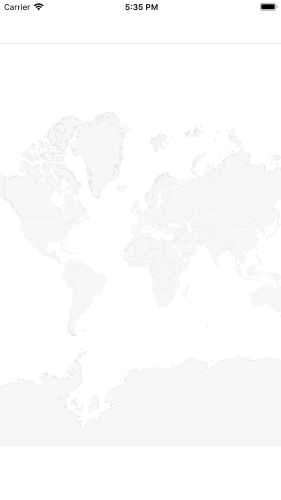
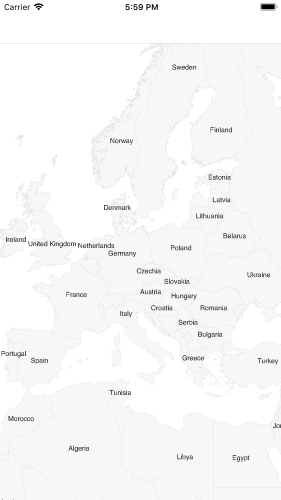
In a previous column, I showed how to add the Telerik UI for Blazor Calendar component to a page and support the user navigating from month-to-month. But I didn’t spend much time describing how to grab the date the user selects. That’s the point of this post: The options you have for letting the user select both a single date and multiple dates.

Version caveats: For this column, I’m using Telerik UI for Blazor 1.4.1, Visual Studio 2019 Preview (version 16.3), and ASP.NET Core v3.0.0-preview7. I had to install the NuGet package for Microsoft.CodeAnalysis (and update some related packages) before I could install the NuGet package containing Telerik UI for Blazor. I also had to upgrade to the latest version of the JavaScript file that supports its components:

<script src="https://kendo.cdn.telerik.com/blazor/1.4.1/telerik-blazor.min.js" defer></script>

Retrieving a Single Date

The Calendar component provides you with three ways to retrieve a single date. If you don’t need to work with the date immediately, the simplest solution is to simply bind the calendar’s value to a property or field in your application using the @bind-Value attribute. Binding the <TelerikCalendar> element to a field might look like this:

<TelerikCalendar @bind-Value="startDate"></TelerikCalendar>
@code {
  private DateTime startDate;
  // ...
}

With this solution, every time the user selects a date, the startDate field will automatically be updated with the user’s selected date.

While there’s nothing wrong with using a field, rewriting the code as a fully implemented property and putting some code in the property’s setter allows you to take some action when the user selects a date. Replacing this field with a fully-implemented startDate property lets me put the selected date somewhere safe (in the following code, I just store the value in a backing field).

Here’s the code that lets me hang onto the user’s last selected value no matter what happens in my component’s UI (notice that I don’t have to rewrite the @bind-Value attribute on the <TelerikCalendar> element to work with this code because the calendar doesn’t care if I’m binding to a field or a property):

private DateTime _startDate;
private DateTime startDate
{
  get { return _startDate; }
  set { _startDate = value; }
}

Another option for having some code to run as soon as the user selects a date is to bind a method of your own to the calendar’s ValueChanged() event. The method bound to the event will be passed a DateTime object representing the user’s selected date whenever the user clicks on a date.

Here’s the code that does that (and also just stashes the date in a field):

<TelerikCalendar ValueChanged="@getDate"></TelerikCalendar>
@code {
  private DateTime _startDate;
  private void getDate(DateTime startDate)
  {
    _startDate = startDate;
  }
}

These two options are mutually exclusive: You can’t use both @bind-Value and ValueChanged() on the same <TelerikCalendar> element.

Your third option is to bind the calendar as a whole to a field in your component. Then, in any method in your component, you just have check the calendar’s Value property to retrieve the user’s selected date. This code, for example, grabs the user’s date in a method bound to a button’s onclick() event:

<TelerikCalendar @ref="calendar"></TelerikCalendar>
<br />
<TelerikButton ButtonType="ButtonType.Button"
               @onclick="sendData">
  Update
</TelerikButton>
@code {
  TelerikCalendar calendar;
  public void sendData()
  {
    _startDate = calendar.Value;
    // perform other actions...
  }
}

This option can be combined with either @bind-Value or ValueChanged attributes.

Retrieving Multiple Dates

There are occasions when you will want to let the user select multiple dates. A typical scenario is when the user must specify a range of dates by specifying a start and end date. However, there are also scenarios where you want the user to select multiple, random dates ("Please indicate which dates there will be someone home to accept delivery").

The Calendar component supports both scenarios – you just turn on multiple date selection for the calendar by setting its SelectionMode attribute to CalendarSelectionMode.Multiple:

<TelerikCalendar SelectionMode="@CalendarSelectionMode.Multiple">
</TelerikCalendar>

There is a UI trick here, though: As with dropdown lists or listboxes, the user must press the Ctrl key (to select multiple dates) or the Shift key (to select a range of dates) when selecting a date.

If you use the calendar’s ValueChanged attribute to bind to a method, your method will be called each time the user selects a date and the method will be passed the date the user clicked. If you use the @bind-Value attribute, your property or field will also be set to the date the user clicked on each time the user selects a date. You could use these two options to validate dates as the user selects them.

When it comes to retrieving all the selected dates, however, the simplest solution is to add a reference to the calendar component and access all the selected dates using the SelectedDates property:

<TelerikCalendar @ref="calendar"
                 SelectionMode="@CalendarSelectionMode.Multiple">
</TelerikCalendar>
<br />
<TelerikButton ButtonType="ButtonType.Button" @onclick="sendData">
  Update
</TelerikButton>
@code {
  TelerikCalendar calendar;
  private void sendData()
  {
    foreach (DateTime dt in calendar.SelectedDates)
    {
      // work with each of the selected dates...
    }
  }
}

If the user has the Ctrl key pressed while selecting dates, the SelectedDates collection will hold all of the dates the user clicked on. If the user has the Shift key pressed while selecting dates, then the SelectedDates collection will hold all of the dates between the two selected dates.

Working with Disabled Dates and Date Ranges

Be aware, though: If you’re also using the DisabledDates property and the user uses the Shift key to select a range of dates, some special handling is required.

The DisabledDates property allows you to specify a collection of dates that the user is not allowed to select. Here’s a naïve implementation that adds the weekends in July 2019 to a collection:

private List<DateTime> weekends = new List<DateTime>() {
  new DateTime(2019, 7, 6),
  new DateTime(2019, 7, 7),
  /* other weekend dates */
};

The weekends collection could then be tied to a <TelerikCalendar> element using the DisabledDates attribute to prevent the user from clicking on weekend dates:

<TelerikCalendar @ref="calendar"
                 SelectionMode="@CalendarSelectionMode.Multiple"
                 DisabledDates="@weekends">
</TelerikCalendar>

However, when the user uses the Shift key to select a range of dates, they may never even try to click on any of the disabled dates – a user might, for example, click on the Friday before the weekend (July 5th) and the Monday following (July 8th). The calendar’s UI will do its bit, highlighting the full range (from the 5th to the 8th inclusive), while using a duller color for the disabled dates. The SelectedDates collection will, however, include all the dates in the range, including the disabled dates (i.e. July 5th, 6th, 7th, and 8th).

Fortunately, removing disabled dates is easy: Just apply the Except() method to the SelectedDates property, passing the collection of disabled dates (the weekends collection, in my case). The Except() method will return a new collection consisting of the dates from SelectedDates that don’t appear in the disabled dates collection. If you want, instead, to get a list of the disabled dates in SelectedDates– to notify the user about which dates in the range weren’t selected – you would use the Intersect() method instead of the Except() method (though, as I say, the UI does a pretty good job of flagging the disabled dates).

Revising my sendData() method to automatically remove any disabled dates gives me this:

public void sendData()
{
  var validDates = calendar.SelectedDates.Except(weekends);
  foreach (DateTime dt in validDates)
  {
    // ...
  }
}

You can now give your users the ability to select the date (or dates) they want while preventing them from selecting the date (or dates) you don’t want them to use.

To learn more about these Telerik UI for Blazor components and what they can do, check out this Blazor demo page or download a trial to start developing right away!

Viewing all 4357 articles
Browse latest View live


Latest Images

<script src="https://jsc.adskeeper.com/r/s/rssing.com.1596347.js" async> </script>