Quantcast
Channel: Telerik Blogs
Viewing all 4448 articles
Browse latest View live

Real-Time Geofencing and Location Monitoring Using Socket.io and Vue

$
0
0

In this tutorial, we'll create an application that monitors a user's location and sends updates in real time using Vue and Socket.io.

Geofencing can be defined as the use of GPS or RFID to trigger pre-programmed actions when a mobile device or tag enters or exits a virtual boundary set up around a geographical location. This virtual boundary can be defined as a geofence.

Vue is a frontend web development framework for developing a range of applications that can be served on multiple platforms. It has a huge ecosystem and a dedicated following. Alongside its simple integration, detailed documentation and flexibility, Vue lets you extend the template language with your own components and use a wide array of existing components.

To follow this tutorial, a basic understanding of Vue and Node.js is required. Please ensure that you have Node and npm installed before you begin.

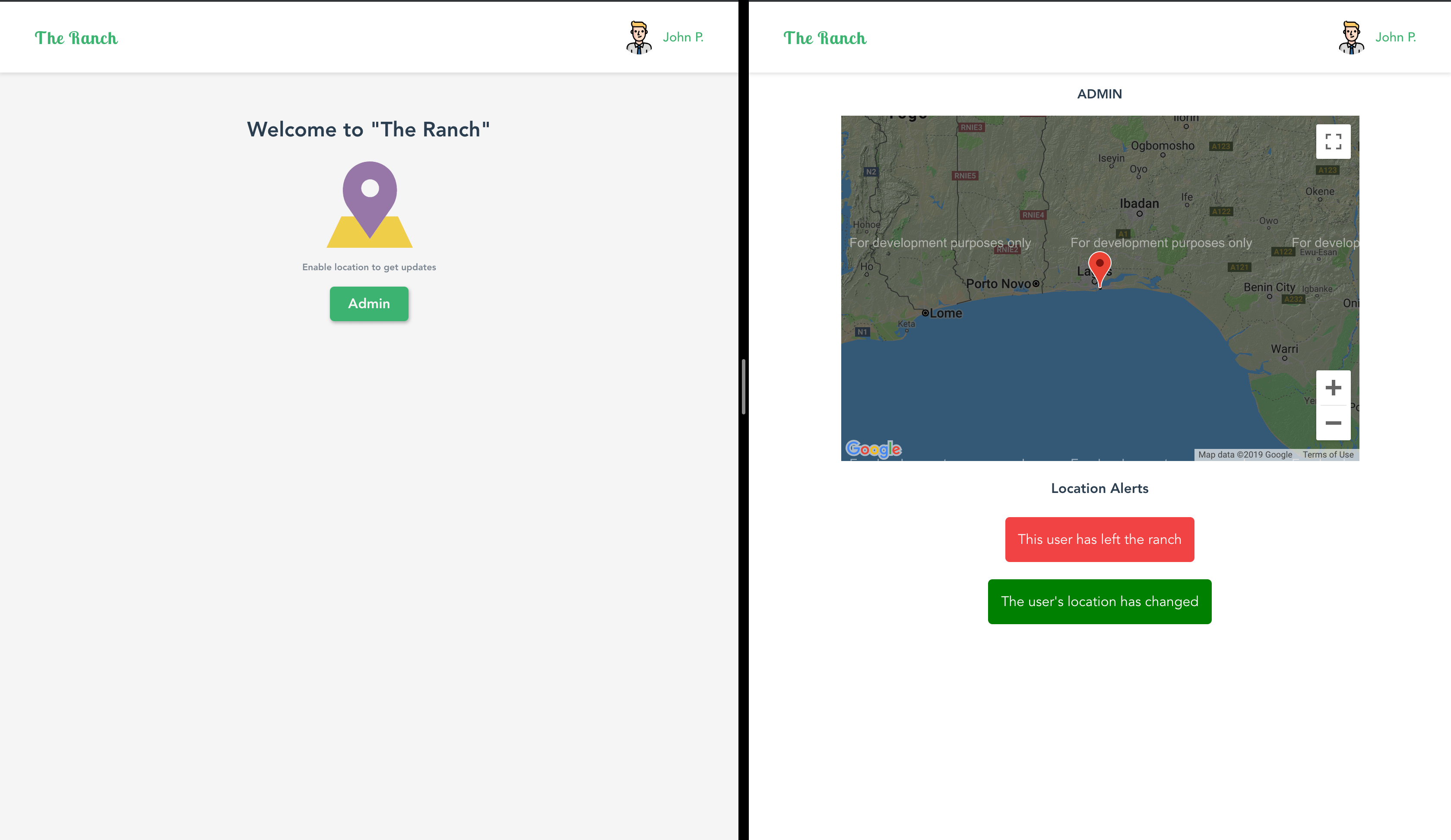
We’ll be creating an application that tracks the location of guests within an exclusive island. Our application notifies the admins when an active guest is exiting the boundaries of the ranch and also when their location is updated.

Here’s a screenshot of the final product:
Geofencing image 1

Initializing the Application and Installing Project Dependencies

To get started, we will use the vue-cli to bootstrap our application. First, we’ll install the CLI by running npm install -g @vue/cli in a terminal.

To create a Vue project using the CLI, we’ll run the following command:

    vue create vue-geofencing

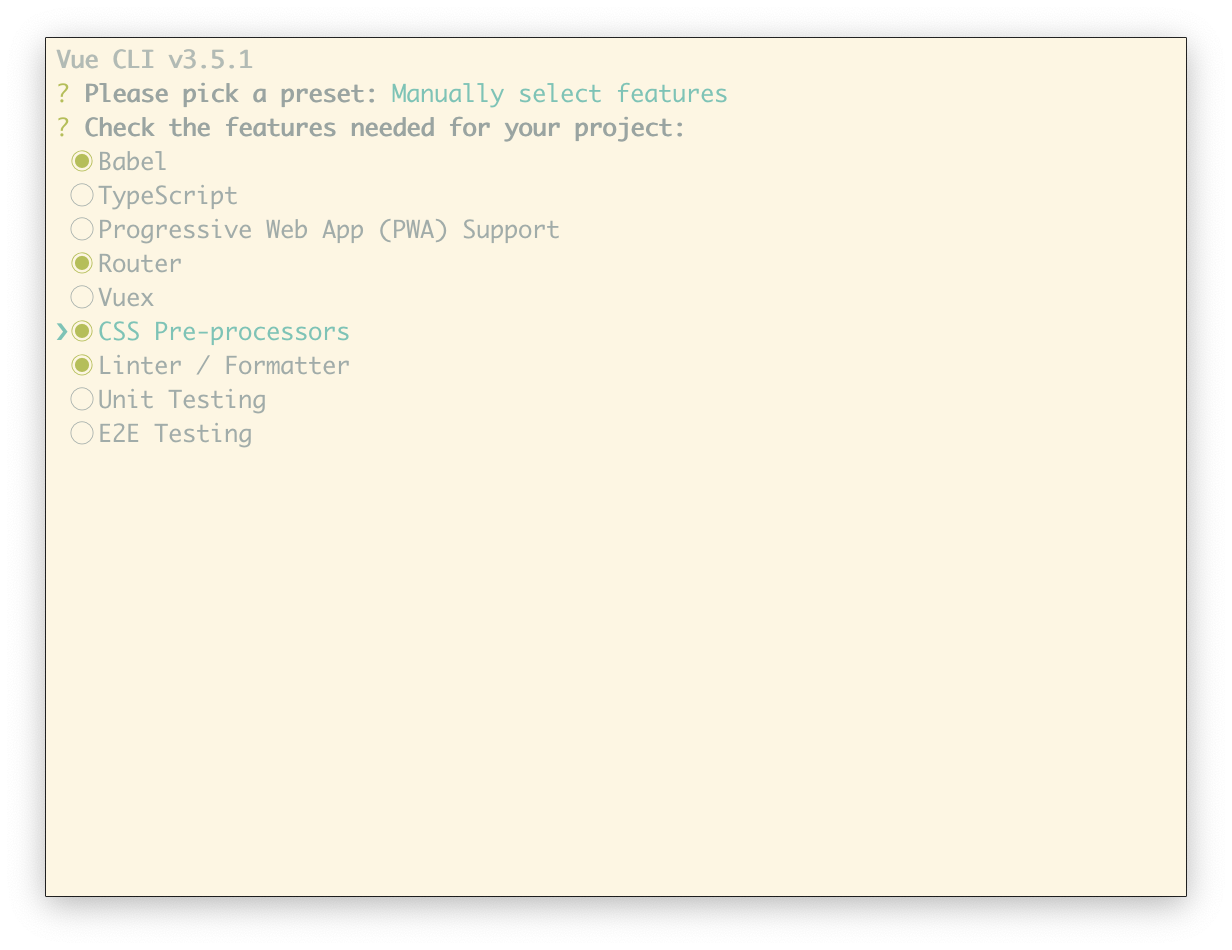
After running this command, rather than selecting the default configuration, we’ll opt for the manual setup. Within this setup, we’ll check the router and CSS pre-processor options. Follow the screenshot below:
Geofencing image 2

The rest of the prompts can be set up as they best suit you.

Next, run the following commands in the root folder of the project to install dependencies.

    // install dependencies required to build the server
    npminstall express socket.io
    
    // frontend dependencies
    npminstall vue-socket.io vue2-google-maps

Start the app dev server by running npm run serve in a terminal in the root folder of your project.

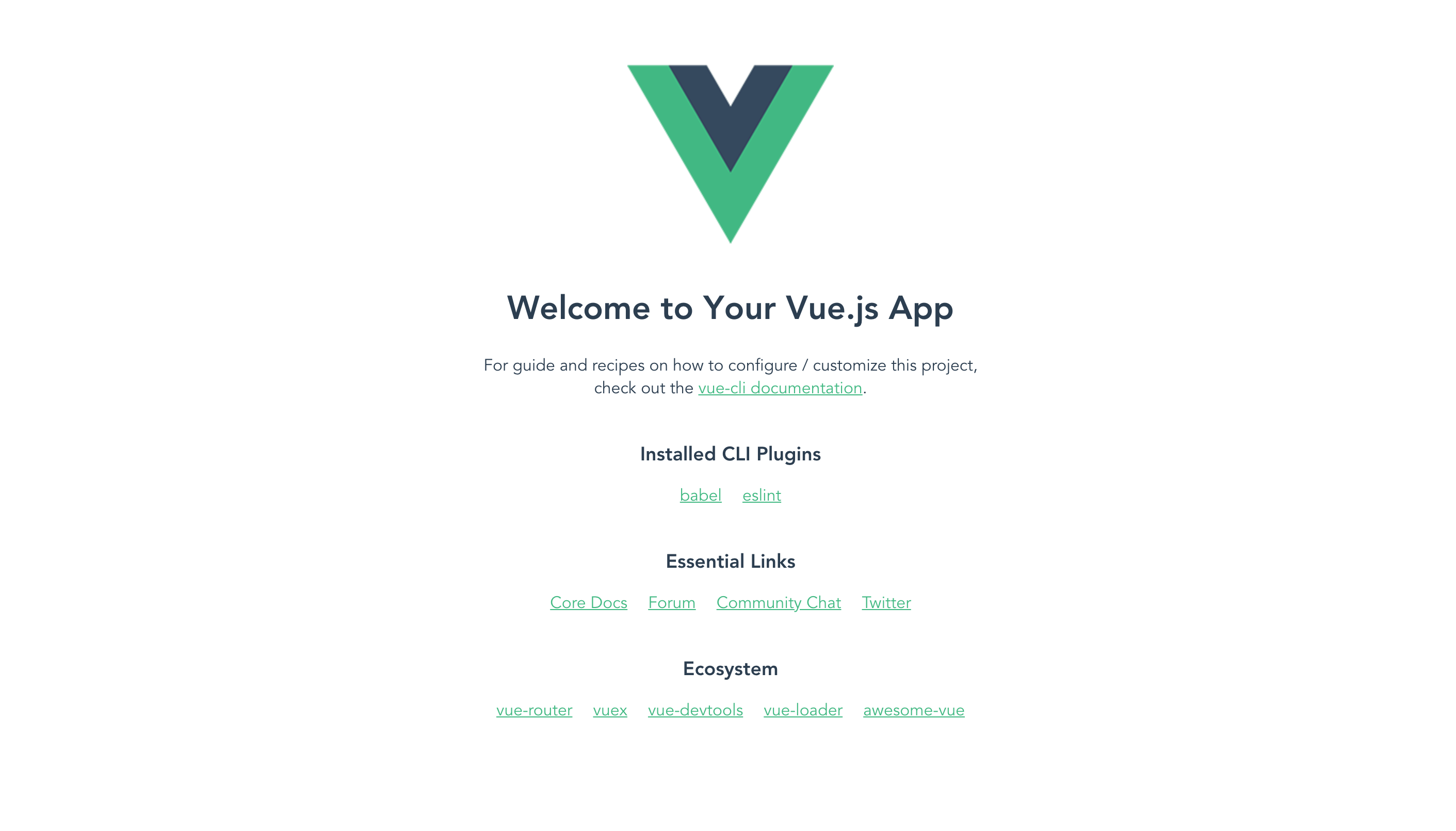
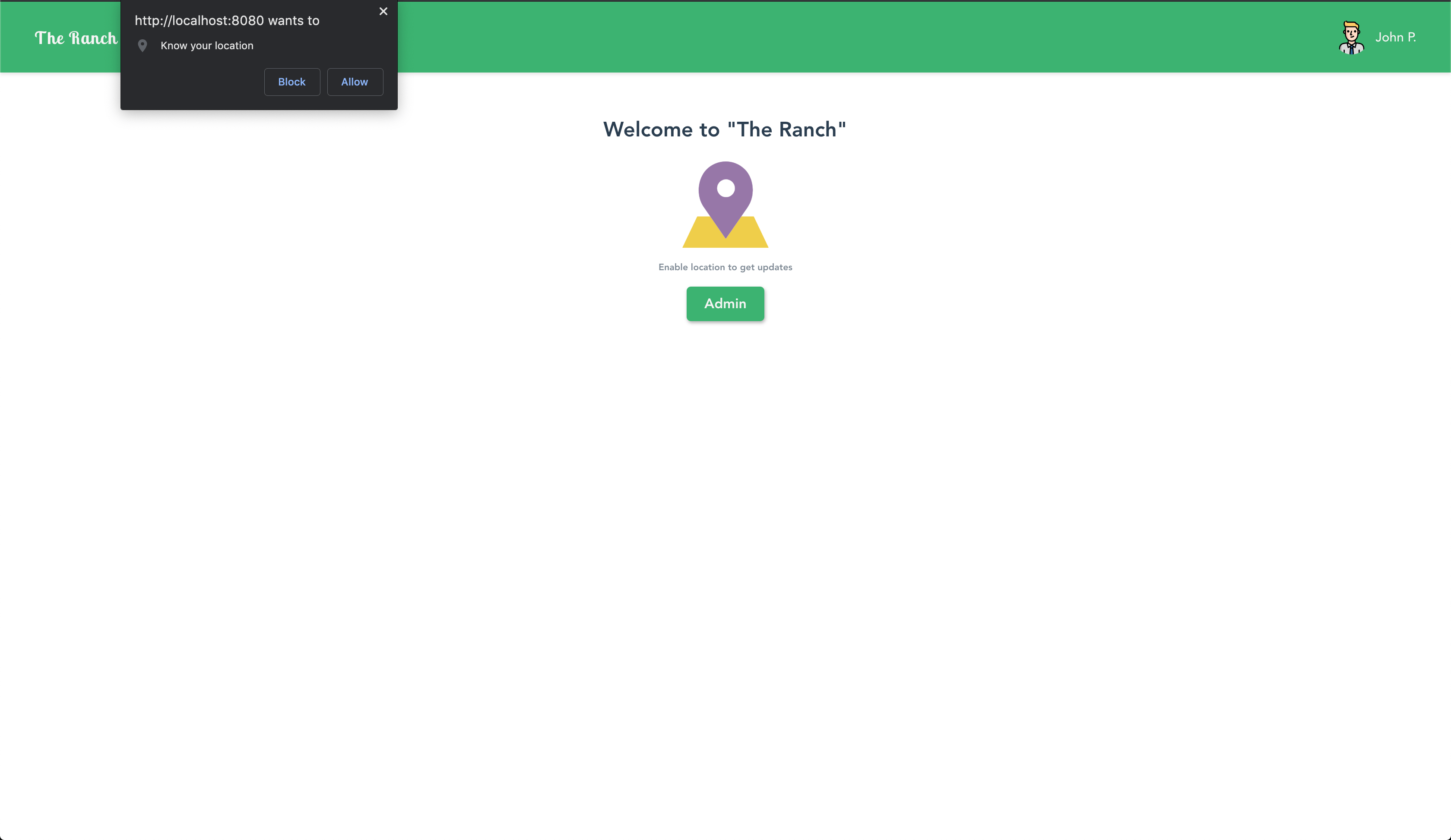
A browser tab should open on http://localhost:8080. The screenshot below should be similar to what you see in your browser:
Geofencing image 3

Building Our Server

We’ll build our server using Express. Express is a fast, unopinionated, minimalist web framework for Node.js.

Create a file called server.js in the root of the project and update it with the code snippet below:

// server.jsconst express =require('express');const app =express();const http =require('http').createServer(app);const io =require('socket.io')(http);const port = process.env.PORT ||4001;
    
    io.on('connection',async(socket)=>{
      socket.on('ping',(data)=>{
        socket.emit('newLocation', data);});});
    
    http.listen(port,()=>{
      console.log(`Server started on port ${port}`);});

The setup here is pretty standard for Express applications using Socket.io. There’s no problem if you have no prior knowledge of Socket.io, as we’ll only be making use of two methods: emit for dispatching events and io.on for listening for events. You can always go through the official tutorial here.

We’ll listen for a ping event after the socket has been connected successfully, this event will be triggered by the client application. On receipt of the event, we dispatch an event voted to the client.

Run the following command in a terminal within the root folder of your project to start the server:

    node server

Home View

Create a file Home.vue in the src/views directory. This file will house the home component. The views folder will only be generated if you opted for routing when setting up the application using the CLI. The home component will be the view users see when they visit. It will request for permission to get the user’s current location.

Open the Home.vue file and update it following the steps below. First, we’ll add the template area:

    // src/views/Home.vue
    
    <template><div><!-- header area --><divclass="content"><h2>Welcome to "The Ranch"</h2><imgsrc="../assets/placeholder.svg"alt><h6>Enable location to get updates</h6><router-linkto="/admin">Admin</router-link></div></div></template>

Note: All assets used in the article are available in the GitHub repo.

The view itself is static. There won’t be a lot happening in this particular view except the request to get the user’s current location. We set aside an area for the header component in the markup. The component was created because the same header will be reused in the admin page. We’ll create the component shortly.

Styling

Update the component with the styles below:

// home.component.scss<template>
      ...
    </template>
    
    <style lang="scss" scoped>
      .content {display: flex;flex-direction: column;align-items: center;padding:30px 0;img {height:100px;}h6 {margin:15px 0;opacity:0.6;}a {background: mediumseagreen;padding:12px 21px;border-radius:5px;border: none;box-shadow:1px 2px 4px 0rgba(0, 0, 0, 0.3);font-weight: bold;font-size:16px;color: whitesmoke;text-decoration: none;line-height:1;}</style>

Next, we’ll create the script section of the component, here we’ll define methods to get the user’s location and sending the location to the server.

// src/views/Home.vue<template>...</template><style lang="scss" scoped>...</style><script>exportdefault{
      name:"home",mounted(){if("geolocation"in navigator){
          navigator.geolocation.watchPosition(position =>{const location ={
              lat: position.coords.latitude,
              lng: position.coords.longitude
            };});}}};</script>

In the mounted lifecycle, we check if the current browser supports the geolocation API, within the if block we watch for location changes. Later in the article, we’ll send location changes to the server.

Header Component

The header component will display the application logo and the cart total. The component will display the number of items in the cart. The cart prop will be passed from the parent component.

Create a file Header.vue within the src/components folder. Open the file and follow the three-step process of creating the component below:

First, we’ll create the template section:

    // src/components/Header.vue
    <template><header><divclass="brand"><h5>The Ranch</h5></div><divclass="nav"><ul><li><imgsrc="../assets/boy.svg"alt="avatar"><span>John P.</span></li></ul></div></header></template>

NB: Image assets used can be found in the repository here.

Next, we’ll style the header within the style section. Update the file using the snippet below:

// src/components/Header.vue<template>
      ...
    </template>
    
    
    <style lang="scss" scoped>
    header {display: flex;background: mediumseagreen;margin:0;padding:5px 40px;color: whitesmoke;box-shadow:02px 4px 0rgba(0, 0, 0, 0.1);.brand {flex:1;display: flex;align-items: center;h5 {font-family:"Lobster Two", cursive;font-size:20px;margin:0;letter-spacing:1px;}}ul {list-style: none;padding-left:0;display: flex;li {display: flex;align-items: center;img {height:40px;border-radius:50%;}span {margin-left:8px;font-size:15px;font-weight:500;}}}}</style>

Finally, we’ll include the script section. Within the script section, we’ll create a cart property within the props array. This will allow the component to receive props from the parent component:

<template>...</template><style lang="scss" scoped>...</style><script>exportdefault{
      name:'Header',}</script>

Let’s render the Header component within the Home component. Open the src/views/Home.vue component file and update the template section:

<template><div><Header/><divclass="content">
          ...
        </div></div></template><stylelang="scss"scoped>...</style><script>// @ is an alias to /srcimport Header from"@/components/Header.vue";exportdefault{
      name:"home",...
      components:{
        Header
      },};</script>

Next, we’ll include the link to the external fonts we’ll be using in the project.

Open the public/index.html file and update it to include the link to the external fonts:

<!DOCTYPE html><htmllang="en"><head><metacharset="utf-8"><metahttp-equiv="X-UA-Compatible"content="IE=edge"><metaname="viewport"content="width=device-width,initial-scale=1.0"><linkrel="icon"href="<%= BASE_URL %>favicon.ico"><linkhref="https://fonts.googleapis.com/css?family=Lobster+Two:700"rel="stylesheet"><title>vue-geofencing</title></head><body><noscript><strong>We're sorry but vue-geofencing doesn't work properly without JavaScript enabled. Please enable it to continue.</strong></noscript><divid="app"></div><!-- built files will be auto injected --></body></html>

We’ll also update the App.vue component to negate the default margin on the HTML body and to remove the CLI generated template:

  //  src/App.vue
    
    <template><divid="app"><router-view/></div></template><stylelang="scss">#app{font-family:"Avenir", Helvetica, Arial, sans-serif;-webkit-font-smoothing: antialiased;-moz-osx-font-smoothing: grayscale;text-align: center;color:#2c3e50;}body {margin:0;}</style>

Admin Page

To monitor and track people using our application, we’ll need an admin page accessible to privileged employees. The page will use Google Maps to visualize the location of the user. A user’s location will be monitored and updated in real time using Socket.io.

We’ll be using the vue-google-maps library, which has a set of reusable components for using Google Maps in Vue applications.

To use the components in our project, we’ll need to update the src/main.js file to register the library’s plugin:

//src/main.jsimport Vue from'vue';import App from'./App.vue';import router from'./router';import*as VueGoogleMaps from'vue2-google-maps';
    
    Vue.use(VueGoogleMaps,{
      load:{
        key:'GOOGLE_MAPS_KEY',
        libraries:'geometry',// This is required when working with polygons},});
    
    Vue.config.productionTip =false;newVue({
      router,
      render:(h)=>h(App),}).$mount('#app');

Note: Be sure to replace the placeholder value with your Google API key.

Now we’ll create the Admin page by creating a file within the src/views folder. After creating the file, open it and update it by following the following steps.

First we’ll create the template section:

    // src/views/Admin.vue
    
    <template><section><Header/><divclass="main"><h3>Admin</h3><GmapMap:center="center":zoom="zoom"map-type-id="terrain" style="width:600px;height:400px"ref="mapRef"><GmapMarker:position="center":clickable="true":draggable="true"/><GmapPolygon:paths="polygon"/></GmapMap><h4>Location Alerts</h4><divclass="alert"v-if="showAlert"><p>This user has left the ranch</p></div><divclass="location alert"v-if="showLocationUpdate"><p>{{message}}</p></div></div></section></template>

In the snippet above, we’re using the components to render a map on the view, alongside a marker and polygon. Next, we’ll attach some styles to the component by adding a style section. Update the component by following the snippet below:

    // src/views/Admin.vue
    
    <template>
      ...
    </template><stylelang="scss"scoped>
    .main {
      display: flex;
      flex-direction: column;
      justify-content: center;
      align-items: center;
      margin: auto;
      h3 {
        font-size: 15px;
        font-weight: bold;
        text-transform: uppercase;
        margin-bottom: 15px;
      }
      .alert {
        background: #f14343;
        color: white;
        padding: 15px;
        border-radius: 5px;
        p{
          margin: 0;
        }
      }
      .location{
        background: green;
        margin-top: 20px;
      }
    }
    agm-map {
      height: 400px;
      width: 600px;
    }
    <style>

Finally, we’ll create the variables and methods used in the template within the script area. Update the file to create a script section:

    // src/views/Admin.vue
    <template>
      ...
    </template><stylelang="scss"scoped>...</style><script>
    import Header from "@/components/Header";
    import { gmapApi } from "vue2-google-maps";
    
    export default {
      name: "Admin",
      components: {
        Header
      },
      data() {
        return {
          message: "",
          theRanchPolygon: {},
          showAlert: false,
          showLocationUpdate: false,
          zoom: 16,
          center: {
            lat: 6.435838,
            lng: 3.451384
          },
          polygon: [
            { lat: 6.436914, lng: 3.451432 },
            { lat: 6.436019, lng: 3.450917 },
            { lat: 6.436584, lng: 3.450917 },
            { lat: 6.435006, lng: 3.450928 },
            { lat: 6.434953, lng: 3.451808 },
            { lat: 6.435251, lng: 3.451765 },
            { lat: 6.435262, lng: 3.451969 },
            { lat: 6.435518, lng: 3.451958 }
          ]
        };
      },
      computed: {
        google: gmapApi
      },
      mounted() {
        // Wait for the google maps to be loaded before using the "google" keyword
        this.$refs.mapRef.$mapPromise.then(map => {
          this.theRanchPolygon = new this.google.maps.Polygon({
            paths: this.polygon
          });
        });
      }
    };
    <script>

First, we import the gmapApi object from the vue-google-maps library. This object exposes and gives us access to the google object. Then we went on to create some variables:

  • polygon: this is an array of latLngs that represent the polygon around our ranch.
  • ranchPolygon: this variable will hold the polygon value generated by Google Maps.

In the mounted lifecycle, we do a few things:

  • We wait for the Google Maps script to load in the promise returned, and we create a polygon using the array of LatLng objects.

Now that both pages have been created, let’s update the router.js file to create a route for the Admin view. Open the router.js file and add the Admin component to the routes array:

// src/router.jsimport Vue from'vue'import Router from'vue-router'import Home from'./views/Home.vue'
    
    Vue.use(Router)exportdefaultnewRouter({
      mode:'history',
      base: process.env.BASE_URL,
      routes:[{
          path:'/',
          name:'home',
          component: Home
        },{
          path:'/admin',
          name:'admin',// route level code-splitting// this generates a separate chunk (about.[hash].js) for this route// which is lazy-loaded when the route is visited.
          component:()=>import(/* webpackChunkName: "about" */'./views/Admin.vue')}]})

Navigate to http://localhost:8080 to view the home page and http://localhost:8080/admin to view the admin page.
 Geofencing image 4

Introducing Socket.io

So far we have an application that tracks the current position of users using the Geolocation API. Now we have to set up Socket.io on the client to update the user’s position in real time. To solve the real-time problem, we’ll include the vue-socket.io library that allows us to communicate with the server in real-time.

Open the src/main.js file and register the Socket.io plugin:

// src/main.jsimport Vue from'vue';...import VSocket from'vue-socket.io';
    
    Vue.use(newVSocket({
        debug:true,
        connection:'http://localhost:4000',}));// ... rest of the configuration

This makes the library available to the whole application, which means we can listen for events and emit them. The connection property within the object is the URI of our server and we enabled debug mode for development.

Let’s update the Home view component to emit an event whenever the user’s location changes and also the Admin view to listen for events from the server.

Open the Home.vue file and update it like the snippet below:

    // src/views/Home.vue
    
    <template>
      ...
    </template><stylelang="scss"scoped>...</style><script>exportdefault{
      name:"home",
      components:{
        Header
      },mounted(){if("geolocation"in navigator){
          navigator.geolocation.watchPosition(position =>{const location ={
              lat: position.coords.latitude,
              lng: position.coords.longitude
            };this.$socket.emit("ping", location);});}}};</script>

Installing the vue-socket.io plugin adds a $socket object for emitting events. Within the watchPosition callback, we emit an event containing the selected current location of the user as the payload.

Next, update the Admin component to listen for location changes. Adding the plugin in our application provides a sockets object within the component. We’ll include the sockets object to the component, this object lets us set up listeners for events using the object keys. Open the Admin.vue file and add the sockets object to the component:

<template>
      ...
    </template><stylelang="scss"scoped>...</style><script>import Header from"@/components/Header";import{ gmapApi }from"vue2-google-maps";exportdefault{
      name:"Admin",
      components:{
        Header
      },data(){return{...}},
      sockets:{connect(){
          console.log('connected');},newLocation(position){this.center ={...position
          };const latLng =newthis.google.maps.LatLng(position);this.showLocationUpdate =true;this.message ="The user's location has changed";if(!this.google.maps.geometry.poly.containsLocation(
              latLng,this.theRanchPolygon
            )){this.showAlert =true;}else{this.message ="The user is currently in the ranch";}}},
      computed:{...},mounted(){...}};</script>

First, we added the sockets object to the component. Within the object we added two methods. The methods within the object are event listeners for dispatched events.

  • connect: this method listens for a successful connection to the server.
  • newLocation: this method is called when a ping event is triggered by the server. Within this method, we get the location payload position which contains the current position of the user.

Using the payload:

  • We created a LatLng using the position using the google maps object.
  • Finally, we checked if the position is outside the polygon and then we display an alert if it is.

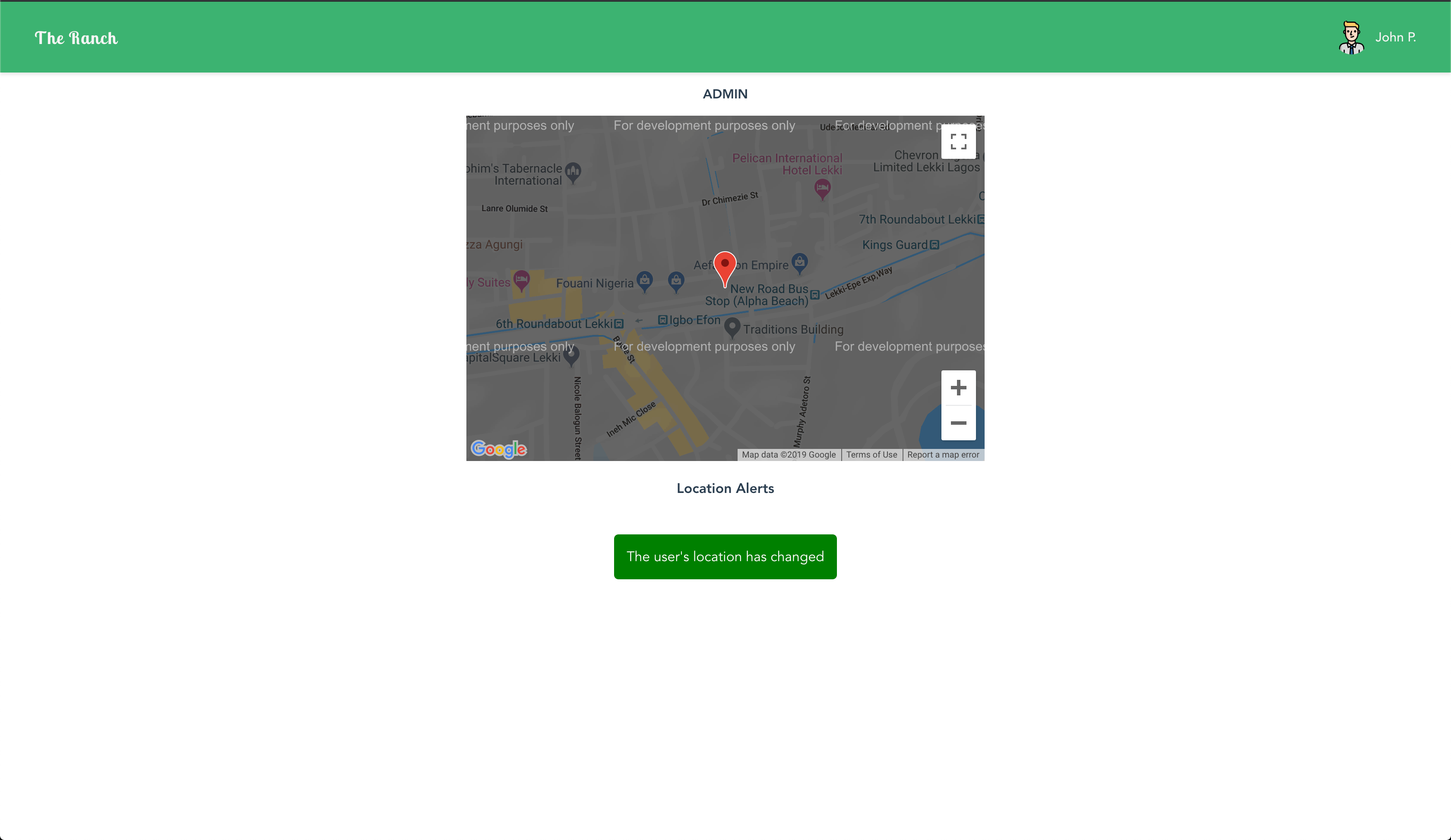
Now when a user changes position, an event is emitted with the user’s current location as the payload. The payload is received by the Admin view and a check is done against the polygon to see if the user is within the defined polygon.

Now when you navigate to http://localhost:8080/admin you should receive location updates from the user:
Geofencing image 5

To test the real-time functionality of the application, open two browsers side-by-side and engage the application. Location updates should be in real-time.

Conclusion

With the help of Vue, we’ve built out an application that tracks a user’s location, we received real-time location update using Socket.io and Google Maps to visualize the user’s location on the map. Using geofences, we’ll be able to tell when an active guest is leaving the virtual boundary we set up. You can check out the repository containing the demo on GitHub.


Telerik JustMock R3 2019 Service Pack is Live

$
0
0

Improvements for .NET Core and fixes for complex static mocking scenario are here in the latest update of Telerik JustMock.

We are excited to bring you the latest service pack release for Telerik JustMock. In this blog post I will elaborate on the important improvements and bug fixes we have introduced. 

System.InvalidCastException : Unable to cast object of type 'System.AppDomainSetup' is thrown after upgrading to .NET Core 3.0 

We have received reports that in some cases when a DoNothing or Throw methods are used, an InvalidCastException is thrown for cast to “System.AppDomainSetup” when the tests are executed for a .NET Core 3.0 project. This issue is now fixed. 

Mock.Reset is not executed for an arrangement made in a test setup method and when the corresponding test cleanup method is not defined

We have encountered a problem where a conditionally created mock created in a test setup method has leaked for other tests as well. Additional requirements for the bug to occur were the lack of defined corresponding test cleanup method and the project to target .NET Core. We have fixed the issue by improving the implicit generation of a test cleanup method when missing and calling Mock.Reset from the newly-generated method.

Mocking a static method not directly used in a test execution logic messes with the arrangements of the test

This is a bit of a complex scenario. To solve the problem, you would have to create a mock with loose behavior of specific class. Let’s call it Foo. Then you will need to create a future mocking of Foo with returning the already created foo mock. Then in a static class, let’s call it Bar, a static field must be initialized with value from a newly-created instance of Foo. Later in the test when an arrangement is made for some of the static methods of Bar, the behavior of the foo mock is not taken into account and this results in unwanted recursive loose behavior instead of just loose behavior. Like I said it’s a bit of a complex scenario. Fortunately, it's fixed now.

Try Telerik JustMock Out and Share Your Feedback

The R3 2019 Service Pack is already available for download in customers’ accounts. If you explore JustMock, you can learn more. It comes with a 30-day free trial, giving you some time to test its capabilities.

We would love to hear what you think, so should you have any questions and/or comments, please share them in our Feedback Portal.

You can also check our Release History page for a complete list of the included improvements.


Creating Charts with the Telerik Chart Component for Blazor

$
0
0

It’s not just that the Telerik Chart component for Blazor makes it easy to create charts – it’s that the Chart component makes it easy for you to pick and choose the data that you want to display.

The Telerik UI for Blazor Chart component provides two ways to bind data. One method is appropriate when each point on the chart is represented by a single object that holds both the “data to be graphed” (the vertical/Y-axis) and the data’s category (the horizontal/X-axis labels). In this scenario, you just need to have one collection of objects that you pass to the Chart (the Telerik team calls this “Attach Series Items to Their Categories” binding).

And that’s great if the data you retrieve from your database is in the format that the user wanted for their graph. The reality is that, usually, the data won’t match your chart’s format. Fortunately, the Telerik Chart’s most flexible databinding option (“Independent Series”) gives you the ability to massage your incoming data into the data your chart needs.

In Independent Series binding, you pass two collections to the Chart: One collection of “data to be graphed” and another collection of “category labels.” With this binding style, you can massage your incoming data into the two collections to get the chart your user wants.

There are, initially, only two requirements for Independent Series binding: Each collection must have the same number of items, and the order of each collection must correspond (i.e. the first label in the categories collection must be for the first item in the “data to be graphed” collection).

Extracting Data

In my case, I’m retrieving a collection of Data Transfer Objects (DTOs) that don’t correspond to points on the chart – I have to manipulate my DTOs to extract the data I want. Specifically, I’m retrieving a collection of SalesDTO objects, with each SalesDTO object having several useful properties: CustomerId, Year, Month, QuantitySold, ValueSold, etc. Sadly, I only want to graph some of those DTOs, so I need to extract just the data and labels I want.

In a Blazor component, the code to retrieve the initial SalesDTOs for a single customer whose Id is passed to my component in as a parameter might be as simple as this:

[Parameter]
public int custId {get; set;}

@code {
   private IEnumerable<SalesDTO> graphSales;

   protected async override Task OnInitializedAsync(){
       graphSales = await SalesRepository.GetSalesByCustomerIdAsync(custId);
       await base.OnInitializedAsync();}

My first step in graphing this data is to create the two collections I need from this collection of SalesDTO objects: The sales numbers (the “data to be graphed,” the vertical or Y-axis data) and the categories for each of those sales numbers (the labels, the horizontal or X-axis data). For this chart, I’m just going to extract the QuantitySold for each month (the data for the Y-axis) and the names of months (the category labels for the X-axis). My first step is to declare two fields to hold the data to be graphed (a field I’ll call quantitiesSold) and the categories for the X-axis (I’ll call that field months).

To be able to work with the Telerik Chart, those fields have to look like this:

private IEnumerable<object> quantitiesSold;
private string[] months;

I say “have to” because there are some restrictions here, also. The data to be charted must be a collection of IEnumerable, and the collection of category names must be an array of either object or string (I’ve gone with string in my example).

While my GetSalesByCustomerIdAsync method has returned all the sales for the customer for every year, I only want to graph the sales for the current year. I also only want to show on the chart those months where the customer actually bought something. The code to fill my fields from my SalesDTO objects with just the data I want looks something like this (for now, this code also goes in my component’s OnInitializedAsync method):

quantitiesSold =(from s in graphSales
                                where s.Year =="2018"
                               orderby s.MonthOrder
                             select(object) s.QuantitySold);
months =(from s in graphSales
                   where s.Year =="2018"
                  orderby s.MonthOrder
                  select s.Month).Distinct().ToArray();

Displaying the Data

Having prepared the two required collections (data and labels), configuring the Chart to display the data is easy. First, I add the chart to my component using the TelerikChart element. The default width for a Chart is almost always too narrow, so in this example I’ve also set the width of the Chart to the full width of whatever container the Chart is inside of:

<TelerikChartWidth="100%"></TelerikChart>

The next step is to add the data to be graphed (my Y-axis). I do that with a ChartSeries element inside the ChartSeriesItems element. On a ChartSeries element, I must use the Data attribute to tie the series to my quantities Sold field of “data to be graphed.” In this example I’ve also used the Type attribute to specify what kind of chart I want (a line graph in this case). I don’t have to do specify the type, but, if I don’t, I’ll get a Columns-type chart (a bar chart with the bars rising vertically from the X-axis), which is not what I want. Here’s the ChartSeries element configured to show my quantitiesSold as a line graph:

<TelerikChartWidth="100%"><ChartSeriesItems><ChartSeriesType="ChartSeriesType.Line"Data="@quantitiesSold"></ChartSeriesItems>

My next step is to specify the data source for the categories for the X-axis (which are held in my months field). I do that with a ChartCategoryAxis element inside a ChartCategoryAxes element. I use the ChartCategoryAxis’s Categories attribute to tie the X-axis to my field containing the month names. Here’s that markup:

</ChartSeriesItems><ChartCategoryAxes><ChartCategoryAxisCategories="@months"></ChartCategoryAxis></ChartCategoryAxes></TelerikChart>

This gives the user the display in figure 1 below.

Chart-Fig1 (002)

And that’s the beauty of Independent Series binding: No matter what the format of your incoming data is, you can still give your users the graph they want.

Try it Today

To learn more about Telerik UI for Blazor components and what they can do, check out the Blazor demo page or download a trial to start developing right away.

Create Beautiful Schedules with Telerik Calendar & Scheduling for Xamarin

$
0
0

In recent releases we’ve been enhancing our Xamarin Calendar scheduling features, so you can take advantage of a fully-customizable and easy-to-use tool for creating and managing appointments.

We've been working to improve our Calendar in Telerik UI for Xamarin in recent releases, and the R3 2019 release continues this trend. The RadCalendar now comes packed up with a few long-awaited features I am sure you’ll be delighted with. These include Appointment Templates, special and restricted time slots support as well as scrolling the view capabilities. I am going to describe them in detail one by one.

Calendar customized appointments and slots

Customizable Time Slots

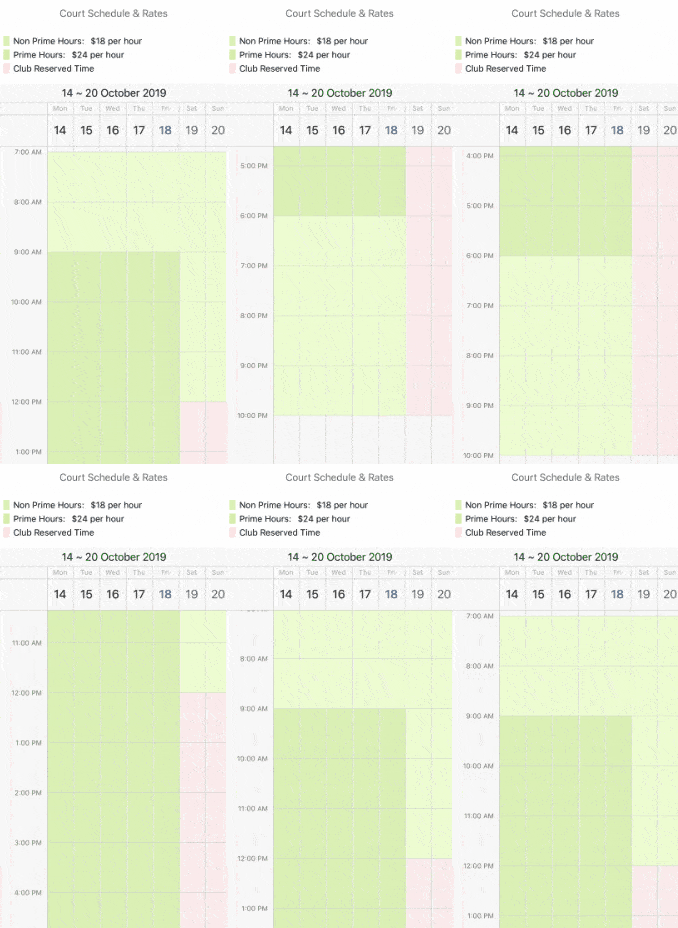
With R3 2019 the Xamarin Forms Calendar control allows you to define a collection of special time slots in order to make them noticeable across the timeline. You can modify the special slots’ appearance and template according to the design you have. In addition, some time slots can be marked as restricted, so that app users won't be able to create appointments on these slots. Let’s see the feature in action.

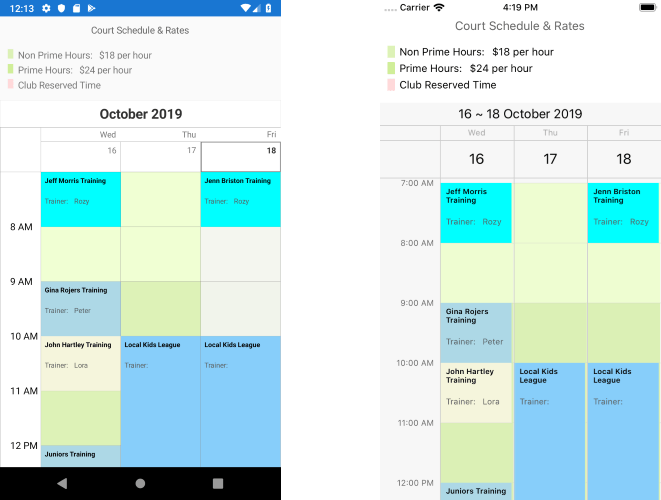
The example below is about a Tennis Court Schedule which displays the available and reserved time. Time slots will be styled differently according to the court rate during prime / non-prime hours. Additionally, I am going to include a restricted club reserved time when no appointments can be scheduled.

Let’s start with the first step - create a custom SpecialSlot class that will have an enum property defining whether it’s prime/non-prime or club reserved:

publicenumCourtTimeSlotType
{
    Prime, Nonprime, ClubReserved
}
 
publicclassCourtTimeSlot : SpecialSlot
{
    publicCourtTimeSlot(DateTime start, DateTime end): base(start, end)
    {
    }
    publicCourtTimeSlotType TimeSlotType { get; set; }
}

Then, create a SpecialSlotsStyleSelector class which returns different CalendarSpecialSlotStyle according to the Slot type:

publicclassPrimeHoursStyleSelector : SpecialSlotStyleSelector
{
    publicCalendarSpecialSlotStyle PrimeHoursStyle { get; set; }
    publicCalendarSpecialSlotStyle NonPrimeHoursStyle { get; set; }
    publicCalendarSpecialSlotStyle ClubReservedHoursStyle { get; set; }
 
    publicoverrideCalendarSpecialSlotStyle SelectStyle(objectitem)
    {
        var specialSlot = item asCourtTimeSlot;
         
        switch(specialSlot.TimeSlotType)
        {
            caseCourtTimeSlotType.ClubReserved: returnthis.ClubReservedHoursStyle;
            caseCourtTimeSlotType.Prime: returnthis.PrimeHoursStyle;
            default: returnthis.NonPrimeHoursStyle;
        }
    }
}

Define the PrimeHoursStyleSelector as a Resource in XAML:

<local:PrimeHoursStyleSelectorx:Key="PrimeHoursStyleSelector">
    <local:PrimeHoursStyleSelector.ClubReservedHoursStyle>
        <telerikInput:CalendarSpecialSlotStyleBackgroundColor="#66FFD8D9"/>
    </local:PrimeHoursStyleSelector.ClubReservedHoursStyle>
    <local:PrimeHoursStyleSelector.PrimeHoursStyle>
        <telerikInput:CalendarSpecialSlotStyleBackgroundColor="#B3E9FFC1"/>
    </local:PrimeHoursStyleSelector.PrimeHoursStyle>
    <local:PrimeHoursStyleSelector.NonPrimeHoursStyle>
        <telerikInput:CalendarSpecialSlotStyleBackgroundColor="#B3CFED98"/>
    </local:PrimeHoursStyleSelector.NonPrimeHoursStyle>
</local:PrimeHoursStyleSelector>

Create a collection of CourtTimeSlot items that should be later bound to the SpecialSlotsSource property of the MultiDayView (or DayView):

publicObservableCollection<CourtTimeSlot> TimeSlotRates { get; set; }
 
privateObservableCollection<CourtTimeSlot> GetTimeSlotRates()
{
    var courtTimeSlots = newObservableCollection<CourtTimeSlot>();
     
    var startDate = newDateTime(2019, 10, 1);
    var recursUntilDate = newDateTime(2019, 12, 31);
     
    var weekRecurrence = newRecurrencePattern {             
        Frequency = RecurrenceFrequency.Weekly,
        DaysOfWeekMask = RecurrenceDays.WeekDays,
        RecursUntil = recursUntilDate
    };
    var weekEndRecurrence = newRecurrencePattern {
        Frequency = RecurrenceFrequency.Weekly,
        DaysOfWeekMask = RecurrenceDays.WeekendDays,
        RecursUntil = recursUntilDate
    };
 
    courtTimeSlots.Add(newCourtTimeSlot(startDate.AddHours(7), startDate.AddHours(9)){              
        TimeSlotType = CourtTimeSlotType.Prime,
        RecurrencePattern = weekRecurrence
    });
    courtTimeSlots.Add(newCourtTimeSlot(startDate.AddHours(18), startDate.AddHours(22)){
        TimeSlotType = CourtTimeSlotType.Prime,
        RecurrencePattern = weekRecurrence
    });
    courtTimeSlots.Add(newCourtTimeSlot(startDate.AddHours(9), startDate.AddHours(18)){
        TimeSlotType = CourtTimeSlotType.Nonprime,
        RecurrencePattern = weekRecurrence
    });
    courtTimeSlots.Add(newCourtTimeSlot(startDate.AddHours(7), startDate.AddHours(12)){
        TimeSlotType = CourtTimeSlotType.Prime,
        RecurrencePattern = weekEndRecurrence              
    });
    courtTimeSlots.Add(newCourtTimeSlot(startDate.AddHours(12), startDate.AddHours(22)){
        TimeSlotType = CourtTimeSlotType.ClubReserved,
        IsReadOnly = true,
        RecurrencePattern = weekEndRecurrence
    });
    returncourtTimeSlots;
}

Lastly, add the RadCalendar control to your page with SpecialSlotsSource and SpecialSlotsStyleSelector applied:

<telerikInput:RadCalendarx:Name="calendar"ViewMode="MultiDay">
    <telerikInput:RadCalendar.MultiDayViewSettings>
        <telerikInput:MultiDayViewSettingsVisibleDays="7" 
                            DayStartTime="7:00:00"
                            DayEndTime="22:00:00"                                  
                            SpecialSlotsSource="{Binding TimeSlotRates}"
                            SpecialSlotStyleSelector="{StaticResource PrimeHoursStyleSelector}"/>
    </telerikInput:RadCalendar.MultiDayViewSettings>
</telerikInput:RadCalendar>

Check out the short video below to see how RadCalendar with slots styling applied will look on an iOS simulator:

Telerik Xamarin Calendar Special Slots

Customizable Appointments

As we have configured the Xamarin Calendar timeline, now we are ready to add some appointments it. With the latest release of Telerik UI for Xamarin you have full control over the way your appointments are visualized across the timeline. The new Appointment Template feature allows you to add any text, image and styling to the Appointments shown in DayView / MultiDayView.

Let’s explore this feature with the already created Tennis Court Schedule example. Add a collection of Appointment objects to your ViewModel class:

publicObservableCollection<Appointment> Appointments { get; set; }
 
publicObservableCollection<Appointment> GetAppointments()
{
    var startDate = newDateTime(2019, 16, 1, 7, 0, 0);
 
    returnnewObservableCollection<Appointment>()
    {
        newAppointment()
        {
            StartDate = startDate,
            EndDate = startDate.AddHours(1),
            Title = "Jeff Morris Training",
            Detail = "Rozy",
            Color = Color.Aqua
        },
            newAppointment()
        {
            StartDate = startDate.AddDays(2),
            EndDate = startDate.AddDays(2).AddHours(1),
            Title = "Jenn Briston Training",
            Detail = "Rozy",
            Color = Color.Aqua
        },
        newAppointment()
        {
            StartDate = startDate.AddHours(2),
            EndDate = startDate.AddHours(3),
            Title = "Gina Rojers Training",
            Detail = "Peter",
            Color = Color.LightBlue
        }
    };
}

Next we'll add a DataTemplate to the Page Resources. Here is a sample one (together with some styles):

<Stylex:Key="TitleLabel"TargetType="Label">
    <SetterProperty="TextColor"Value="Black"/>
    <SetterProperty="FontAttributes"Value="Bold"/>
    <SetterProperty="FontSize"Value="10"/>
    <SetterProperty="VerticalTextAlignment"Value="Center"/>
    <SetterProperty="VerticalOptions"Value="Start"/>
</Style>
<Stylex:Key="DetailLabel"TargetType="Label">
    <SetterProperty="TextColor"Value="#5B5D5F"/>
    <SetterProperty="FontSize"Value="Micro"/>
    <SetterProperty="HeightRequest"Value="25"/>
    <SetterProperty="LineBreakMode"Value="WordWrap"/>
    <SetterProperty="HorizontalOptions"Value="Start"/>
    <SetterProperty="LineBreakMode"Value="TailTruncation"/>
</Style>
<DataTemplatex:Key="CustomAppointmentTemplate">      
    <StackLayoutPadding="5"BackgroundColor="{Binding Color}">
        <LabelText="{Binding Title}"Style="{StaticResource TitleLabel}"/>
        <StackLayoutOrientation="Horizontal"Margin="0,10, 0, 0">
            <LabelText="Trainer: "Style="{StaticResource DetailLabel}"/>
            <LabelText="{Binding Detail}"Style="{StaticResource DetailLabel}"/>
        </StackLayout>
    </StackLayout>
</DataTemplate>

The last step is to apply the template to AppointmentContentTemplate property of the DayView / MultiDayView:

<telerikInput:RadCalendarx:Name="calendar"ViewMode="MultiDay"AppointmentsSource="{Binding Appointments}">
    <telerikInput:RadCalendar.MultiDayViewSettings>
        <telerikInput:MultiDayViewSettingsVisibleDays="3" 
                      DayStartTime="7:00:00"
                      DayEndTime="22:00:00"                                  
                      SpecialSlotsSource="{Binding TimeSlotRates}"
                      SpecialSlotStyleSelector="{StaticResource PrimeHoursStyleSelector}"
                      AppointmentContentTemplate="{StaticResource CustomAppointmentTemplate}"/>
    </telerikInput:RadCalendar.MultiDayViewSettings>
</telerikInput:RadCalendar>

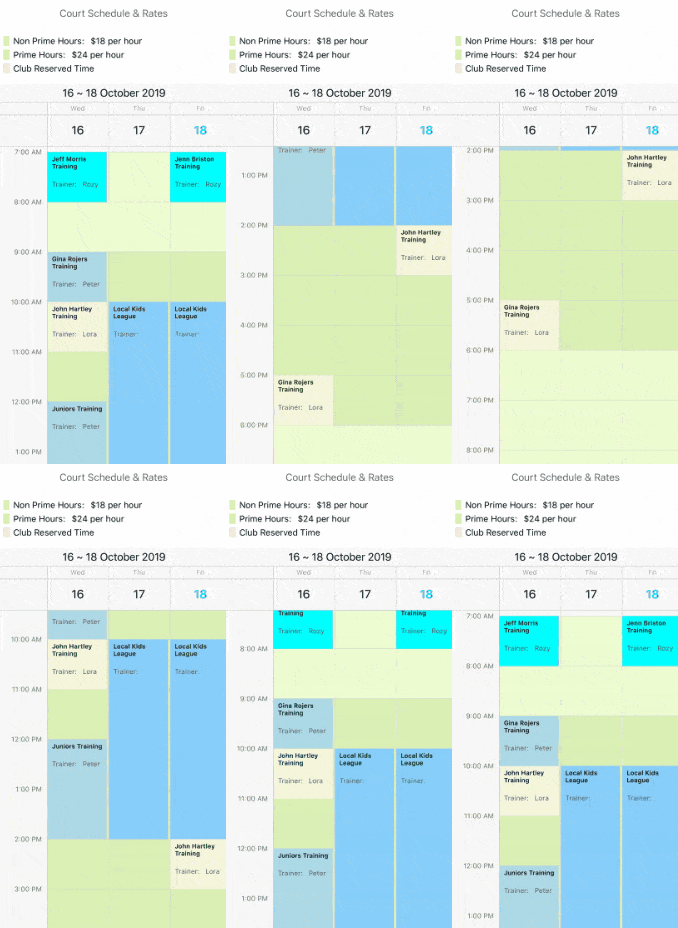
Here is the result after the latest additions:

Telerik Xamarin Calendar Appointments

Scrolling API

Another useful feature of RadCalendar we introduced with R3 2019 release is the ScrollTimeIntoView method. It comes in handy when you need to scroll directly to the time you want your users to focus on, rather than displaying the DayView/MultiDayView from the beginning.

As an example, let's scroll the timeline directly to the afternoon hours to check the availability there:

calendar.ScrollTimeIntoView(TimeSpan.FromHours(14));

Try it out and Share Your Feedback

As always, we would love to hear your feedback about the Calendar & Scheduling component and how we can improve it. If you have any ideas for features to add, do not hesitate to share this information with us on our Telerik UI for Xamarin Feedback portal.

Still haven't tried Telerik UI for Xamarin? The free trial is right here waiting for you to give it a try and explore all the components provided in the suite.

Check Automation Results Easily with Test Studio’s New Executive Dashboard

$
0
0

Presenting the Test Studio Executive Dashboard - a web feature to monitor automation results. Anybody on the project can use the Dashboard to monitor automation, and thus product health, from any kind of device.

Hey there! I am so excited to share more details with you about one of the newest and coolest Test Studio features from the R3 2019 release. Along with nice features for QAs—such as Blazor Applications support and the ability to create and execute Test Studio test lists in Visual Studio—we’ve decided to please the other stakeholders in a project (like PM and Management) and provide them the ability to check the automation results live via a web page.

Let me introduce you to the Executive Dashboard.

Until now, in order to check Test Studio results you had to have either Test Studio or Results Viewer installed or have them send via email. This made it harder, especially for the non-technical people, to review the results, make a report and so on.

With the Executive Dashboard anyone with the link within the same network can monitor the automation results, drill down test lists and test results and review the exceptions of the failed tests.

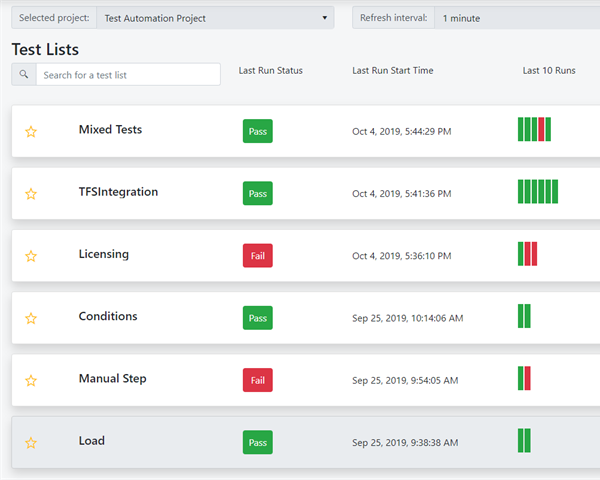
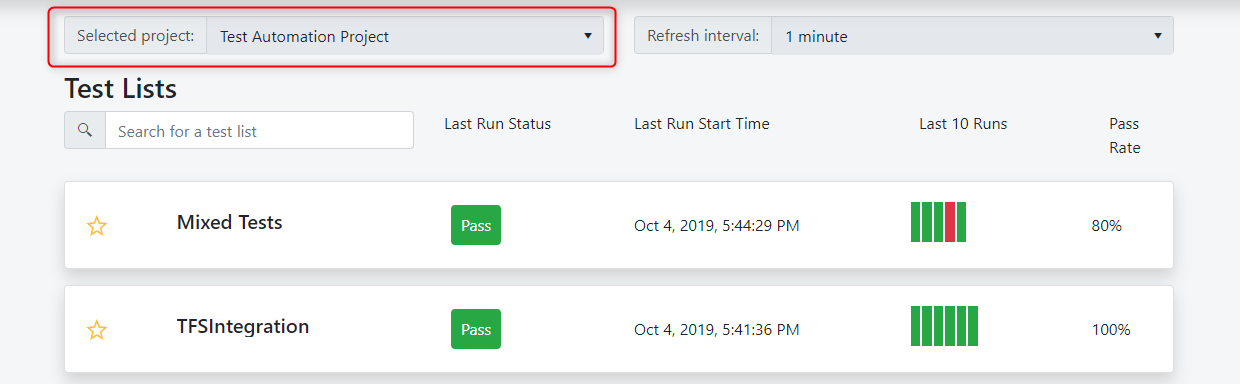
The index page of the Executive Dashboard looks like this:

Executive Dashboard

It works in all browsers and has a responsive design so you can load the page using your mobile phone or tablet.

Prerequisites for the Executive Dashboard

The Executive Dashboard pulls all the data from the scheduling database, and in order to take advantage of this feature you will need the following prerequisites:

  • Storage Service
  • Scheduling Server
  • Executive Dashboard

For the sake of this example we will perform an all-in-one installation, this means that all the features can be installed on different machines, depending on your preferences.

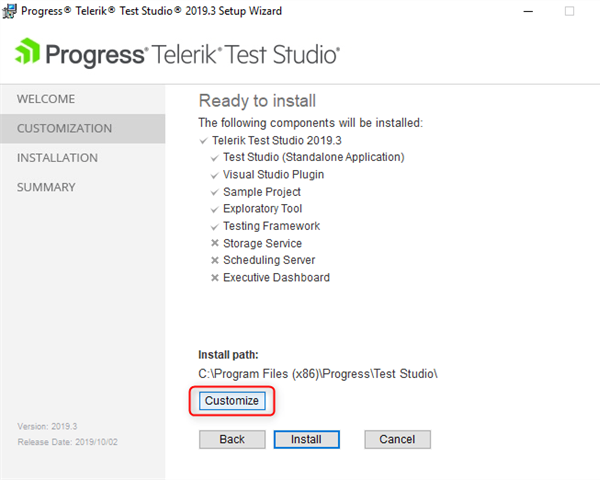
Once you launch the Test Studio installer and accept the license agreement, click on the Customize button to turn on the features mentioned above.

Customize

To perform the installation you can follow the installation procedure as described in this KB article. Once you perform the installation you need to configure the Scheduling environment and execute a test list remotely to have the results appear in the Executive Dashboard.

Refer to this KB article for more information on setting up the scheduling and executing a test list remotely.

You may have a question, “What about local results?” and that’s a reasonable one. Of course we have solution for this. In Test Studio you have the option to upload any local results in the scheduling database and have it displayed in the Executive Dashboard.

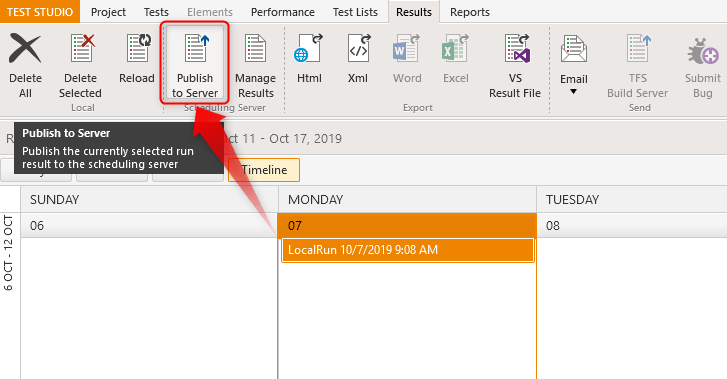
You simply navigate to the result in question, select it and click on Publish to Server button.

Note: You should have the scheduling set up as shown in the KB article above, otherwise thePublish to Server button will be disabled.

Publish to server

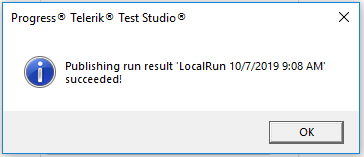
You get confirmation that publishing the run result succeeded:

Publishing succeeded

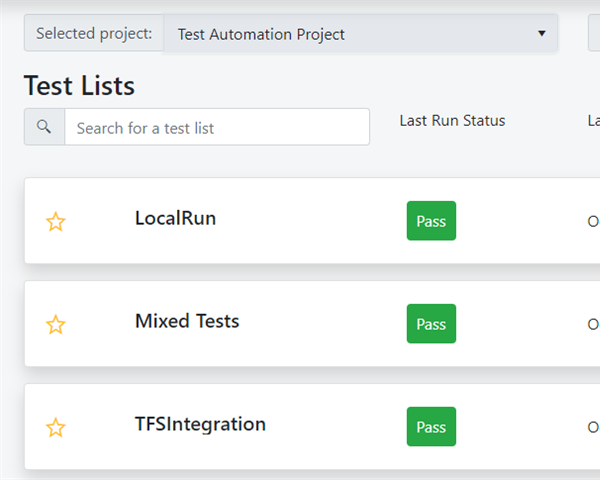
And the result appears on top in the Executive Dashboard.

LocalRun uploaded in Executive Dashboard

3 Useful Features You Should Know about the Executive Dashboard

  1. The Executive Dashboard displays test list runs per project. You can drill down to Test List results and Test Results by selecting the Test List run. If you have multiple projects use Selected Project dropdown to switch between projects:

    Select Project

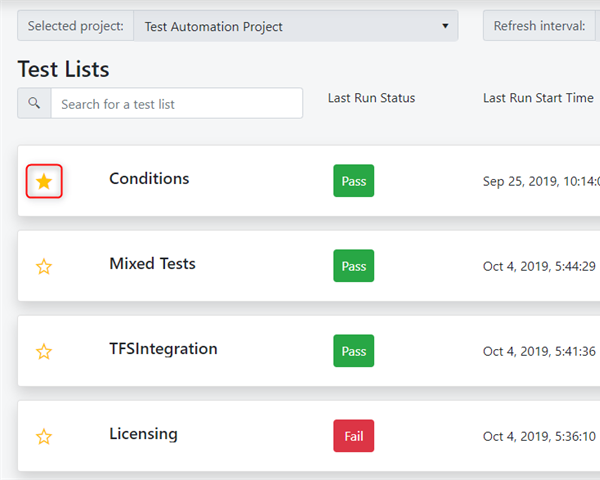
  2. You can add a test list run to favorites by clicking the star icon on the left. The run results are sorted by default by Last Run Start Time, until a favorite is added. Then it is displayed on the top no matter the Last Run Start Time. The rest of the runs use the default sorting.

    add run to favorites

    As you can see from the screenshot above, even though the last run of Conditions is executed on the 25th of September, it is added to favorites so it's placed on top of the runs executed on October 4th. Even if you switch projects the favorite runs are saved per project.

  3. You can use the refresh interval dropdown to select the time on how often the list of the run has to be refreshed. This is added to make things easier for you by eliminating the need to manually refresh. This is extremely helpful if you have dedicated screens/monitors for test results, so this way you can monitor results without taking any additional action.

Along with monitoring the automation results, in the Executive Dashboard you can drill down into each run, test list or single test, to investigate any failures and issues.

You can learn more about the Executive Dashboard over on this this KB article.

Crop and Save Images with Telerik UI for Xamarin Image Editor Control

$
0
0

The official R3 2019 release of Telerik UI for Xamarin is here and it’s a perfect time to draw your attention to a couple of handy features added to the Image Editor control for Xamarin.

We love to listen: We have received a number of feature requests about providing different shapes for the ImageEditor Crop tool, as well as the ability to Save the edited image with a specific scale factor. And here we are! Those features are now part of the image editor features set. 

In this blog post I will get you familiar with the new Cropping and Saving possibilities within the RadImageEditor control.

crop feature

Let’s take a look at the listed features above.

Crop Feature

Circular, Square Geometry and Many More

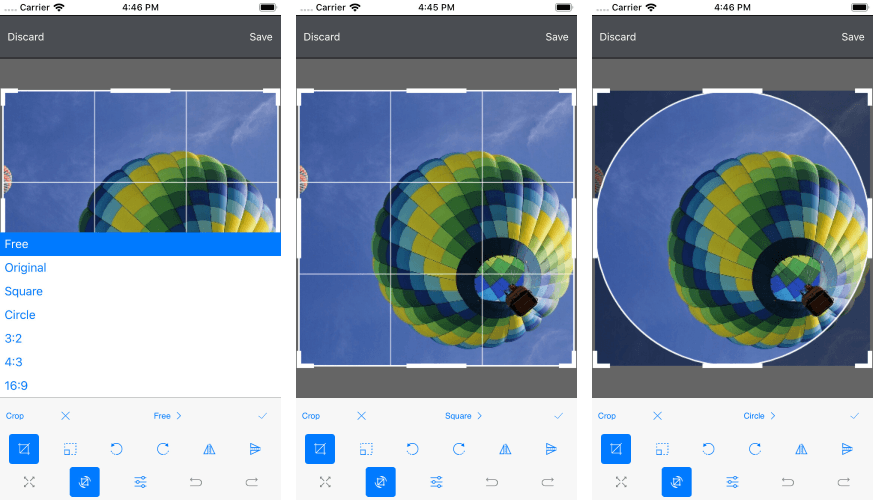
The image crop tool allows you to crop an image using predefined aspect-ratios and crop geometries, or you can create a custom one.

The Crop Toolbar Item has properties which help you specify the geometry of the cropselection and the desired aspect ratios. We have added circular and fixed-ratio crop, including some of the most popular crop rations like 3:2, 4:3, 16:9. More details can be found in our help article.

Here is how the Pre-Defined Crop Feature looks:

Pre-Defined Crop Image Tool

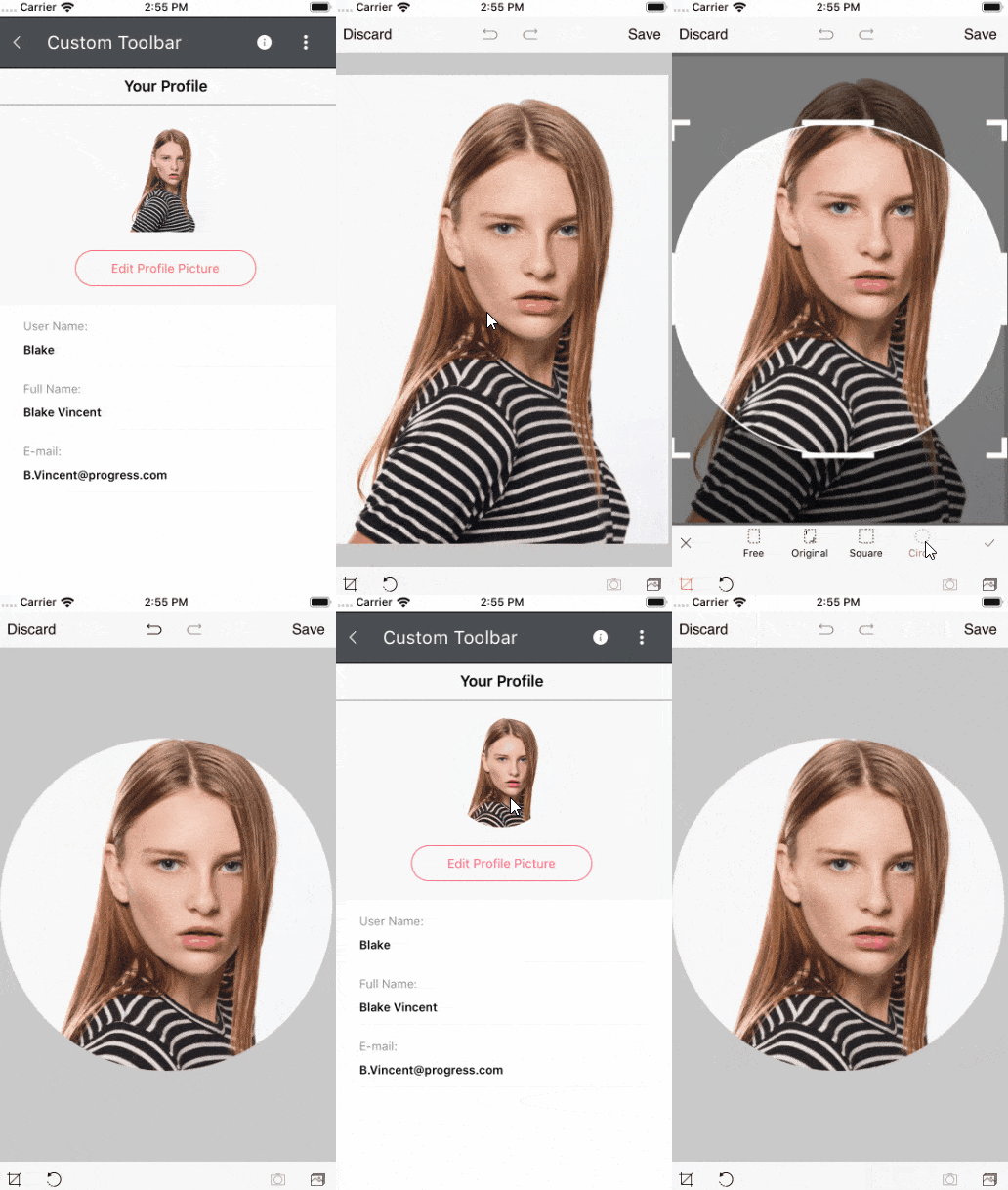
And the custom one:

custom crop image tool

In addition, the control also features a unique, easy-to-use, intelligent crop switch, depending on the touch location. Whenever the touch location defines a rectangle with swapped width/height ratio, the resize adorner will switch, so you automatically get the alternative crop rectangle, thus quickly and easily switching from landscape to portrait crop and vice-versa.

Save Images

With RadImageEditor you have the option to save the currently edited image. The new API which we have exposed allows you to save images with a specific scale factor or with a maximum size, and also allows you to handle large images and save them to a size which corresponds to your app needs.

These scenarios can be achieved through the SaveAsync method and its overloads.

You can find more information about Saving Images here.

Xamarin.Forms ImageEditor - Crop and Save Demo

Let's create a sample demo using a circle as a crop geometry and save the edited image with high quality.

For the purpose of the demo the .jpg file is added to each application project. You could load images from File, Uri, Stream, Resources

Here is a sample definition of the RadImageEditor:

<Grid>
    <Grid.RowDefinitions>
        <RowDefinition/>
    </Grid.RowDefinitions>
    <telerikImageEditor:RadImageEditorx:Name="imageEditor">
        <telerikImageEditor:RadImageEditor.Source>
            <OnPlatformx:TypeArguments="ImageSource"Default="image.jpg"/>
        </telerikImageEditor:RadImageEditor.Source>
    </telerikImageEditor:RadImageEditor>
</Grid>

As we want to crop our image in a circle shape then we should add RadImageEditorToolbar with the desired crop definition:

<Grid>
    <Grid.RowDefinitions>
        <RowDefinition/>
        <RowDefinitionHeight="Auto"/>
    </Grid.RowDefinitions>
             
    <telerikImageEditor:RadImageEditorx:Name="imageEditor">
        <telerikImageEditor:RadImageEditor.Source>
            <OnPlatformx:TypeArguments="ImageSource"Default="image.jpg"/>
        </telerikImageEditor:RadImageEditor.Source>
    </telerikImageEditor:RadImageEditor>
 
    <telerikImageEditor:RadImageEditorToolbarImageEditor="{x:Reference imageEditor}"
                                 AutoGenerateItems="False"
                                 Grid.Row="1">
        <telerikImageEditor:CropToolbarItem>
            <telerikImageEditor:CropToolbarItem.CropDefinitions>
                <telerikImageEditor:CropDefinitionText="Circle"AspectRatio="1:1">
                    <telerikImageEditor:CropDefinition.Geometry>
                        <telerikCommon:RadEllipseGeometryCenter="0.5,0.5"Radius="0.5,0.5"/>
                    </telerikImageEditor:CropDefinition.Geometry>
                </telerikImageEditor:CropDefinition>
            </telerikImageEditor:CropToolbarItem.CropDefinitions>
        </telerikImageEditor:CropToolbarItem>
    </telerikImageEditor:RadImageEditorToolbar>
</Grid>

You can find more information about this here.

Now let's use the saving APIs: For example, we can use ImageEditorToolbar - CommandToolbarItem an on it to implement a saving option.

  1. Add the CommandToolbarItem to the ImageEditorToolbar:
    <telerikImageEditor:CommandToolbarItemText="Save"
                              Tapped="OnSaveTapped"/>
  2. 2. Save the image inside the LocalApplicationData:
    privateasync voidOnSaveTapped(objectsender, EventArgs e)
    {
        var folderPath = Environment.GetFolderPath(Environment.SpecialFolder.LocalApplicationData);
        var filePath = Path.Combine(folderPath, "image.jpg");
        using(var fileStream = File.Create(filePath))
        {
            await this.imageEditor.SaveAsync(fileStream, ImageFormat.Jpeg, 1);
        }
     
        await Application.Current.MainPage.DisplayAlert("", "The Image is saved with original size", "OK");
    }

Here is the final result:

Crop and Save Images

Share Your Feedback

Feel free to drop us a comment below sharing your thoughts. We would love to hear what you think about the Xamarin Forms Image Editor control and its features. If you have any ideas for features to add, please do not hesitate to share this information with us on our Telerik UI for Xamarin Feedback portal.

Don’t forget to check out the various demos of the control in our SDK Sample Browser and the Telerik UI for Xamarin Demos application.

If you have not yet tried the Telerik UI for Xamarin suite, take it out for a spin with a 30-day free trial, offering all the functionalities and controls at your disposal at zero cost.

Allow your app to Edit and Save images with ImageEditor for Xamarin.Forms :)

Happy coding!

What's New in Telerik Reporting and Report Server R3 2019 SP1

$
0
0

Service Pack updates for the 2019 R3 release of Telerik Reporting and Telerik Report Server are live, delivering a new Visual Studio 2019 WPF theme, important stability and security improvements and more.

WPF Report Viewer Beauty

You may have seen the new Visual Studio 2019 theme that was released by our comrades in arms at Telerik UI for WPF, and we're excited to announce we are now introducing it in Reporting. As with any other UI theme, it is straightforward to apply it or modify it.

Visual Studio 2019 Theme for WPF

Web Report Designer Goodness

In our previous release, we brought you a web-based report designer widget that offers report editing functionality to end-users from platform-agnostic web applications. This time we are improving on the UX with the option to create new data source components, close already opened reports, and save them as a file with a different name. Another improvement is the new and shiny overlapping items indicator, which will warn you if the report items are not aligned properly.

Web Report Designer

CSV Rendering Security

Theodore Roosevelt said, “In any moment of decision, the best thing you can do is the right thing, the next best thing is the wrong thing, and the worst thing you can do is nothing.

We take security seriously, and even when the attack vector is not exposed by Reporting itself, we are ready to travel the extra mile and enable our users to block potential vulnerabilities. In this case, we are talking about the simple CSV file format. Nothing dangerous, right? Until you open it with a spreadsheet application, such as Excel, which decides to interpret some text as a formula just because the first character is the equals sign. This opens the door for many malicious formulae to be executed on the end user’s machine if they are not careful, even though the CSV format itself couldn’t be clearer that automatically executing anything that looks like a formula is not an intended usage.

To make sure this worst-case scenario won’t happen to our users, we’ve added a rendering option that prefixes the CSV data and prevents spreadsheet applications from executing formula-like data fields.

REST Service Stability

The Reporting REST service is the link between the reporting engine and the fleet of report viewers compatible with numerous stacks and technologies available out there. Thus, it should be trustworthy and reliable in all circumstances. To meet this goal, first we enhanced the REST service with a cache cleaning performance boost, and then in this service pack, we made sure that it runs smoothly and reliably. To reap the benefits, we encourage you to update to this version, if you haven’t done so already.

PDF Digital Signature Validation

We introduced PDF digital signing a while back, which enables signing and validating PDF documents and provides a means to confirm that the content has originated from the signer and hasn't been tampered with. This release includes an important fix that will stabilize the feature and make it possible to validate signatures across different PDF reader vendors such as Adobe and Foxit.

Fixes

Multiple issues got addressed as well. For the full list, please visit the respective release notes for Telerik Reporting and Telerik Report Server.

Try it Out and Share Feedback

We want to know what you think—you can download a free trial of Telerik Reporting or Telerik Report Server today, and we hope you'll share your thoughts with us in our Feedback Portal, or right in the comments below.

Start your trial today: Reporting Trial Report Server Trial

Creating Customizable Charts with the Telerik Chart Component for Blazor

$
0
0

It’s not just that the Chart component in Telerik UI for Blazor makes it easy to create charts – it’s that the Chart component makes it easy for you to let the user have the chart they want.

You can produce whatever report or chart you want but, if it’s used by more than one person, you can be pretty much guaranteed that your chart won’t be “right” for more than one of them. For all the rest of your users, your chart won’t be in the “right” format, it won’t combine the “right” data, and so on. Even if you have an audience of one that you can tailor your chart for, you’re guaranteed that when that person moves on to a new job, the replacement will want significant changes to the chart.

This is, of course, one of the reasons that dashboards are popular: They allow users to configure the various widgets on the page to meet each user’s particular wants/needs. The Chart component in Telerik UI for Blazor supports that same kind of flexibility through its ability to be dynamically reconfigured at runtime. In other words, you can not only deliver a chart to the user, you can also give users the ability to customize the chart to get the view they want.

In a previous post, Creating Charts with the Telerik Chart Component for Blazor, I showed how the Chart’s Independent Series binding mechanism let me massage an incoming set of data into the data points that the user wanted. The markup and code to make that work looked like this:

<TelerikChart><ChartSeriesItems><ChartSeriesType="@selectedType"Data="@quantitiesSold"></ChartSeries></ChartSeriesItems><ChartCategoryAxes><ChartCategoryAxisCategories="@months"></ChartCategoryAxis></ChartCategoryAxes>*@
</TelerikChart>
@code {
  private IEnumerable<object> quantitiesSold;
  private string[] months;

In this example, I’m using what Telerik calls “Independent Series” binding. Independent Series binding requires two collections: One to hold the “data to be graphed” or Y-axis data (quantitiesSold, in my case), and one to hold the labels for that data or the X-axis data (months, in this code). I built both collections in my component’s OnInitializedAsync method from an initial collection of SalesDTO objects.

Letting the User Customize the Data

But now that I’ve created that initial chart, I can start giving the user the ability to customize it. To begin with, I’ll let the user select the year for the data so the user can look at previous years.

My first step in letting the user pick the year to display is to declare two fields: one to hold the list of years retrieved from my collection of SaleDTOs, and one to hold the year that my user has selected. Those two fields look like this:

@code {
    private List<string> years;
    private string selectedYear;

In my OnInitializedAsync method, after retrieving my data and loading my months field, I’ll load my years field with the available years in the SalesDTO collection using code like this:

years =(from s in graphSales
                 orderby s.Year
                 select s.Year).Distinct().ToList();

Finally, in my markup, I’ll generate a dropdown list with options for each of the years. I’ll bind that dropdown list to my selectedYear field so that the field is automatically updated whenever the user selects a year:

Year: <select@bind="selectedYear"><option>Pick a Year</option>
        @foreach (string year in years)
        {
        <option>@year</option>
        }
    </select>

My last step in letting the user select which data to use is to update the statement that loads the quantitiesSold field that, in turn, drives my chart. Instead of hardcoding in the current year as I did originally, I’ll have the LINQ query that fills the field use my selectedYear field (Blazor will take care of regenerating the collection each time selectedYear changes):

quantitiesSold =(from s in graphSales
                               where s.Year == selectedYear
                               orderby s.MonthOrder
                               select(object)s.QuantitySold);

That works great for my ChartSeries… but is less successful for my ChartAxis. While I can use my selectedYear field in the query that generates my list of month names, that query isn’t regenerated when the user selects a new year.

The solution is relatively simple, though. First, I convert my selectedYear field into a fully written out property. Then I regenerate my months list in the property’s setter, instead of doing it in my OnInitializedAsync method. Here’s the new version of the selectedYear “property that used to be a field” that will refill the months field every time the user selects a new year:

string selectedyear ="Pick a Year";
private string selectedYear
{
   get 
  {return selectedyear;}
  set 
  {
     selectedyear = value;
     months =(from s in graphSales
                        where s.Year == selectedyear
                        orderby s.MonthOrder
                       select s.Month).Distinct().ToArray();}}

You could make a very good case that I should move the code that fills my quantitiesSold field to this setter also. However, the code is working in the OnInitializedAsync method, and Vogel’s first law of programming is, “You don’t screw with working code,” – so I’ll leave it in place.

Letting the User Customize the Chart Type

That’s cool, but it’s considerably sexier to let the user change the chart type. With the Chart component, I can do that, too.

First, I need another field, this time to hold my chart type. I’ll initialize this field to the type I think that the user is most likely to want (if I don’t initialize this field, my Chart will default to Area, which, while not the worst choice in the world, is less likely to be my user’s favorite than, for example, a line chart). Here’s that field:

private ChartSeriesType selectedChartType = ChartSeriesType.Line;

I’ll then provide the user with another dropdown list that lets the user select their chart type. I’ll bind the dropdown list to my selectedChartType field. That dropdown list looks like this:

Type: <select@bind="selectedChartType"><optionvalue="@ChartSeriesType.Line">Line</option><optionvalue="@ChartSeriesType.Bar">Bar</option><optionvalue="@ChartSeriesType.Column">Column</option><optionvalue="@ChartSeriesType.Area">Area</option></select>

The last step is, in the TelerikChart element, to bind the ChartSeries’ Type attribute to my selectedChartType field. That change gives me this:

<ChartSeriesType="@selectedChartType"Data="@quantitiesSold"></ChartSeries>

And now I have the display in Figure 2 below:

Chart-Fig2 (002)

My user may still not have, initially, the display they want. But I’ve given them some options to customize that display to get to what they do want. In other words, I may not be able to make them happy, but I can keep them busy.

Try it Today

To learn more about Telerik UI for Blazor components and what they can do, check out the Blazor demo page or download a trial to start developing right away.


Build a Gist Download Chrome Extension in Vue.js

$
0
0

In this tutorial we will be building a Chrome extension with Vue.js to download gists from GitHub Gist.

A Chrome extension is a browser program built to customize the functionality and modify the behavior of the Chrome browser. They are written in HTML, JavaScript and CSS. With Chrome extensions, you can do more than just customize web pages — you can also add custom behaviors and functionalities to suit your needs by harnessing the power of JavaScript.

GitHub Gist is a simple way to share code snippets and projects with others. It is a platform where you can share single files, parts of files, or full applications with other people. Gists are driven by git version control, so they also have complete revision histories. In this tutorial, we will create a Chrome extension to download code snippets from GitHub Gist.

Create a Vue Project

There are several ways we could have done this, but let’s stick to the good old way. Open a terminal window and run the following command to quickly set up a new Vue project.

vue create gistdownloader
cd gistdownloader
npm run serve

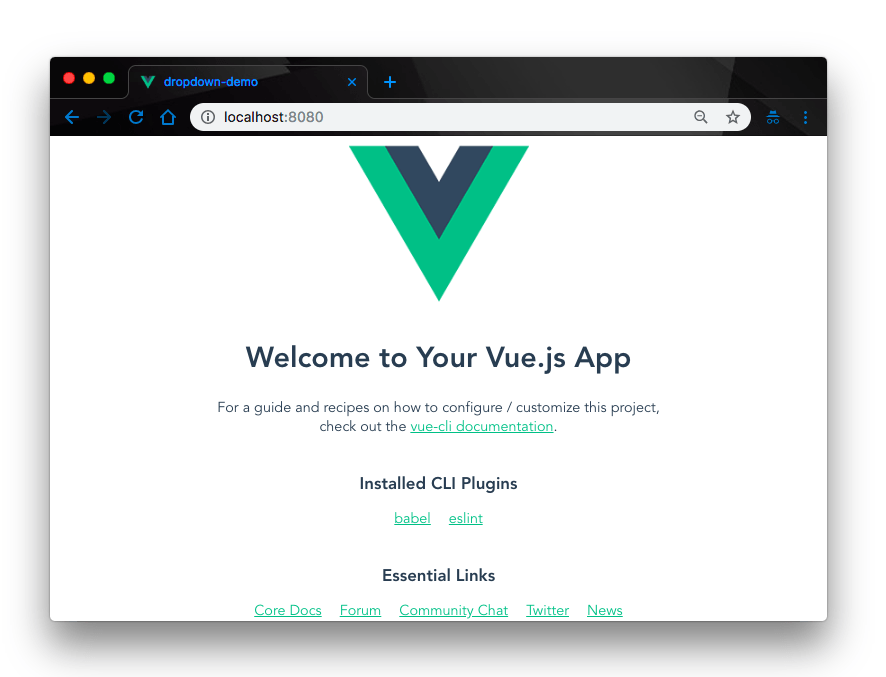
This will create a new Vue project for you in the gistdownloader folder. The project will be live on the default port localhost:8080. Open it up on your browser and you’ll see the Vue app live!

Gist image 1

Setting up Project Files

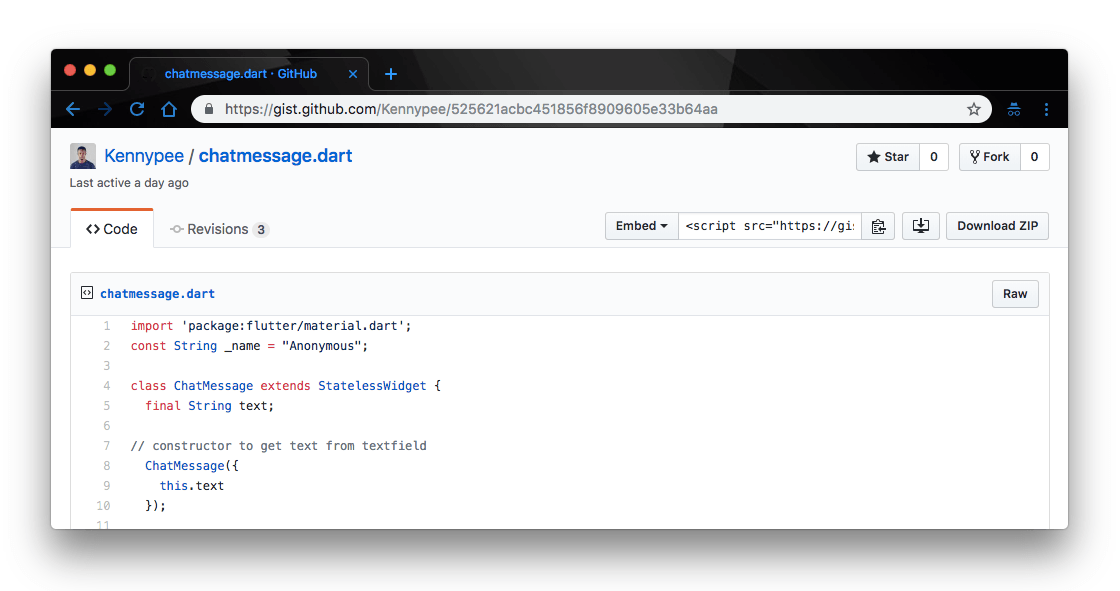
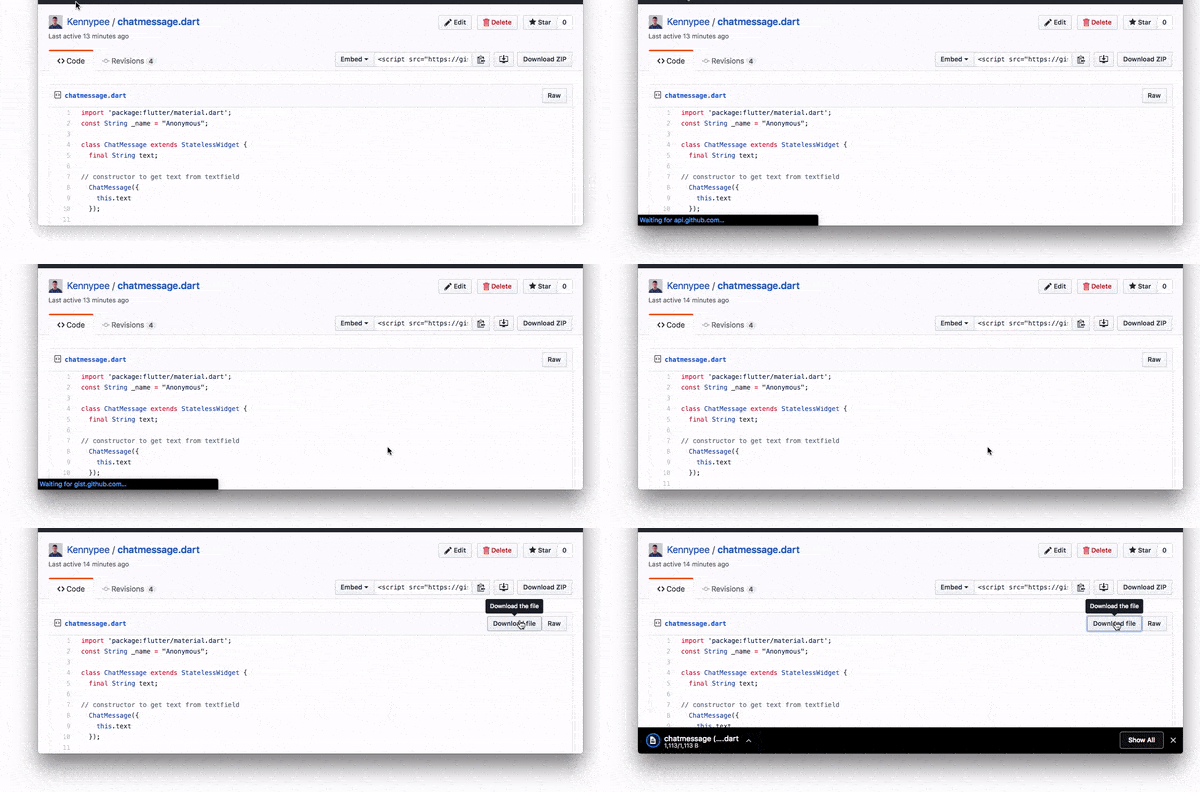
First, let’s create our download button. A normal gist on Github looks like this:

Gist image 2

What we want to do is attach a button alongside the Raw button on the gist above. That way, we can click on it to download the gist. Make sense? Yeah, let’s get to it then.
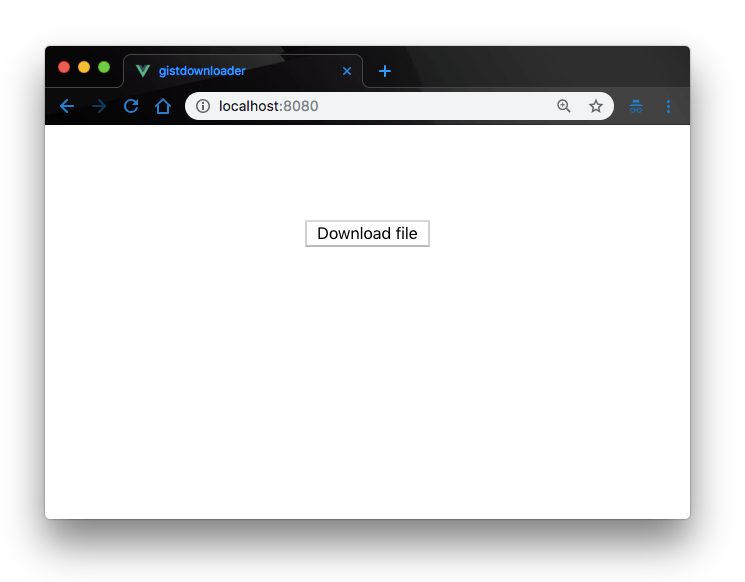
Open up our gistdownloader project on your favorite code editor and rename the default Helloworld.vue file inside the src/components directory to DownloadButton.vue and update the file with the code below:

//src/components/DownloadButton.vue<template><div class="app" id="app"><button ref="downloadButton" v-on:click="downloadClick" aria-label="Download the file" className="btn btn-sm copy-pretty tooltipped tooltipped-n BtnGroup-item"> Download file</button></div></template><script>import download from"../utils";exportdefault{
  name:'DownloadButton',
  methods:{
      downloadClick:function(){const element =this.$refs.downloadButton.parentElement.parentElement.parentElement.parentElement.parentElement;const fileTextArea = element.querySelector('textarea');const fileContent = fileTextArea.value;const fileName = element.querySelector(".gist-blob-name").innerText;download(fileName, fileContent);},
      downloadGist:function(filename, text){const element = document.createElement('a');
          element.setAttribute('href','data:text/plain;charset=utf-8,'+encodeURIComponent(text));
          element.setAttribute('download', filename);
          element.style.display ='none';
          document.body.appendChild(element);
          element.click();
          document.body.removeChild(element);}}}</script>

What’s going on here? Nothing much. First, we rendered a button element in the app template. We added a ref to the button so we can access it in the DOM. We defined a downloadClick handler on the button to fire whenever this button is clicked. Finally in the application methods object, we define the downloadClick function.

The chained parentElement is a crude way of ensuring that the textarea returned contains the Gist content requested for download. Next, the value of the textarea is assigned to the fileContent variable, and the name of the file is obtained from the text of an element with the class name gist-blob-name.

Finally the downloadGist function is called, with the fileName and fileContent as arguments.

The downloadGist function does a few things:

  1. Creates an anchor element and sets an attribute encoding the text parameter as a UTF-8 character using the encodeURIComponent function.
  2. Sets a download attribute on the anchor element with the filename param set as the value of the download attribute.
  3. Triggers a click event on the element as it is removed from the DOM.

Now that we have our download button, let’s go ahead and render it in our App.vue file so we can see it on the browser. Open the App.vue file in the src directory and update it with the code below.

//src/App.vue<template><div id="app"><DownloadButton/></div></template><script>import DownloadButton from'./components/DownloadButton.vue'exportdefault{
  name:'app',
  components:{
    DownloadButton
  },mounted(){this.onLoad();},
  methods:{
    onLoad:function(){const fileActions = document.body.querySelectorAll('.file .file-header .file-actions .BtnGroup ');
      fileActions.forEach(action =>{const containerEl = document.createElement("span");
        action.prepend(containerEl);});}}}</script>

Here, we have rendered the DownloadButton component on the app template so we can see it on the browser. Next, we defined an onLoad() function in our components methods object.

The extension waits until the DOM content is loaded before it renders the application in the DOM. Using the document.querySelectorAll method, we’ll get all the elements matching the classes .file .file-header .file-actions .BtnGroup on any existing element on the page.

This is to ensure that the element selected is the one intended. Using a forEach method, the fileActions array is looped through and, within the callback function, a span element is created and prepended to the action element.

That’s it! we have our Gist download button. If we check back on the browser, we should now have the button rendered.

Gist image 3

Build the Extension

So far what we have is a simple Vue.js application. Let’s build it into a real Chrome extension and actually load it up on the browser to see how it works. To build the extension, we’ll need to install that parcel bundler package into our application. Open a terminal on the project’s root directory and run the command below.

npm i parcel-bundler

Now update your package.json script section with the code below.

//package.json "scripts":{"serve":"vue-cli-service serve","build":"parcel build src/main.js -d src/build/ -o main.js","lint":"vue-cli-service lint"}

That’s it! We have our bundler ready to roll. Before we build the extension, a mandatory manifest.json file is required by Chrome. The manifest file simply describes the content of the extension we’ve just built. In the root of the project file, create a manifest.json file and update it with the code below.

//manifest.json{"manifest_version":2,"name":"Gist file downloader","description":"An extension that can be used for downloading gist files.","version":"1.0","browser_action":{"default_icon":"icon.png"},"permissions":["activeTab"],"content_scripts":[{"matches":["https://gist.github.com/*"],"js":["src/build/main.js"],"run_at":"document_end"}]}

Chrome manifests are expected to have a mandatory manifest_version of value 2. Also, all extensions need a symbol to represent them on the browser. That is the icon we have defined in the broswer_action object in the file manifest.

The permissions property is an array of permissions our extension needs to run. The extension will need access to the current active tab to download the gist, so we have added activeTab to get permission for that.

The content_scripts array contains an object detailing the domains (matches) the extension should run on — the main js file. And the run_at property tells Chrome when it should run the extension. You can read more about the properties that are available on the manifest file here.

Now we are all set to build our extension. Open a terminal window in the project’s root directory and run the command below:

 npm run build

This will build our extension and get it ready for launching to the browser. If you check your project files, you should see a build folder created in your src directory.

Launch the Extension

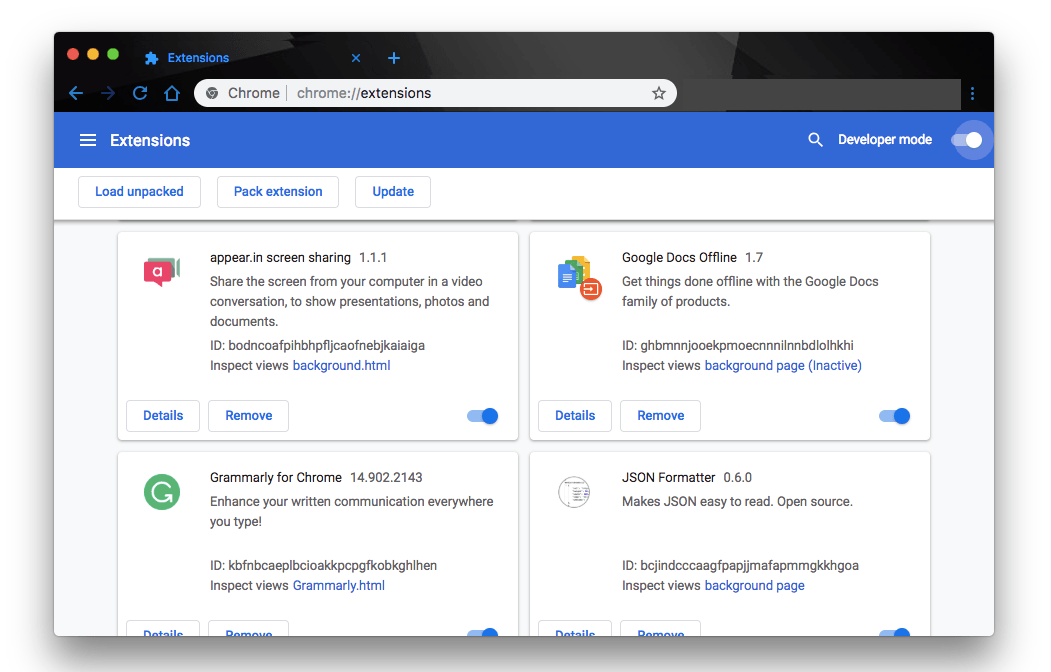
Next, open your Chrome browser and go to Settings > Extensions. Next toggle the developer mode button. You should now see a button on the left side that says load unpacked. Click it to upload your build folder.

Gist image 4

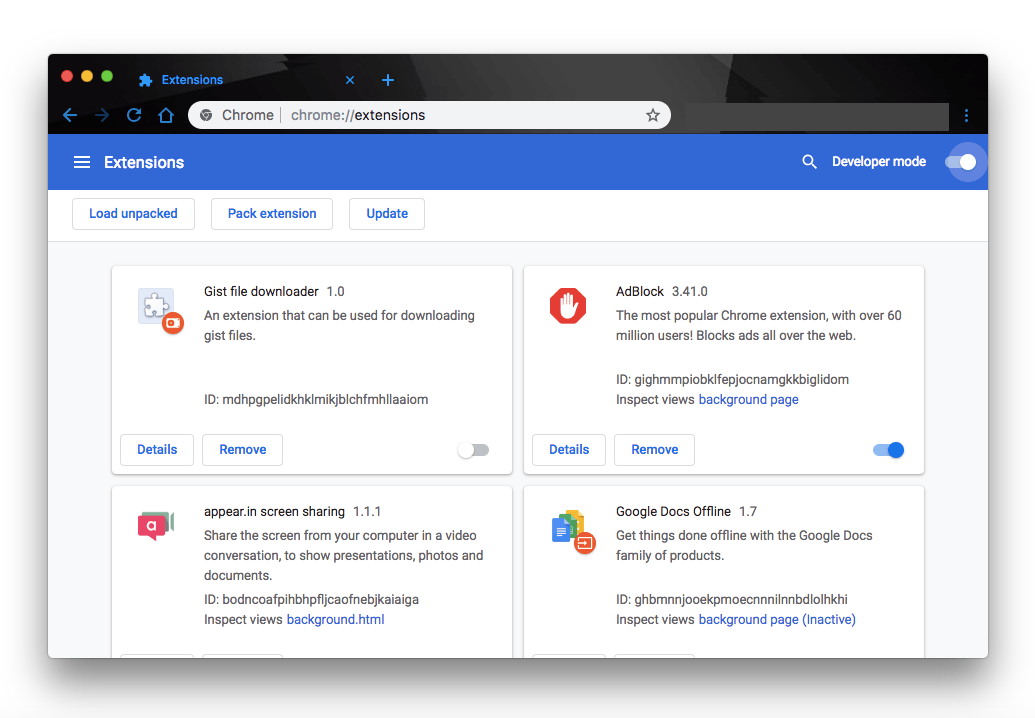
Click the Load Unpacked button and select your project folder. This will now load up your custom extension on Chrome:

Gist image 5

Now when you visit our Gist page again, you should see our Download file button. Clicking it will download the Gist.

Gist image 6

Conclusion

In this tutorial we have learned how to create a Gist download Chrome extension in Vue.js. You can extend this application to create other extensions with different functionalities. The extension we created here can manipulate page data and download a page file. There’s a whole lot you can do with Chrome extensions! Be sure to check out the official documentation and try to build awesome stuff with it.

QA Professionals and "Framework Fatigue"

$
0
0

How does framework fatigue affect you as a quality professional?

Framework fatigue is frequently associated with software architects, managers, and of course frontend developers. The term has grown in popularity as new JavaScript libraries and frameworks emerge resulting in intra-team factions, endless evaluations and when a framework is finally selected – the uncertainty that a future-proof path has been selected.

How does this uncertainty impact you as a quality professional? Have you been invited to the table for this conversation? Do you know if the tools you use today provide future agility for the uncertainty that lies ahead?

When your colleagues in engineering finally do select a framework, they are likely to leverage components to ensure optimal performance and visual appeal of the UI. Ensuring test-automation compatibility up front for any and all components used can save quality professionals time and frustration.

A good example is the growing adoption of Blazor, which is a free and open source framework developed by Microsoft, allowing developers to create web applications using C# instead of JavaScript. We’ve seen traction not only in the adoption of Blazor itself, but also in the adoption of 3rd party native component suites such as our own Telerik UI for Blazor.

Check in with your counterparts in development – see if they are planning to adopt a new framework, or productivity components. If so, ensure that the automation platform you use will be compatible.

When it comes to compatibility, our popular solution for web automation, Telerik Test Studio, aims for day zero support of browser updates and provides native support for web frameworks and components – from Blazor to React and everywhere in between.

Read about the latest release which includes support for our Blazor components or watch the recent webinar where our team takes you through all the new features.

Telerik UI for Blazor 2.3.0 is Here with ComboBox, Grid Column Resizing, 3.1 Preview 2 & More

$
0
0

Check out the latest features and updates in Telerik UI for Blazor, including a new ComboBox, Grid Column Resizing, MultiView Calendar and .NET Core 3.1 Preview 2 Compatibility.

We are continuously evolving the Telerik UI for Blazor suite, and are happy to announce that version 2.3.0 has been just released and is ready for download. We continue to regularly add new components and extend the capabilities of the most used and demanded component - the Grid.

Based on your feedback and requests we added a brand new Blazor ComboBox control, MultiView Calendar and enhanced the Grid with Column Resizing. We have also ensured that Telerik UI for Blazor is compatible with Preview 2 of .NET Core 3.1.

Compatible with ASP.NET Core 3.1 Preview 2 Release

Shortly after Microsoft announced the release of Preview 2 of .NET Core 3.1, we are glad to share that Telerik UI for Blazor 2.3.0 is fully compatible.

NET Core 3.1 is a short release focused on key improvements in the two big additions to .NET Core 3.0. - Blazor and Windows desktop. Microsoft has announced that 3.1 will be a long term support (LTS) release with an expected final ship date of December 2019.

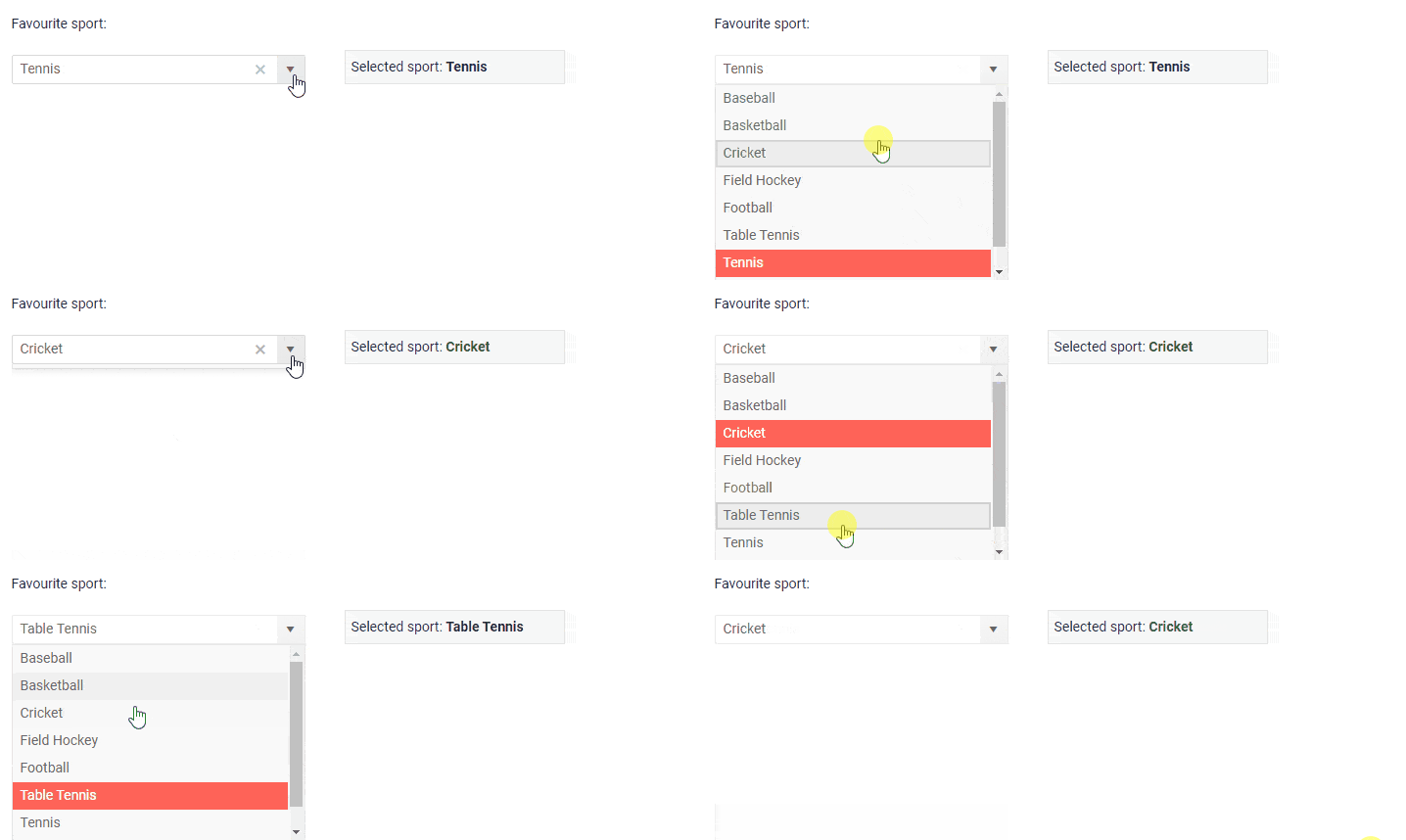
New Blazor ComboBox Component

Whether you need to allow the user to select items from a dropdown list of predefined values, let them enter custom values, or filter the available items - the new Blazor ComboBox component has it all.

Telerik UI for Blazor ComboBox

ComboBox Data Binding

To add the ComboBox to your Blazor app, simply add the <TelerikComboBox> tag and bind it to data like in the example below:

<TelerikComboBoxData="@ComboBoxData"TextField="ComboTextField"ValueField="ComboValueField"@bind-Value="selectedValue">
</TelerikComboBox>

You can bind the ComboBox to primitive types (like int, string, double), or a data model. Further details can be found in the detailed data binding article.

ComboBox Filtering

To ease the search of values for your users, you can able the Filterable option in the <TelerikComboBox>. To encourage user typing of values when filtering, you can set the Placeholder property with a suitable call to action message.

<TelerikComboBoxData="@ComboBoxData"Filterable="true"Placeholder="Find product by typing part of its name"@bind-Value="@SelectedValue"TextField="ProductName"ValueField="ProductId">
</TelerikComboBox>

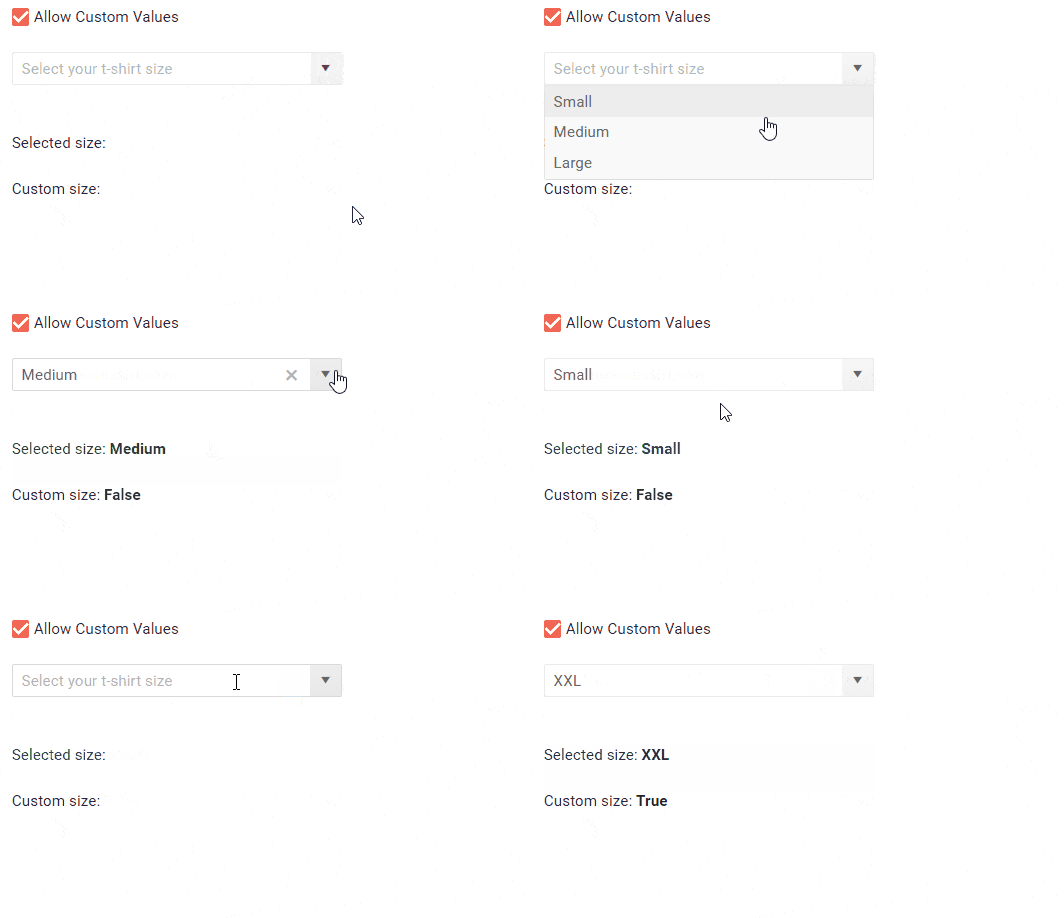
ComboBox Custom Values

In addition to filtering and selecting values, your application scenario may also require user input with custom values. In this case you have to set the AllowCustom property to true and ensure that the TextField, ValueField and the Value properties are of type string.

Telerik UI for Blazor ComboBox Custom Values

ComboBox Customizations and Templates

The ComboBox allows you to control the data, size, and various appearance options. Using templates, you can change rendering and customize items, header and footer. An example of how to customize your ComboBox using templates can be found below:

<TelerikComboBox@bind-Value=@SelectedValue
Data="@ComboBoxData"
ValueField="ProductId"
TextField="ProductName">
<HeaderTemplate>
<divclass="k-header"style="margin-top: 10px; padding-bottom: 10px">Available Products</div>
</HeaderTemplate>
<ItemTemplate>
<code>@((context as Product).ProductName) - @(String.Format("{0:C2}", (context as Product).UnitPrice))</code>
</ItemTemplate>
<FooterTemplate>
<divclass="k-footer"style="margin-top: 10px">A Total of @ComboBoxData.Count() Products</div>
</FooterTemplate>
</TelerikComboBox>

ComboBox Events

For capturing and handling the selected and inserted values in the ComboBox, or responding to their changes, you have two events which you can utilize:

  • ValueChanged - fires upon every change of the user selection.
  • OnChange - fires only when the user presses Enter, or blurs the input (for example, clicks outside of the combo box). Can be used with two-way binding of the Value.

Blazor Grid Column Resizing

With the Telerik UI for Blazor 2.2.0 release we introduced Grid column reordering, and now with the 2.3.0 release we are adding option to resize the columns of your Grid.

Telerik UI for Blazor Column Resizing

To enable the column resizing, set the Resizable parameter of the grid to true. Resizing is done by users of your applications by simply dragging the borders between their headers.

If for certain columns in the Grid it doesn’t make sense to be resized, set the column parameter Resizable to false. The users will still be able to resize other columns around it.

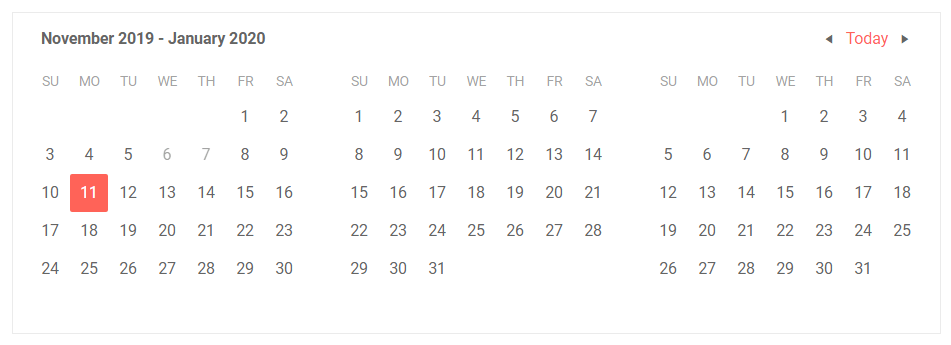
New Blazor MultiView Calendar

To enable easy browsing through the Calendar dates, we have enabled the option to render multiple instances of the current calendar view next to each other. Using the Views property you can set the desired number of calendars you would like to appear on your page.

<TelerikCalendarViews="3"View="CalendarView.Month"></TelerikCalendar>

Telerik UI for Blazor MultiView Calendar

Download Telerik UI for Blazor 2.3.0

Download the latest version Telerik UI for Blazor Native Components from the Telerik UI for Blazor overview page and share your feedback with us on the official Telerik UI for Blazor feedback portal.

We Value Your Feedback!

We value your ideas, requests and comments, and we are proud to announce that Telerik UI for Blazor 2.3.0 release is heavily based on feedback items submitted by you – our community of Blazor developers. Check out the Resizable Grid Columns& ComboBox Component feedback items to see how seriously we take into consideration your requests.

Keep helping us shape the future of UI for Blazor in 2020 and beyond!

Happy Blazor Coding!

First 5 Tips for Building Secure (Web) Apps

$
0
0

Lately, everybody and their dog has gotten hacked. New vulnerabilities are found every day, and web apps have a very wide surface area that can be targeted by attackers. How do I stay secure? We will give you a starting point in this post.

You can follow people like Troy Hunt or take a look at his Have I Been Pwned site to see how many security breaches occur on a daily basis. Or, take a look at the list of vulnerabilities in Windows 10 (1111 at the time of writing, check with what you see when you read this), and how every Patch Tuesday brings security fixes. A few weeks ago it turned out that sudo was also very easy to exploit. This will give you an idea of how the security landscape moves at a blinding speed, and that security is a very serious matter.

The question is – how do I handle that? Where do I get started with my apps’ security? Here are my top five tips for starting with your application security, in a short little post.

Tip 1 – Start Educating Yourself

The very first thing to go to is the OWASP (short for Open Web Application Security Project™) Top 10 Vulnerabilities project. A direct link to the latest version of the report at the time of writing is here.

If you work for a large company, it’s likely that someone has already thought about security. If nothing else, your own company’s assets should be protected and monitored and there are people who do this. Talk to them. They can point you in the right direction, perhaps offer some policies and best practices, or further courses.

Even if you are a freelancer or work in a small dev shop, there are many online courses you can watch or take. It’s important, and it can even be interesting. In any case, it will broaden your horizons.

Tip 2 – Develop With Security in Mind

When you implement a form or an API/service endpoint, think not only of how you would use it, but also how you could abuse it. Some of the main attack vectors in a web app are where user input comes in – be that as actual input from a <form>, or by making requests for data. Authentication, sanitization and authorization should be the first things that happen to the request before it even touches the database or business logic.

Developing with security in mind also means that you should consider the way the app will handle its security from the get-go. This includes authentication and authorization services, access control, whitelisting, communication between projects in the same solution (or from other solutions/vendors), and so on. Do not leave that for later, it must be clear from early on, so that all elements of your app handle it properly.

Make no mistake, this also applies to intranet apps that are not available to the general public, not just to your online stores.

Tip 3 – Monitor CVE Databases

A quick online search for something like “<Vendor Name> <Product Name> vulnerability” will give you a list and links to those databases, so it won’t take much of your time.

Occasionally, you can peek at vulnerability databases to see if there is anything that affects you. Some even allow you to create feeds and monitor certain categories (for example, nvd.nist.gov and cvedetails.com). Here’s also a vendor list for Telerik products.

Tip 4 – Use the Latest Versions of Packages You Depend on

I mentioned it above, but I will re-iterate – vulnerabilities and issues are found all the time, everywhere. The general way they are fixed is “in the latest version” of the corresponding package/tool.

So, try to keep up to date with the software your app uses. This can be frameworks (if you’re still on .NET 3.5 or 4.0 – I’m looking at you), generic packages (like fetching jQuery or Newtonsoft.Json from NuGet) or other software from vendors like us.

Being updated usually will also provide you with new features, other fixes and improvements, not just better security.

Moreover, the more often you update, the easier it will be. Vendors generally strive to avoid breaking changes (I know we do), and even when they happen, they happen rather rarely. Hitting one change every once in a while is better than hitting 5 at once when you finally update from something written in 2011 when you also may have to consider other paradigm shifts in the frameworks and technologies.

Here’s also our guide on upgrading your Telerik UI for ASP.NET AJAX controls, which also shows how to monitor for changes and the tools we provide for that, so it’s easy for you to keep your Telerik bits updated.

Tip 5 – Ask Your Vendors

This ties in with the previous point, but I wanted to keep it separate for a couple of reasons.

Reason 1: If the vendor does not know, this will at least make them think about the concept. Perhaps they should also adopt some security best practices into their SDLC, who knows. I, for one, don’t know if you would want to keep working with a vendor who does not care about security.

Reason 2: Sometimes it’s just easier to ask than to wade through online resources. The most common answer you’ll get is that “the latest version has no known vulnerabilities,” which should be another incentive for you to update to it.

A key thing in the previous paragraph is the word “known.” They say that what you don’t know can’t hurt you, but with security that’s not really the case. This is also why vulnerabilities are often found in older versions of software products – certain things, approaches or code that were considered OK at the time of their writing, are not good enough anymore, and information about that may be unearthed even years later.

For example, we just updated the information here to reflect new findings even though we fixed the original vulnerability two and a half years ago, and those new findings don’t affect the later versions. To reiterate the original advisory we sent back then (and what I have been saying in this post), the best solution is to upgrade to the latest version (at the time of your reading, not at the time of this writing), which contains even more security improvements.

Reason 3: What if you found a vulnerability in a vendor’s product that’s not listed online? Perhaps you found it while working with the product, or a security audit/penetration testing on your app brought it to light. In any case, you should reach out your vendor privately, because they are the only people who can fix it, but they can’t do that if they don’t know about it.

A common practice for handling such reports by software vendors is called “responsible disclosure” where information about a vulnerability will only be published after the vendor has released a fix for the problem. Usually, this happens in a new version, but that may vary depending on the distribution model of the product – for example, an OS or a massive end-to-end product will often ship patches (often for their latest version only), while smaller products (like NuGet packages or component vendors like us) usually release new versions.

What information becomes public is a matter of your own discretion, and there’s a fine line to walk between giving your fellow developers enough information to protect them, and providing too much so black hats or even script kiddies can exploit issues. My personal belief is that it should be known what the attack vector and its implications are so developers can understand the situation and determine if they are affected, but the exact exploit details should not be public.

What if you found a vulnerability in a Telerik product? Open a support ticket for the affected product with us so we can discuss the situation. If you don’t have an active subscription, open a generic ticket, choose the Products category and add information which component suite this is about. If you’re the penetration tester and don’t have an account with us – you can create one for free. Our ticketing system is private and secure and is suitable for such sensitive communication.

In Summary

Communication about security is a two-way street and by participating you help improve the world for everyone. If you have something to add (even “small” things like online courses or articles you liked), put it in the comments below and help your fellow devs build secure apps.

Telerik Chart Component for Blazor: Simplifying Binding and Supporting Customization

$
0
0

The Chart component in Telerik UI for Blazor gives you two modes for binding data. Both give you the ability to let the user customize the chart at runtime – including choosing which data they want to display.

In an earlier post, Creating Charts with the Telerik Chart Component for Blazor, I showed how to graph data that wasn’t coming from your data source in the format that you wanted. My component was retrieving a set of Data Transfer Objects that I had to filter and transform to get the data that I wanted to graph. Essentially, I had to generate two matching collections: one with the “data to be graphed” (the vertical or Y-axis), and one with the categories for that data (the horizontal labels or X-axis).

However, if the data objects that you want to graph contain both the “data to be graphed” and the category label to use – in other words, if each object provides all the data for a point on the graph – well, suddenly everything gets much easier.

Independent Series vs. Data with Labels

My case study in that previous column used what Telerik calls “Independent Series” binding. For a line graph, it means that the Telerik Chart is bound to two separate collections: one that holds the data to be graphed (the vertical or Y-axis), and another collection that holds the categories (the labels that run along the horizontal X-axis).

With Independent Series binding, I tie the field holding my “data to be graphed” collection (quantitiesSold, a collection of integers) to the ChartSeries element using its Data attribute; I bind the field holding my category labels collection (months, a collection of strings) to the ChartCategoryAxis element using its Categories attribute.

Here’s the markup that leverages Independent Series binding:

<TelerikChartWidth="75%"><ChartSeriesItems><ChartSeriesType="@selectedType"Data="@quantitiesSold"></ChartSeries></ChartSeriesItems><ChartCategoryAxes><ChartCategoryAxisCategories="@months"></ChartCategoryAxis></ChartCategoryAxes></TelerikChart>
@code {
    private IEnumerable<object> quantitiesSold;
    private string[] months;

However, if the collection that you’re retrieving consists of objects that hold both the data to be graphed and the category data… well, in that case, things get simpler: You just pass that collection to the chart to have the results graphed. In Telerik UI for Blazor this is called “Attach Series to Their Categories” binding.

For example, the SalesDTO objects that I want to graph have a QuantitySold property (the data to be graphed) and a Month property (the name of the month for the sales). There’s no reason that I couldn’t use the Month property as the label for the QuantitySold data. In that case, because each SalesDTO object holds both the data and the label for one point on the graph, I can just pass my SalesDTO collection to the Telerik Chart component and everything will work out fine.

With the “Attach Series to Their Categories” binding, inside the TelerikChart element I just need the ChartSeries element. I still bind the ChartSeries’ Data attribute, but, this time, I bind it to a collection of objects rather than values – in this case, a collection of my SalesDTO objects.

I do have to add two more attributes to the ChartSeries element:

  • The Field attribute (which I set to the name of the property on the SalesDTO object that holds the “data to be graphed”)
  • The CategoryField attribute (which I set to the name of the property that holds the category label)

In my case, the data to be graphed is in the QuantitySold property and the label for that data is in the Month property. As a result, I can create a graph of all of my SalesDTO objects with just this markup and the field that holds my SalesDTO objects:

<TelerikChartWidth="75%"><ChartSeriesItems><ChartSeriesData="@graphSales"Field="QuantitySold"CategoryField="Month"> </ChartSeries></ChartSeriesItems></TelerikChart>
@code {
    private IEnumerable<SalesDTO> graphSales;

Supporting Customization

Plainly, Independent Series gives you more flexibility in mixing and matching data and labels. With Independent Series, I can massage my input data in any way I want to create the points on the chart, summarizing or transforming the data as needed. There’s no necessary connection between the incoming data and the points on my chart.

With Attaching Series Data to Their Categories, though, each object in my collection has to have a one-to-one relationship with a point on the chart. On top of that, every object in the collection has to hold both its data and its “official label” – and that label must be something that I’m willing to put in my UI.

With Independent Series, the data and labels can come from completely different sources. In my case study, for example, where I was charting sales numbers against month names, my month names (“January” through “December”) could easily have been hardcoded into my application.

But I don’t lose much else in the way of flexibility when I use Attach Series Data to Their Categories. For example, in another post, Creating Customizable Charts with the Telerik Chart Component for Blazor, I can let the user both select what data to display and the kind of chart they wanted (bar, line, area, etc.). Some customization options actually become easier if I’m using Attach Series Items to Their Categories.

For example, let’s say I want to give the user the ability to choose between seeing the number of units sold and the total amount they were sold for. Those are two different properties on my SalesDTO object: QuantitySold and ValueSold. I can do that with both binding mechanisms.

Regardless of which binding method I choose, I start the same way: By giving the user a tool to choose what data they want. For this, I’ll provide a dropdown list showing the two options that’s bound to a field that will hold the user’s choice:

Data: <select@bind="propertyName"><optionvalue="QuantitySold">Amount</option><optionvalue="ValueSold">Value</option></select>
@code {
    private string propertyName;

Changing the Data with Independent Series

If I’m using Independent Series, I will have already set up a field of IEnumerable to hold the data to be graphed. In my previous post that field looked like this:

private IEnumerable<object> quantitiesSold;

Because the quantitiesSold field is a list of type object, I can load the field with any data I want. That works out well for me because QuantitySold is type int, while ValueSold is type decimal.

Having said that, though, I’m going to either need some “clever” (by which I mean: “unreadable and unmaintainable”) LINQ to switch between the two properties, or I’m going to need two LINQ statements. I prefer the solution with two LINQ statements… which also means that I’ll have to rewrite my propertyName field into a full-fledged property.

As an example of how that would work, this code gives the user the ability to switch between QuantitySold and ValueSold on the fly:

private string propertyname;
    private string propertyName
    {
        get {return propertyname;}
        set
        {
            propertyname = value;switch(propertyname){case"QuantitySold":
                    quantitiesSold = from s in graphSales
                                     where s.Year == selectedYear
                                     orderby s.Month
                                     select(object)s.QuantitySold;break;case"ValueSold":
                    quantitiesSold = from s in graphSales
                                     where s.Year == selectedYear
                                     orderby s.Month
                                     select(object)s.ValueSold;break;}}}

(As a side note, now that my “data to be graphed” field holds two different kinds of data, I should probably rename it to something more neutral than ‘quantitiesSold’ – perhaps ‘dataToBeGraphed’).

Changing the Data with Attach Data Series to Their Labels

With Attach Series Items to Their Categories, the solution is much simpler: It just requires a layer of indirection. Instead of setting the ChartSeries’ Field attribute to the name of a property, I set the attribute to a field that holds the name of the property.

I’ve already bound my dropdown list to a field called propertyName so I’ll use that propertyName field in my ChartSeries’ Field attribute, like this:

<ChartSeries Data="@graphSales" Field="@propertyName"
                                                              CategoryField="Month">

And, because my dropdown list will automatically update my propertyName field, it can go back to being just a field:

private string propertyName;

Now, when the user picks a property name from my dropdown list, my propertyName field will automatically be updated with the name of the property, and the Chart will regenerate itself with the new data.

As you probably expect, every silver lining has a cloud wrapped around it. Attach Items to Their Categories can make generating your chart considerably simpler – even making it easier to provide your user with customization options. If your incoming data doesn’t meet the criteria for Attach Items to Their Categories, it might make sense to massage your incoming data into a format where each object represents a point on the chart holding both the data and label. Where that isn’t possible (or requires too much effort to be worthwhile), Independent Series binding will meet your needs with some loss of flexibility.

Or, as I tell my clients: “You do have a choice: Do you want your arm cut off or ripped off?”

Try it Today

To learn more about Telerik UI for Blazor components and what they can do, check out the Blazor demo page or download a trial to start developing right away.

Design Patterns in JavaScript

$
0
0

Design patterns are documented solutions to commonly occurring problems in software engineering. Engineers don’t have to bang their heads on the problems that someone else has already solved.

One fine day, I decided to resolve this bug that was pending for quite a long time – Multiple Instances of the IndexedDB reference are getting created. If you’re wondering what IndexedDB is, it’s a client-side persistent key-value data store, commonly used in Progressive Web Applications for faster data access.

With the IndexedDB context in place, let’s get back to the bug – I somehow have to prevent the creation of multiple instances of IndexedDB. It should be initialized only once, and every other attempt to re-initialize the IndexedDB instance should not succeed and should return the existing reference.

While I was whispering this and looking patiently at my editor to get some clues out of the existing code, one of my colleagues gushed, “Just use a singleton!” Huh, what’s a singleton? She explained by saying, create one global variable to store the IndexedDB reference and on every other request just check if this global variable is already initialized. If the variable is already initialized, simply return it; otherwise create its instance and store it in the global variable before returning.

I contended, “Got it! But why is this called a singleton and who named it?” She explained further, “Singleton is one of the design patterns in object-oriented paradigm and it simply means that a class can only be instantiated once. This is a common pattern and can be reused for solving problems of this nature.” The term Design Patterns got me curious and I began searching about it on the internet!

What are Design Patterns?

Design patterns are documented solutions to commonly occurring problems in software engineering. Engineers don’t have to bang their heads on the problems that someone else has already solved.

While writing code, people observed that a lot of time is spent thinking over solutions to common problems. There is no single way of solving these problems. Smart engineers started finding patterns in these common problems and they documented these problems and efficient ways of solving them. The book Design Patterns: Elements of Reusable Object-Oriented Software, also called GoF book (Gang of Four as it is written by four writers), explains 23 classic software design patterns and is a treasure trove for every aspiring software engineer out there!

“Design patterns” is common in most engineering conversations. People don’t have to spend time explaining the same problem again and again — there’s a term for each of these problems! The book mainly explains the design patterns in the context of object-oriented languages like C++ and Java, and all of its solutions are in C++.

JavaScript guy? Don’t you worry! The problem and intent of most of these patterns are applicable in JavaScript too. And the good news is we have a concrete book to follow and learn all of these patterns in JavaScript! Addy Osmani has got us covered. He has written the book Learning JavaScript Design Patterns, and it’s the most popular book for becoming an expert in using design patterns in JavaScript. I highly recommend reading this amazing book. But If you’re looking for a quick guide to the most commonly used design patterns in JavaScript, this article is the right place to get you started!

Now that you know design patterns are common in most engineering conversations, it makes sense to know these terms to speed up product development cycles. Let’s get started!

Categories of Design Patterns

Design patterns are divided into many categories, but the most common are Creational, Structural and Behavioral. Here’s a quick overview of these three categories:

Design patterns image 1 

Hang tight! We’ll be learning some of the design patterns in each of the categories. Let’s start by understanding more about creational design patterns.

Creational Design Patterns

Creational design patterns deal with various object creation mechanisms. These mechanisms make it easy to reuse the existing code and help in writing scalable and flexible code.

Creational design patterns abstract the complex logic of creating objects from the client and provide a cleaner interface to solve particular problems. Some of the engineering problems may require you to only have a single instance of a class. Look no further and use Singleton! The prototype design pattern lets you create clones of objects, while the builder pattern lets you create complex objects step by step. Let’s start with the easiest pattern, the constructor pattern.

Constructor Design Pattern

The constructor method should be a no-brainer if you come from a classic object-oriented background. The constructor method gets called whenever we create an object of a class. Here the class represents an entity, something like Car, Person, etc. A class contains member properties and methods and each of its objects has its own copy of these properties but share common method definitions.

Here’s a simple Pokemon class written in TypeScript:

classPokemon{
    name: string
    baseExperience: number
    abilities: string[]constructor(name: string, baseExperience: number, abilities: string[]){this.name = name
        this.baseExperience = generation
        this.abilities =[...abilities]}addAbility(ability: string){/* Method to add new abilities */}}

The Pokemon class contains the member properties name, baseExperience and abilities and a method as addAbility. The constructor method is a special method that gets called when we instantiate the class using the new operator. The constructor method does the work of assigning values to the instance variables of the class to create a new object.

let bulbasaurObj =newPokemon("bulbasaur",64,["chlorophyll"])

Once the above statement gets executed, the properties name, baseExperience and abilities and addAbility method are defined on the bulbasaurObj object. The client creating the Pokemon object doesn’t know how this happens behind the scenes. The constructor abstracts out these details of attaching the member properties and methods on the object.

We usually deal with objects in JavaScript. Let’s see how objects are created using object constructors in JavaScript:

/* Three ways of creating objects in JavaScript */let obj ={}/* ----------- */let obj =newObject()/* ----------- */let obj = Object.create()

The above statements look simple! But the main guy, constructor, does all the work of wrapping the object obj with all the properties and methods available on the parent Object. Here’s what gets done when you execute any of the above statements:

Design patterns image 3

The constructor defined for Object does the work of attaching the methods on the __proto__ property of the object obj.

We can also pass in another prototype as an argument as:

let obj = Object.create(Pokemon.prototype)

Design patterns image 4

Notice how both the methods constructor and addAbility of the Pokemon class are attached on the __proto__ property of the object obj. The __proto__ to the __proto__ property contains the base Object class methods.

We have been talking about prototypes here, but what exactly are those? The prototype is also one of the creational design patterns. Let’s check that out!

Prototype Design Pattern

The prototype design pattern lets us create clones of the existing objects. This is similar to the prototypal inheritance in JavaScript. All of the properties and methods of an object can be made available on any other object by leveraging the power of the __proto__ property. Here’s a quick way to do it using the ES6 Object.create method:

let obj = Object.create(Pokemon.prototype)

We can also achieve the prototypal inheritance using the classic functional objects as:

let shapePrototype ={
    width:10,
    height:10,

    draw:function(shape){}}functionRectangle(){}/* The prototype of Rectangle is shapePrototype, which means Rectangle should be cloned as shapePrototype */
Rectangle.prototype = shapePrototype

let rectObj =newRectangle()/* draw method is present on the rectObj as shapePrototype is attached to it __proto__ property */
rectObj.draw('rectangle')

This is how we use prototypal inheritance in practice! The prototype design pattern is generally used to implement inheritance in JavaScript. It is used to add the properties of the parent to the child objects. Please note these inherited properties are present on the __proto__ key.

Side note: You can read more on how the scope and the scope chain operates on prototypes here.

Singleton Design Pattern

Singleton pattern is what got us excited to dive deep into design patterns! As mentioned earlier, the singleton design pattern lets us create no more than a single instance of a class. It is commonly used for creating database connections, setting up a logger for an application. The configuration-related stuff should execute only once and should be reused until the application is live.

Here’s a simple example of a singleton design pattern:

let dbInstance =nullfunctiongetDBConn(){if(!dbInstance){
        dbInstance =newDB()// Creating an instance of DB class and storing it in the global variable dbInstance}return dbInstance
}functionuseDBConn(){let dbObj =getDBConn()/* --- */}functionf1(){let dbObj =getDBConn()/* --- */}functionf2(){let dbObj =getDBConn()/* --- */}

The dbInstance variable is scoped globally and the functions useDBConn, f1 and f2 need dbInstance for processing something. If not for the if check in the getDBConn function, each of the dbObj would point to different database objects. The getDBConn instantiates the DB class only if the dbInstance variable is not defined.

We are lazily evaluating the value of the dbInstance variable. This is also called Lazy Initialization. The singleton design pattern is tightly coupled to creating only one instance of a class, but we may require more than one object of a class in some use cases. It is possible that the application needs to create two database connections. The above implementation fails in this case. But we can tweak the above implementation to create only a particular number of instances. Please note: this workaround will no longer be called singleton then!

We have created the dbInstance variable in the global scope, but it is not a good idea to pollute the global scope. Let’s see if we can do anything better here!

let singletonWrapper =(function(){let instance

    functioninit(){let randomNumber = Math.random()return{
            getRandomNumber:function(){return randomNumber
            }}}/* The IIFE returns an object with getInstance as one of the methods and abstracts all other details */return{
        getInstance:function(){if(!instance){
                instance =init()}return instance
        }}})()

This might look scary, but nothing much is going on here! There’s just one IIFE; its return value is stored in a variable called singletonWrapper. The IIFE return an object that has a function getInstance. The variable instance is a singleton and should be initialized only once. The init method returns an object with getRandomNumber.

We will now create two instances using the singletonWrapper and, if everything is correct, both of these instances should have the same random number. Let’s get to it!

Design patterns image 5

Please note: The random number for both the objects a and b is the same. That’s the power of singleton!

Structural Design Patterns

Real-world applications are not built using objects of just one type. We create multiple types of objects and fit them together to construct something meaningful. The structural design patterns let us compose different objects in a large structure. These patterns help in building relationships between different objects while making the structure flexible and efficient.

Here are some of the structural design patterns:

Adapter Design Pattern

It allows two objects of different shapes (format or structure) to work together through a common interface. Let’s say you have to build a charts library and it accepts data in a structured JSON object to render beautiful charts. You have one legacy API that returns the response in XML format. We have to use this response and generate charts, but the charts library accepts a JSON object. We will write a function to convert this XML to JSON as required. This very function that lets us connect two incompatible structures is an adapter.

Design patterns image 2

Composite Design Pattern

The composite design pattern is my favorite. We have been using this for a long time without knowing the proper term. Remember the old jQuery days!

$("#element").addClass("blur")// element is an id$(".element").addClass("blur")// element is a class$("div").addClass("blur")// native element div$(".element.isActive").addClass("blur")// trying to access a DOM node that has element as well as isActive class$(".element h2").addClass("blur")// trying to access the native element h2 which is inside a node with class element

jQuery made it super easy to access elements of any combination and apply different methods on the selected DOM nodes. The method addClass hides the implementation details of accessing elements of different kinds. The composite pattern brings flexibility in an application and makes sure the group of objects behaves in the same way as an individual object.

Decorator Design Pattern

The decorator pattern lets you add new properties to objects by placing these objects inside wrappers. If you have some experience with the react-redux module, you might be familiar with its connect method. The connect method is a higher-order function that takes in a component as an argument, wraps some properties over it, and returns another component that has these additional properties along with the original ones. The connect method decorates the component to accommodate additional properties.

The decorator pattern lets us add properties to a particular object at run-time, and this does not affect any other object of the same class.

Here’s an example that fits well with the decorator pattern:

You’re at Starbucks and you have all the freedom to customize your coffee as you like. There are more than 2000 variations. You can select different sizes, add different syrups, and can have extra shots. You can select soy milk or regular milk.

Each of these permutations and combinations yields a different cup of coffee and comes with its own cost.

One way to put this into code is to have a class for every possible arrangement like CoffeeWithExpresso, CoffeeWithSoyMilk and many more. Each of these classes can extend the main Coffee class. Don’t you think this would be a mess to have a subclass for each of these options?

Ahh! Can we add all of these properties in a single class and get away with it? Most of these properties will never be used for creating objects and this technique opposes the object-oriented paradigm of having separate classes for doing different work.

How do we solve this problem?

We simply create a wrapper on the original object and add different properties as needed only to this object. This makes our class code clean and only lets us decorate a particular object by adding a few more properties.

Facade Design Pattern

This pattern abstracts the underlying complexity and provides a convenient high-level interface. The most popular $ (jQuery) would do just everything for us! No document.createElement and stressing up because of UI issues on different browsers. jQuery provided an easy-to-use library of functions to interact with the DOM nodes. And that’s a facade pattern!

Proxy Design Pattern

The proxy design pattern lets you provide a substitute or proxy for another object. You have a chance to modify the original object before it goes into the actual execution snippet. Here’s an example:

let pokemon ={
    name:"butterfree",
    attack:function(){
        console.log(`${this.name} is all set to attack!`)}}setTimeout(pokemon.attack,100)// Prints undefined is all set to attack

Argh! Yes, the value of this is no longer valid in the setTimeout callback function. We’ll have to change this to:

setTimeout(pokemon.attack.bind(pokemon),100)// Prints butterfree is all set to attack

The bind method does the work! The bind method lets us substitute the original object (window or global object) to the proxy object pokemon. That’s one of the examples of a proxy pattern.

Behavioral Design Patterns

The behavioral design patterns focus on improving communication between different objects in a system. Here’s a quick overview of some of the behavioral design patterns:

Chain of Responsibility Design Pattern

This design pattern lets us build a system where each request passes through a chain of handlers. The handler either processes the request and passes it to another one in the chain, or it simply rejects the request. This pattern is commonly used in systems where sequential checks are required to be performed on the incoming requests.

Let’s consider a simple example of an express server. The incoming requests are intercepted by middleware; the middleware processes the request and passes it onto the next middleware in chain.

Consider an example of an online ordering system. The first middleware in the chain parses the request body and converts it into a valid format. It is then forwarded to the next middleware that checks if the user credentials are valid. The request is then forwarded to the next middleware in the chain and so on! This is termed as a chain of responsibility design pattern.

Please note: any of the middleware can also reject the request and stop propagating it through the chain if the request is deemed invalid.

Iterator Design Pattern

The iterator design pattern lets you traverse elements of a collection (Arrays, LinkedList, Trees, Graphs, etc.) without exposing its underlying implementation.

Iterating in simple data structures like Arrays is no big deal! You loop through the elements and print them in sequential order. But we can implement different traversal algorithms for tree-based data structures. We can have depth-first Inorder, Preorder, Postorder or even some breadth-first algorithm. We might also want to change the traversal algorithm after a few days. These changes should not impact the client who is using your data structure. The iterator should have its own concrete class, and the traversal details should be hidden from the client.

The client should only have access to some traverse method. This makes it flexible to change the traversal algorithms behind the scenes!

Observer Design Pattern

The observer design pattern lets you define subscription mechanisms so that objects can communicate the changes happening in one part of the system to the rest of the world.

The most common example of the observer pattern is the notification system. Applications generally have one notification service. The job of this service is to notify users of any updates that he is subscribed to (or updates relevant to him). When a user confirms his order and makes the payment, we usually show him an alert confirming the order. The payment service publishes a message describing a change in the system. The notification service is interested in listening to updates from the payment service. Once the notification service is made aware of this update, it renders a nice-looking alert to the screen!

The object that wants to share state/updates to the system is called the subject or publisher. The objects that are interested in listening to these updates are called subscribers.

Let’s implement a simple example that uses the observer pattern:

classSubject{constructor(){this.criticalNumber =0this.observers =[]}addObserver(observer){this.observers.push(observer)}removeObserver(observer){let index =this.observers.findIndex(o => o === observer)if(index !==-1){this.observers.splice(index,1)}}notify(){
        console.log('Notifying observers about some important information')this.observers.forEach(observer =>{
            observer.update(this.criticalNumber)})}changeCriticalNumber(){/* Changing the critical information */this.criticalNumber =42/* Notifying the observers about this change */this.notify()}}classObserver{constructor(id){this.id = id
    }update(criticalNumber){
        console.log(`Observer ${this.id} - Received an update from the subject ${criticalNumber}`)}}

We have two created classes here, Subject and Observer. The Subject holds some critical information and a list of observers. Whenever the state of this critical information changes, the Subject notifies about this change to all its observers using the notify method. The Observer class has an update method that gets called on every notification request from the Subject.

let s =newSubject()let o1 =newObserver(1)let o2 =newObserver(2)

s.addObserver(o1)
s.addObserver(o2)/* Changing the critical information */
s.changeCriticalNumber()

Let’s see this in action!

Design patterns image 6

Both the observers o1 and o2 have received an update about the change in the critical information criticalNumber. Sweet! That’s an observer pattern.

There are other behavioral patterns such as Command, Iterator, Mediator, Memento, State, Strategy, Template method and Visitor, but they are not in the scope of this article. I’ll cover them in the next set of articles.

Conclusion

We learned that design patterns play an important role in building applications. The commonly used categories of the design patterns are creational, structural and behavioral. The creational design patterns are focused on object creation mechanisms; structural design patterns help in composing different objects and realizing relationships between them; and behavioral patterns help in building communication patterns between different objects.

Then we learned some of the patterns in these categories, such as constructor, prototype, singleton, decorator, proxy, observer and iterator.

Missed the Adopting Blazor Webinar? Catch Up with this Recap

$
0
0

Curious about adopting Blazor and how it works? Wondering whether client-side or server-side hosting is the best fit for you? Catch our webinar recap to learn what you need to know.

We covered a lot of ground in our Telerik UI for Blazor webinar and wanted to share a recap of the event. If you missed the live webinar or want to watch it again or share it with a friend or colleague, you can find the recording HERE, or watch it right here.

In this post you’ll learn all about the Blazor framework and architecture, and how we feel Blazor is going to change the ASP.NET development ecosystem.

What is Blazor?

To begin, Blazor is a brand-new framework from Microsoft that aims to allow developers to build SPA applications using existing .NET technologies. And the Blazor framework has features that you would see in popular frameworks like Angular or React, but all of this is being done with .NET. We have features like server-side rendering, forms and validation, routing, client-side routing, unit testing, and especially important for us here on the Telerik team, component packages—all right out of the box.

Telerik UI for Blazor Components Telerik UI for Blazor Components

Let's take a look at the architecture of Blazor and learn a little bit more about how we're able to write full stack .NET applications that run on the client. Blazor itself is independent of the way the application is hosted. And there's actually two ways of hosting a Blazor application right now. We have a client-side hosting model and a server-side hosting model. And I'm going to dive into exactly what each of these are and how they're implemented.

It's important to note that the client-side version of Blazor runs on WebAssembly, which will be released with .NET 5 in May of 2020. In the meantime, the server-side rendering portion of Blazor is fully supported now that .NET Core 3 has launched.

Client-Side Hosting Model

First of all, let's learn how the client-side version of Blazor works. In a typical browser, we have the browser engine that takes in JavaScript, and it sends it through a parser. That JavaScript then gets compiled and turned into byte code. And once we have our application loaded in the browser, it can interact with the DOM and run APIs.


Blazor Client-Side Hosting Model WebAssembly - Client-Side Blazor 

There's a new technology available to us called WebAssembly. WebAssembly is a byte code that browsers can execute and what makes WebAssembly different is that it's parsed and compiled before it's delivered to the browser. Languages other than JavaScript, such as C++ and C#, can be compiled directly to byte code and used by the browser. So, this is what Microsoft has done—they've taken the .NET runtime and compile to WebAssembly to run .NET into the browser.

WebAssembly and the .NET runtime running in the browser is what enables Blazor to run client-side. When Blazor is running in the client, this enables us to use .NET assemblies and run our .NET application code within the browser without any plugins, because it's using all web standard technologies. Essentially, Blazor applications are .NET applications that run on the client.

Server-Side Hosting Model

Now, let’s take a look at the server-side version of Blazor and how its implemented on the server. Unlike the client-side version of Blazor, server-side Blazor runs without WebAssembly. All of your code for your application is hosted on the server and it runs in your server and connects to the client and uses it as a thin client.

Blazor Server-Side Hosting ModelBlazor Server-Side Hosting Model

There's a small JavaScript payload that's sent to your browser. It connects through SignalR and sends information to your application through WebSockets. Once you have that connection established, your browser then can send events and updates to the application running on the server. Blazor then figures out what elements need to change on your screen, and sends only those changes down to the browser to make those changes in the DOM.

One thing that's nice about the client-side architecture is it can be a very vertical slice architecture. There's not a lot of overhead because you have your application running where the data may be stored, enabling you to write applications extremely quickly. There's not a need for an N-tier application in some scenarios.

A Side-by-Side Comparison

If we look at that two side-by-side, we have some benefits of each hosting model. With client-side Blazor, we have little to no server overhead because everything is running on the .NET framework within the client in their browser. It's a RESTful technology just like Angular, React, or an Ajax application. And it's capable of doing offline and PWA type of work as well.

Blazor Hosting Models ComparisonComparing Blazor Hosting Models

Some of the downsides to running on the client include the larger payload size, because we're shipping code to the client. And just as much as RESTful can be a positive it's a disconnected environment, and that's something that we have to be aware of. Support for client-side Blazor is tracking for May of 2020.

Looking at the server-side of things, we have a very small payload size. We're only sending over a JavaScript file and small binary packages that contain updates for the browser. There's potentially less abstraction, because it's a connected environment. It has pre-rendering supported out of the box, great for SEO and it’s supported today. And with Microsoft launching support for ASP.NET Core 3.0, everything you need for server-side Blazor comes with that.

When it comes to server-side, some of the potential downsides are that a constant connection is required for your application to operate because of the WebSocket technology, and you're expending server resources versus sending everything to the client to be processed.

Hopefully that served as a good top-level overview of how the two hosting models square up.

Now, it's important to note that while we're thinking that there's two hosting models here, the code that you write for both is going to be about 99% identical. The only things that change between a client and server app is how you access your data. All the components that you write, and all your UI logic will be 100% identical between these two models.

Blazor Prerequisites

As far as prerequisites for Blazor, you'll need the .NET Core SDK. And in the future for Blazor on the client-side, you may need updated preview bits for the .NET SDK. Same thing goes for Visual Studio, you'll need Visual Studio 2019. For folks that want to use the client-side version of this technology, you should stay on the preview channel of Visual Studio because it gets constant updates from the ASP.NET team. For server-side Blazor, you should be good with .NET Core 3.0 in Visual Studio 2019.

Finally, when it comes to our Telerik UI for Blazor components, what we're finding is that we don't have any special use cases when we're using either client or server technology—they work in both instances.

Learn More About Blazor

If you want to find out more about Blazor and how to get started, I suggest you check out the following resources:


Creating a VS Code Extension

$
0
0

In this article, we’ll look at how we can create a simple Visual Studio Code extension that translates a piece of text to any language with the help of the Google Translate API. The extension will come in handy when writing or reading through markdown files.

Visual Studio Code is an open-source editor created by Microsoft. It is a lightweight editor that is highly extensible and features a whole host of extensions to make it robust and to ease development. You can download the latest release of the editor here if you haven’t already.

We’ll be making use of it throughout this article. If you’re the curious type, you can check out the insiders build to get the latest features before it goes public.

In this article, we’ll look at how we can create a simple VS Code extension that translates a piece of text to any language with the help of the Google Translate API. The extension will come in handy when writing or reading through markdown files.

Getting Started

Creating VS Code extensions has been made easier by the VS Code team. They have a generator that scaffolds projects that are ready for development. To make use of the generator, install Yeoman and the VS Code Extension Generator by running the following command:

npminstall -g yeoman generator-code

After the command has been run successfully, run the command below to scaffold a new project:

    yo code
    
    # ? What type of extension do you want to create? New Extension (TypeScript)# ? What's the name of your extension? code-translate### Press <Enter> to choose default for all options below #### ? What's the identifier of your extension? code-translate# ? What's the description of your extension? LEAVE BLANK# ? Initialize a git repository? Yes# ? Which package manager to use? npm

Fill the prompts using the comments as a guide. When asked for the extension name, enter code-translate; provide the same response when asked for an identifier for the extension. Initialize a git repository and choose between Yarn and npm as your package manager of choice for installing project dependencies.

Next, open the project folder generated using your VS Code editor. We’ll come back to the code later. Next let’s see how we can get started using the Google Translate API.

Using the Translate API

To get started using the Google Translate API, follow the steps below to create a GCP console project, obtain your projectId and download your credentials:

  1. Set up a console project. Visit your Google Cloud Platform dashboard to set up a new project if you don’t have one already.
  2. After setting up the project, visit the APIs page to enable the Cloud Translation API on the project.
  3. Create a Service Account Key in the Credentials page. You’ll get a prompt to save the file containing the key after creation. Be sure to keep this key safe and secure.
  4. You can view and manage these resources at any time in the GCP Console.
  5. Set the environment variable GOOGLE_APPLICATION_CREDENTIALS to the file path of the JSON file that contains your service account key. This variable only applies to your current shell session, so if you open a new session, set the variable again.

Example: Linux or macOS

Replace [PATH] with the file path of the downloaded JSON file that contains your service account key.

export GOOGLE_APPLICATION_CREDENTIALS="[PATH]"

For example:

export GOOGLE_APPLICATION_CREDENTIALS="/home/user/Downloads/service-account-file.json"

Example: Windows

Replace [PATH] with the file path of the JSON file that contains your service account key, and [FILE_NAME] with the filename.

With PowerShell:

$env:GOOGLE_APPLICATION_CREDENTIALS="[PATH]"

For example:

$env:GOOGLE_APPLICATION_CREDENTIALS="C:\Users\username\Downloads\[FILE_NAME].json"

With command prompt:

set GOOGLE_APPLICATION_CREDENTIALS=[PATH]

The projectId is important and we will make use of it to initialize the Node Translate client library. When you’re done creating a console project and obtaining a projectId, run the following command to install the client library.

npminstall @google-cloud/translate

After running this command and installing the library, make sure you have configured your terminal environment to point to your downloaded credentials as shown in Step 5 of the guide. Once this is done, we can head back to creating the extension.

Registering Commands

Commands act as action triggers within the code editor. Also, commands are used by extensions to expose functionality to users, bind to actions in VS Code’s UI, and implement internal logic.

Our extension will make use of commands, we’ll listen for commands and act on them. In the src/extension.ts file, you’ll see that there is one registered command pushed to the extension context. We have to update the registered command: change the registered command from extension.helloWord to extension.translateFrench. Replace the content within the activate function to look like the snippet below:

// src/extension.ts// The module 'vscode' contains the VS Code extensibility API// Import the module and reference it with the alias vscode in your code belowimport*as vscode from'vscode';// this method is called when your extension is activated// your extension is activated the very first time the command is executedexportfunctionactivate(context: vscode.ExtensionContext){
      context.subscriptions.push(
        vscode.commands.registerCommand('extension.translateFrench',()=>{
          vscode.window.showInformationMessage('Translate to French');}));}// this method is called when your extension is deactivatedexportfunctiondeactivate(){}

The snippet above registers a command extension.translateFrench; within the command handler function, we display a simple information message when the command is triggered. Registering a new command isn’t as simple as updating the string in the extension.ts file. We also have to add a new command to the commands array in the package.json file.

Open the package.json file and look for the commands array. Within this array, we’ll add the new command used in the snippet above. Replace the default extension.helloWorld command and title with the snippet below:

{"command":"extension.translateFrench","title":"Translate: French"}

The title field is the display name that will be visible to users while the command field is the part that the editor will subscribe to and listen out for triggers.

Also, update the activationEvents array. Replace the current value with the one shown below:

"activationEvents":["*"],

Since we’ll be making use of multiple commands in this extension, it doesn’t make sense to still use a single activation event.

Before we make further changes, let’s test that we have a proper base setup. Go to the editor that has the project open and press F5 on your keyboard. Go to the Debug tab and click on the Start debugging icon.

A new editor window will be launched in debug mode with your extension installed. To test the registered command, use the following key combination to open the command dialog.

#Windows
    ctrl + shift + p
    
    #Mac
    cmd + shift + p

After launching the command dialog, type out the command title Translate: French and click on it to run the command. If you see the information message after clicking the command, then you’re on track.

VS code extension image 1

Running Translations and Displaying Translated Text

What we aim to achieve with this extension is to give users the ability to translate a piece of text that has been highlighted. After running the translations under the hood, we will then display the translated text as an information message.

Let’s do this in a separate file. Create a file called translate.ts within the src directory. In this file, we will initialize the Google translate library using the projectId we got after setting up the GCP project, then we’ll find get the highlighted text, translate it and display it in an information message.

Open the src/translate.ts file and copy the following snippet into the file:

// src/translate.tsimport*as vscode from'vscode';import{ Translate as GTranslate }from'@google-cloud/translate';const translator =newGTranslate({ projectId:'YOUR_PROJECT_ID'});exportasyncfunctiondoTranslate(language:'en'|'fr'|'es'|'de'|'pt'){// Get the active editorconst editor = vscode.window.activeTextEditor;if(editor){const document = editor.document;const selection = editor.selection;// Get the word within the selectionconst textSelection = document.getText(selection);// Display a status bar message to show progress
        vscode.window.setStatusBarMessage('Translating ....');const[translation]=await translator.translate(textSelection, language);
        console.log(translation);
        vscode.window.showInformationMessage(translation);
        vscode.window.setStatusBarMessage('Translated successfully',2000);}}

The doTranslate function takes a single argument language, this represents the ISO 639-1 language code for the specific language. Within the function, we get the activeTextEditor from the window object. The document and selection values are gotten from the active editor. To get the selected text, we call the getText method on the document object.

After getting the selected text, we pass that alongside the language code to the translate method. Calling the translate method returns an array of values, the translated text as the first value in the array and the API response as the second value.

When we get the translated text, we display it using the window’s showInformationMessage method.

The function is ready, so let’s use it as the handler for the extension.translateFrench command. Open the src/extension.ts file and update the code replacing the command handler to look like the snippet below:

// src/extension.tsimport*as vscode from'vscode';import{ doTranslate }from'./translate';exportfunctionactivate(context: vscode.ExtensionContext){
      context.subscriptions.push(
        vscode.commands.registerCommand('extension.translateFrench',()=>{doTranslate('fr');}));}

After making this change, reload the debugger to pick the changes and try running the command after highlighting a piece of text in a file. You should see an information message containing the text in French.

VS code extension image 2

In the next section, we’ll see how we can register more commands to support translating to other languages.

Translating to More Languages

To support translating to more languages, we have to register a couple more commands. Let’s add four more commands to support translating to German, English, Portuguese and Spanish. The doTranslate function only needs a valid language code to function, so all we need to do is register a command and call the doTranslate function with the valid language code within the handler function.

Open the extension.ts file and register some new commands. Update the content of the file to look similar to the snippet below:

// src/extension.tsimport*as vscode from'vscode';import{ doTranslate }from'./translate';exportfunctionactivate(context: vscode.ExtensionContext){
      context.subscriptions.push(
        vscode.commands.registerCommand('extension.translateFrench',()=>{doTranslate('fr');}));
      context.subscriptions.push(
        vscode.commands.registerCommand('extension.translateEnglish',()=>{doTranslate('en');}));
      context.subscriptions.push(
        vscode.commands.registerCommand('extension.translateSpanish',()=>{doTranslate('es');}));
      context.subscriptions.push(
        vscode.commands.registerCommand('extension.translateGerman',()=>{doTranslate('de');}));
      context.subscriptions.push(
        vscode.commands.registerCommand('extension.translatePortuguese',()=>{doTranslate('pt');}));}exportfunctiondeactivate(){}

We know what’s next after registering new commands — we have to add the new commands to the package.json file along with the readable titles. Open the package.json file and replace the contents with the following code snippet:

{"name":"code-translate","displayName":"code-translate","description":"An extension for translating pieces of text in your editor","version":"0.0.1","engines":{"vscode":"^1.39.0"},"categories":["Other"],"activationEvents":["*"],"main":"./out/extension.js","contributes":{"commands":[{"command":"extension.translateEnglish","title":"Translate: English"},{"command":"extension.translateFrench","title":"Translate: French"},{"command":"extension.translateGerman","title":"Translate: German"},{"command":"extension.translateSpanish","title":"Translate: Spanish"},{"command":"extension.translatePortuguese","title":"Translate: Portuguese"}]},"scripts":{...},"devDependencies":{...},"dependencies":{...}}

We added the registered commands in the commands array. Now we can find these commands available when we go looking. Reload the debugger to test out the new translation commands.

VS code extension image 3

Conclusion

VS Code is a great editor for development and it offers an easy-to-use extensions API. Going through their documentation, I realized how I could take even more control of my editor using extensions. You can go through the quick start guide in the official documentation. You can take it upon yourself to extend this demo even further by supporting more languages without as much duplication. The code for this demo is available here on GitHub.

How to Get More Mobile App Users to Subscribe to Your Freemium App

$
0
0

In this post I'll go through four ways to design your subscription elements and notices to encourage more users to move past the free trial.

There are a number of ways to monetize a mobile app. Some apps, of course, require users to purchase before being able to install them, but a paywall without any brand-name recognition isn’t likely to work. Instead, you’re more likely to use monetization strategies like banner and interstitial ads, in-app purchases and upgrades and sponsored content.

There’s also the freemium subscription model to consider. Apps that use this monetization strategy advertise themselves as “free” in the app store, but, once installed, it becomes clear that the really good stuff is hidden behind a paywall. A subscription could be something as simple as making the app an ad-free experience or could offer users a wide range of exclusive benefits and add-ons.

With consumers flocking more and more to the convenience and cost-effectiveness of subscription services, this is a prime opportunity for app developers and owners to take advantage of.

That said, this isn’t always the easiest of monetization models to design for. After all, you don’t necessarily want the free features of the app to be so good that users see no reason to upgrade. Conversely, you don’t want there to be too few free features, or else users won’t be able to get a true sense for the app’s value. It’s a tricky balancing act for sure.

So, what can you do about this as a designer? This post will explore some things you can do to encourage more users to take the leap.

How Do You Get More Mobile App Users to Subscribe?

Although you won’t be able to convert 100% of the users who’ve downloaded your app, you want to ensure that your app turns as many of its happy users into subscribers as possible. Here are some ways you can do that:

1. Delay Gated Content

One of the problems with “free” news apps like the New York Times or Medium is that they’re not really free at all. Users get to read three articles for free before they’re forced to subscribe or get out (at least until that number resets the following month).

Of course, the app store isn’t going to force apps like these to change from free to paid. Either way, the app stores get paid (they get a percentage of all app sales or in-app subscriptions).

But how do you think app users feel about this sort of bait-and-switch?

Unless you’re building an app for a well-recognized brand like the NYT, you can’t afford to gate off your app’s content right away. Users should be able to explore most of what your app has to offer at their leisure. And once they see the real value in it, they’ll naturally make the decision to upgrade.

One app that does this well is Calm.

The very first thing new users see is this question: “What brings you to Calm?”

Freemium image 1
 

It’s clear right from the start that Calm is going to be a safe, warm, and welcoming space for users. That said, Calm isn’t really meant to be used as a free app, which is why it’s important to show this next screen to users early on:

Freemium image 2
 

This sets the stage for what’s to come. “Yes, you can use our app for free, but do know that there’s a lot more you can do with it if you subscribe.”

Now, although Calm offers subscriptions, it’s not forced in any way. There’s no limit on how long a user can use an app or how much content they can consume before they’re given the choice to ante up or leave.

Instead, users can use the free features of the app as much as they like:

Freemium image 3
 

Whether users want to meditate, listen to music, or use a sleep story, Calm makes all areas of the app available to users. The only catch is that content marked with a lock is gated off and only available to subscribers. But that’s fair.

If you take a look around the app, you’ll notice that most of the free content is centered around introducing users to meditation and wellness. This is a smart marketing tactic, as it gets users invested in establishing a routine and mastering the basics. The subscription upgrade then becomes the logical choice when they decide to level up.

The only thing I will say about this app is that I wish the content were better organized. I get why they mix the free and gated content up. They want users to get so excited about everything available that they forget to check for the lock symbol. But that can add friction to the experience when there’s no need for any. Instead, what I’d recommend is sorting each page of content so that the free stuff flows to the top and the paid content appears below it.

2. Be Explicit About Premium Content

Dark patterns are never a good idea in design. Sure, it might lead to some conversions when users accidentally stumble upon your subscription page, but most of them are going to be frustrated with the bait-and-switch.

It’s best to be honest with your users.

Take MyFitnessPal, for instance.

Freemium image 4
 

For the most part, users could get away with using MyFitnessPal as a free app. And I think that’s why the app designer kept any references to the subscription out of the way. Aside from this splash screen that’s displayed before they enter the app, there’s really no pressure on users to subscribe:

Freemium image 5
 

Once this interstitial is dismissed, users won’t see it again unless they click on “Go Premium” in the top-right corner of the screen or decide to “Explore Premium” from the menu:

Freemium image 6
 

Notice how the premium offering isn’t hidden under a hard-to-recognize symbol, nor is it placed in parts of the app where users might unintentionally click on it. It’s always called out for what it is: access to a premium subscription.

This is the kind of design/copy choice that would certainly help a subscription app get more subscribers.

3. Keep Subscription Requests to a Minimum

On a related note, it’s a good idea to keep subscription requests to a minimum. In general, it’s a good practice not to overwhelm users with any monetization tactics. You want them to feel like the app was built to serve them, not solely to pull in money from as many advertisers, sponsors, or users as possible.

An app that does this really well is Instacart.

Freemium image 7
 

Ads are non-existent in this app, and the subscription service gets barely a mention. This allows users to sign in and immediately get to shopping.

The first time they’re likely to encounter mention of the subscription is in their settings menu:

Freemium image 8
 

Instacart Express is Instacart’s premium offering and promises the following benefits to subscribers:

Freemium image 9
 

As you can see, Instacart Express makes a simple promise: get free deliveries. That might not seem like that valuable of an incentive to subscribe, but consider it from the perspective of people who order groceries through the app regularly. Those delivery fees add up.

Another time users will see mention of this subscription is at checkout:

Freemium image 10
 

The light green banner above the “Go to Checkout” button is well-positioned and well-timed. If a user has gotten to this point in the app, then they’re ready to open their wallets. And the offer of free delivery is certainly something they’re going to think about at this stage.

So, as you design your own subscription reminders, think not just about frequency of those reminders, but placement, too. All you might need to do is place a small note or suggestion at just the right moment to increase your conversion rate.

4. Make the App Feel More Social

This last tip has less to do with adding social components as a feature of a subscription and more about encouraging your users to share in the experience with people they know right from the get-go. Think about it like this:

Jennifer installs your app. She’s enjoying the free features of the app so much and is excited to see that she can interact with her friends and family through it. So, she connects it to her Facebook account and starts sharing the experience with them.

Now, Jennifer hadn’t even thought about exploring the subscription or its features. Why? The free app is great! However, her brother Dan upgraded recently and he loves the extra features, says it’s worth the monthly cost. So, Jennifer decides to give it a try, too.

When an app becomes a place to interact with others, there’s definitely a greater investment in it — logging in every day, making use of all its features, and maybe even upgrading.

So, as you look for a way to entice free users to subscribe, think about how you might use the social element to do so.

Pandora, for example, has both free and premium social components. The free one is under the user’s profile tab:

Freemium image 11
 

You can see that the user’s profile not only tracks how many songs and soundtracks the user has liked and followed, but it also tracks the people they’re connected to. This fosters a sense of community instead of reinforcing the idea that music listening is a solo activity.

For users that enjoy this aspect of Pandora, they can get more of it when they upgrade:

Freemium image 12
 

For Pandora users who enjoy creating playlists and sharing them with others, the subscription upgrade allows for that.

Another app that does a good job of integrating the social component is Duolingo.

When a user goes to their “Achievements” page (which the app will occasionally prompt them to do), they’ll also be reminded that there’s a “Friends” tab there, too:

Duolingo-Friends (002)
 

Rather than make Duolingo something where users work on accomplishing various achievements on their own, it encourages them to add friends to compete with. For users who need the incentive of others learning a new language alongside them, this is a fantastic feature to take advantage of.

Also, notice the message in the middle of the page that says, “Get free Duolingo Plus!” This isn’t some shallow advertisement to increase subscriptions. Duolingo connects the social component to it. For every new friend the user invites and who joins, they receive a free week of the premium app.

If your app has a strong accountability or community component to it, think about using social features to increase user retention and boost your subscription rates.

Wrap-Up

Consumers are no strangers to subscription services these days. Digital workout subscriptions. Meal kit subscriptions. Productivity software subscriptions. So, it shouldn’t be too hard to sell them on your in-app subscription… right?

Well, if your app is new and doesn’t have a big brand name to leverage for trust-building, it could be a tough thing to do straight out of the gate. So, what you need to do is focus on building a really great free experience and then placing your subscription elements and invitations in front of your users at the right time.

The Power of Fiddler in Your App

$
0
0

In this major new release of FiddlerCore, we’ve focused on helping you build your first FiddlerCore application with ease.

Single NuGet package for .NET Framework & .NET Standard

No matter what application or OS you target, you can just add the new FiddlerCore NuGet package and you’re good to go, as it includes the .NET 4.0, .NET 4.5, and .NET Standard 2.0 flavors.

You can use the packages directly from the Telerik NuGet server (authentication with your Telerik account required), or setup a private feed with the provided *.nupkg files.

Built-in SazProvider

With the wide popularity of Fiddler, it’s default SAZ (Session Archive Zip) format for saving web session information is becoming increasingly standard, so we decided to incorporate functionality for saving and loading .SAZ files. This was possible in the past, but only with custom implementation of ISAZProvider, ISAZReader, and ISAZWriter interfaces. Now a default SAZ provider is built-in, so you can directly use Utilities.WriteSessionArchive and Utilities.ReadSessionArchive methods to export and import SAZ files.

Modern Built-in Certificate Provider

HTTPS is everywhere today, and FiddlerCore needs a trusted certificate to execute its “man-in-the-middle attack” and decrypt session content. With this version the default certificate provider is updated and is now based on Bouncy Castle’s C# Cryptography API.

Telerik.NetworkConnections

An important part of the FiddlerCore functionality is the ability to alter the system proxy settings – this covers important scenarios, for example sniffing all traffic on the machine. While there is built-in functionality to manipulate the proxy settings even now, e.g. starting FiddlerApplication with FiddlerCoreStartupSettings where RegisterAsSystemProxy is true, the included implementation cannot handle all possible combinations of different network connections (anyone using tethering on dial-up modem?) and target OSes.

Because of this we decided to abstract the network connections modification logic and provide API for easier extensibility. The functionality is separated in the Telerik.NetworkConnections assembly, which includes some built-in implementations for Windows, Mac, and Linux, and also contains the INetworkConnectionsDetector interface and NetworkConnection base class which can be used to implement modification logic for more exotic connection types.

Documentation, API Reference, and Knowledge Base

We created a place where you can find useful information about how to use FiddlerCore, and a set of quick how-to knowledge base articles to help you tackle the most common problems you’ll be facing. get you started with the product. The API has extensive XML documentation, so the API Reference could be useful as well.

Don’t forget that all our documentation is open source, and you can always fix that spelling error that bugs you, or help your future self by making a code snippet clearer. You can always use the ‘Improve this article’ button next to the content to open a quick pull request, or at least tell us whether the article was helpful using the green bar at the bottom.

We plan to add more articles and expand the current ones with the next releases, so tell us what’s important for your scenario, and what you need more information on.

Demos

Some of us don’t like to read the docs and prefer learning by doing. If this is your case, head straight to the FiddlerCore demos on GitHub. This repo contains a useful example demonstrating one of the most common use cases, which, naturally, is what Fiddler does. The scenario includes collecting all system traffic by modifying system’s proxy settings, decrypting HTTPS by installing a trusted certificate, and ability to save and load SAZ files containing archived web session information. For head-start, the app is in both .NET Core and .NET Framework flavors.

We plan to add more demos showcasing the most important usage scenarios with the next releases, so don’t hesitate to suggest improvements and use cases to cover.

Public Feedback Portal

Your feedback is super important factor when we decide how to develop the product further, so if you have a feature request in mind or bug report is affecting you, head on over to the FiddlerCore Feedback Portal and let us know. We’re listening.

Updated Licensing

Аfter talking with a lot of customers, we understood that they had no license suitable for testing FiddlerCore before deciding whether to bet on it for their apps. So, we decided to discontinue the Educational license in favor of the Trial license. With dedicated technical support for the whole 30-day period, you’ll get help directly from the same team who builds the product.

All existing users of Personal & Educational license may continue to use their copy of the product based on its license agreement.

Conclusion

This is a new beginning for FiddlerCore and if you want to be a part of it, start your free 30-day trial now.

Try FiddlerCore

Feel free to leave a comment below about the most useful FiddlerCore feature in this release, or what you want to see in the future.

Custom Machine Learning with ML.NET

$
0
0

In this post, we look broadly at the capabilities of ML.NET, Microsoft's open source machine learning framework, compared to Azure Cognitives Services.

ML.NET is Microsoft’s recently released open-source, cross-platform, code-first framework for Machine Learning. Although new to us, the framework has its roots in Microsoft Research, and has been used by many internal teams over the last decade, including those working on products you have almost certainly heard of — Microsoft Windows, Office and Bing, to name a few.

ML.NET makes it possible for .NET developers to easily integrate machine learning into their applications, whether console, desktop or web. It covers the full lifecycle of ML activity, from training and evaluation of models, to use and deployment. Many typical supervised and unsupervised machine learning tasks are supported, including Classification, Regression, Recommenders and Clustering. The framework also integrates with TensorFlow, giving .NET developers the ability to invoke deep learning models (suited for tasks like object detection or speech analysis) from a familiar environment.

Why ML.NET?

These days, we are spoiled for choice when it comes to options for adding machine learning or AI capabilities to our applications. With a NuGet package and just a few lines of code, we can harness the power of Azure Cognitive Services to perform complex tasks like sentiment analysis, object detection and OCR with high levels of accuracy and performance. Microsoft really has done an incredible job at making these tools accessible to developers of all levels of experience.

How then does ML.NET fit in? You can use ML.NET to perform many of the same kinds of machine learning tasks as you can on Azure. However, as a highly configurable and code-based framework, it will certainly take more than a few lines of code. In terms of differentiation, some of the key reasons you might consider ML.NET are:

  • Training a domain-specific model:
    Many Cognitive Service models are trained on broad datasets in order to provide a good experience for a wide range of use cases. This is great for pick-up-and-play use, as well as many real-world needs. However, if you are working on a specialized problem, a general-purpose model may not be as well suited. For example, Cognitive Services will have no trouble telling you whether an image contains a hat or an animal. If you want to detect and distinguish between different kinds of hats (for example, your own hat collection) and don’t care about recognizing animals or other objects, you might benefit from training your own domain-specific model, which ML.NET allows you to do easily.

  • Keeping data within your network or on a user’s machine:
    Many Cognitive Services do allow you to train custom models, or augment the built-in ones, by providing them with your own examples. In some cases your models can also be exported and downloaded, enabling offline usage. However, for regulation or privacy reasons you may not want, or be permitted, to upload training data or send predication inputs to a cloud provider. ML.NET can be used end to end — both for training and for prediction — in an offline manner. If you need training and/or prediction data to remain internal, ML.NET is an attractive option.

  • Dynamic generation of ML models:
    As a code-first framework, ML.NET makes it is quite easy to perform dynamic generation of machine learning models, based on information not known at compile time. If your application supports dynamic content (for example, user defined schemas) and you want to integrate ML capabilities, ML.NET is an option.

  • Modifying or extending the framework:
    As an open-source project, the full source code for ML.NET is available on GitHub, allowing you to quickly investigate implementation details, fix bugs or even add functionality, as needed.

  • Avoiding consumption-based pricing:
    ML.NET is free to use, regardless of the number of operations you perform with it. Of course, running your own systems has a cost too!

Probably the biggest barrier to accessing these differentiating features is the higher requirement of Machine Learning knowledge that ML.NET has when compared Azure Cognitive Services. Using ML.NET requires you to be thinking more about things like data pre-processing, data pipelines, algorithm selection, model validation and performance metrics. While understanding these concepts will give you a solid machine learning grounding, tackling them all at once can be a bit daunting. Fortunately, the ML.NET team has put something together that can help newcomers to get started.

Bridging the Gap — AutoML and Model Builder

If you want to use ML.NET but the idea of building pipelines, selecting trainers and evaluating models has you thinking twice, there is an option for you in the form of AutoML, a companion library for ML.NET. AutoML lowers the barrier to entry for new machine learning developers by automating parts of the lifecycle and attempting to produce an optimal machine learning model for your data. Specifically, it automatically:

  • Loads training data from an SQL or text-based source

  • Performs basic pre-processing of input data, including detection of categorical fields and removal of fields that are not useful for prediction

  • Explores potential algorithms and parameters, iteratively training models and evaluating the effectiveness of each against your input data

  • (When used via the CLI or Model Builder) Generates code to load the trained optimal model, ready to provide new predictions

AutoML can be invoked from code (Install-Package Microsoft.ML.AutoML), a command line interface (dotnet tool install -g mlnet) or via a GUI tool in the form of a Visual Studio Extension, Model Builder.

For the remainder of this post, we’ll run through an example of using Model Builder to automatically train a machine learning model and generate the code to use it.

Walkthrough — Using Model Builder to Automatically Train a Taxi Fare Prediction Model

In this walkthrough, we’ll build a model that predicts a New York taxi fare based on inputs such as time, distance, number of passengers and payment method. We’ll use data from the ML.NET samples repository as our input.

Prerequisites:

If you don’t have Visual Studio 2017 or 2019, install one of those before attempting to install the Model Builder extension.

Step 1: Create a New Project in Visual Studio

ML.NET runs in any x86 or x64 environment that .NET Core runs in, so we could start with many of the built-in templates. In this case, we’ll create a new .NET Core console app.

01-create-netcore (002)

Once you’ve created your project, wait till you see the familiar empty console app project on screen.

Step 2: Add ‘Machine Learning’ to Your Project

With the extension installed, we can invoke Model Builder by right-clicking our project in the Solution Explorer, and selecting Add -> Machine Learning. After doing this, you’ll be greeted by the ML.NET Model Builder scenario screen.

02-right-click-add-ml (002)

Step 3: Configure Model Builder for Your Dataset

Select Scenario

Our interaction with Model Builder starts by picking from one of a few predefined scenarios. Essentially, these are templates tailored for specific machine learning tasks. In our case, we want to predict taxi fares, so the ‘Price Prediction’ is a good choice.

03-select-scenario (002)

Load Training Data

The next task is to specify the data we want to use for training. Price prediction is an example of a supervised learning task, in which a machine learning model is trained to make predictions by being shown examples of historical data. Examples include both the model inputs (in our case, things like time, distance and number of passengers) as well as the output value (the actual fare for a trip). Later, when we want to predict a fare, our model will take the details of our new trip and use them, in conjunction with the relationships it derived from the training data, to predict a fare.

To assess the quality of a machine learning model, we typically exclude part of our historical data from training. This ensures we have some known good input/output combinations (that our model hasn’t seen) against which we can compare our model’s outputs. AutoML witholds a portion of our data automatically for this purpose, so we can provide it with our full dataset. If you completed the optional prerequisite, you should choose your concatenated dataset in the Select a file dialog. Otherwise, you can paste in the URL for the training data. The benefit of using the concatenated dataset is that you will provide a larger body of training data to AutoML.

After loading the file, Model Builder will automatically detect columns and provide a preview of the data. We need to tell Model Builder which field we want to predict; in our case this is the ‘fare_amount’ field.

04-load-data (002)

Step 4: Use Model Builder to Generate an Optimal Model

Train an Optimized Model

Model Builder uses AutoML to iteratively explore options and determine the optimal prediction algorithm and parameters for a given dataset. The upper bound on iteration time is up to us, and should primarily be influenced by the size of the training dataset.

The ML.NET team has some guidelines on iteration durations for various dataset sizes; for our dataset (between 2.5mb and 5mb, depending on whether you concatenated the test and train data), just ten seconds should be adequate. After clicking ‘Train’, Model Builder will begin to iterate on models and display a few details about its progress. Model Builder evaluates each model it trains and uses the model’s R-Square score as the mechanism for comparing them.

05-train-model (002)

Review Model Performance

After performing the optimization, Model Builder provides an overview of the process, including the evaluation metrics of the best five configurations it was able to produce within the iteration time.

06-evaluate-model (002)

Although Model Builder automatically selects the model with the best result, it is worth taking a moment to review the final metrics. If the metrics of the selected model are not good, it is unlikely to perform well on new inputs. In a situation like this, you may need to iterate on the model training process. Options might include:

  • Increasing the exploration time for AutoML (allow it to find a better algorithm or parameters)
  • Increasing the amount of training data (provide more examples that better represent the variability of your domain)
  • Preprocessing training data (expose new features that could increase predictability, or remove those that might not)

In our case above, the best model was produced using the LightGbmRegression trainer and yielded an R-squared score of 0.94, which should perform well.

Step 5: Use the Model

After evaluation, Model Builder will automatically add two new projects to your solution. The first is a library containing the model and input classes that can be referenced by your existing project. The second is a sample console application with code that demonstrates how to load and use the model.

07-generate-sample-code (002)

With these two projects generated, we’re ready to see the model in action. The sample application uses a hard-coded single input from your training dataset to demonstrate model usage. To make it more interactive, you can replace the contents of Program.cs with the below, which will allow you to interactively enter trip details and receive a predicted fare:

using System;using System.IO;using System.Linq;using Microsoft.ML;using PredictTaxiFareML.Model.DataModels;usingstatic System.Console;usingstatic System.Environment;namespace PredictTaxiFareML.ConsoleApp
{classProgram{privateconststring Quit ="quit";privateconststring ModelPath =@"MLModel.zip";staticvoidMain(string[] args){var context =newMLContext().Model;var model = context.Load(GetPath(ModelPath),out _);var engine = context.CreatePredictionEngine<ModelInput, ModelOutput>(model);WriteLine("== AutoML Interactive Taxi Fare Predictor == ");while(GetInput(outvar input))WriteLine($"{NewLine}Predicted fare: "+
                 $"{engine.Predict(input).Score:C}{NewLine}");}privatestaticboolGetInput(out ModelInput input){WriteLine($"{NewLine}Enter trip details:{NewLine}");

            input =newModelInput{
                Passenger_count =ReadF("Passenger count",1),
                Trip_time_in_secs =ReadF("Trip time (mins)",1)*60,
                Trip_distance =ReadF("Distance (mi)",0),
                Vendor_id =ReadCat("Vendor","VTS","CMD"),
                Rate_code =ReadF("Rate code (0 - 6)",0,6),
                Payment_type =ReadCat("Payment type","CRD","CSH"),};returntrue;}privatestaticfloatReadF(string title,float min =float.MinValue,float max =float.MaxValue){while(true){try{returnClamp(float.Parse(Prompt(title)), min, max);}catch(Exception ex){WriteLine(ex.Message);}}}privatestaticstringReadCat(string title,paramsstring[] values){
            title = $"{title} [{String.Join(",", values)}]";var ret ="";while(!values.Contains(ret))
                ret =Prompt(title);return ret;}privatestaticstringPrompt(string title){Write($"  - {title}: ");returnReadLine().Trim().ToUpper();}privatestaticfloatClamp(float input,float min,float max){var ret = Math.Max(Math.Min(input, max), min);if(Math.Abs(ret - input)>0.1)WriteLine($"Clamping to {ret}");return ret;}privatestaticstringGetPath(string relativePath){var root =newFileInfo(typeof(Program).Assembly.Location);var asmPath = root.Directory.FullName;return Path.Combine(asmPath, relativePath);}}}

That code in action looks like this:

08-interactive-prediction

Wrapping Up

And that’s it! We’ve successfully used Model Builder to automatically generate an optimized model for prediction from our taxi fare dataset. AutoML handled some of the thornier steps for us automatically, letting us benefit from some of the unique features of ML.NET without needing to be a machine learning expert. Hopefully this walkthrough helps to demystify ML.NET a little, and gives you the inspiration to try creating custom models on some of your own data too.

A Practical Guide to Angular: Components & NgModules

$
0
0

In this article, I’ll cover Angular components and modules, then walk you through adding some components for the expense tracker app we will build together.

Angular is a framework for building client-side applications using HTML, CSS and JavaScript. It is one of the top JavaScript frameworks for building dynamic web applications. In a previous article, I talked about some Angular CLI basics, set up an Angular project, and looked at some of the configurations for an Angular project.

In this article, I’ll cover Angular components and modules, then walk you through adding some components for the expense tracker app we will build together. If you skipped the previous article, you can download the source code on GitHub and copy the files from src-part-1 into the src folder, in order to follow along.

What Is a Component?

Angular apps are built on a component-based architecture. This means that the app is divided into independent components, where each component renders a specific set of elements on the page and can be combined to display a functional and interactive UI to the users.

An Angular component determines what gets displayed on the screen. They should be designed in such a way that the page is segmented, with each section having a backing component. This means that a page/view can have components arranged in a hierarchy, allowing you to show and hide entire UI sections based on the application’s logic. In other words, you can nest components inside another component, having something like a parent-child relationship.

An Angular component is made up of:

  1. Template: A template is a set of HTML elements that tells Angular how to display the component on the page.
  2. Style: A list of CSS style definitions that applies to the HTML elements in the template.
  3. Class: A class that contains logic to control some of what the template renders, through an API of properties and methods.

The Angular Root Component

An Angular application must have at least one component, which is the root component and under which other components are nested. The generated application already has a root component bootstrapped for you. That’s why if you run ng serve to run the app, you see elements rendered to the screen. You’ll find the component in src/app/ folder.

You should notice the three constituents of a component, which we talked about. The app.component.css contains the style, app.component.html contains the template, and app.component.ts is the class for the component. Having .component. as part of the file name doesn’t make it a component. It’s a naming convention adopted by the Angular community, which makes it easy to identify what type of file it is.

Open app.component.html to see the content of that file. You should see HTML elements you should be familiar with. But, you should also notice {{ title }} on line 4, which is how you would bind data from the component’s class, and also<router-outlet></router-outlet> on line 21, which is a directive used when you’re working with the Angular router module. We will cover those in a future article.

Open the app.component.ts file. It should have the code below in it:

import{ Component }from"@angular/core";

@Component({
  selector:"et-root",
  templateUrl:"./app.component.html",
  styleUrls:["./app.component.css"]})exportclassAppComponent{
  title ="expense-tracker-angular";}

This TypeScript file defines and exports a class. The class is adorned with @Component decorator. You may be familiar with decorators in JavaScript (which are still in the proposal stage). It’s the same concept in TypeScript. They provide a way to add annotations to class declarations and members. The class decorator is applied to the constructor of the class and can be used to observe, modify, or replace a class definition. It is this decorator that makes the class a component’s class.

The decorator receives metadata, which tells Angular where to get the other pieces it needs to build the component and display its view. This is how it associates the template and style with the class. The templateUrl option specifies where to find the template for this component. The styleUrls option also specifies the location of the file for the styles. The selector option is how the component will be identified in the template’s HTML. For example, if Angular finds <et-root></et-root> in HTML within the app, it’ll insert an instance of this component between those tags. You’ll notice the <et-root></et-root> tag in src/index.html.

The associated class has one property title, with the value expense-tracker-angular. The class properties contains data that can be referenced in the template. Remember the {{ title }} snippet in the template? Angular will replace that with the data in that property.

NgModules and the Angular Root Module

Angular apps are designed to be modular, and this is achieved through a modularity system called NgModules. NgModules (or Angular modules) is a technique used to build a loosely coupled but highly cohesive system in Angular. A module is a collection of components, services, directives and pipes (I will talk more about pipes and directives later). We use this to group a set of functionality in the app, and can export or import other modules as needed.

Angular module is one of the fundamental building blocks in Angular. Thus, every Angular application must have at least one module — the root module. This root NgModule is what’s used to bootstrap the Angular application. It is in this root module that we also bootstrap the root-level component. This root-level component is the application’s main view, which hosts other components for the application.

You will find the root NgModule for the expense tracker app you’re building in src/app/app.module.ts. The content of the file looks like the following:

import{ BrowserModule }from"@angular/platform-browser";import{ NgModule }from"@angular/core";import{ AppRoutingModule }from"./app-routing.module";import{ AppComponent }from"./app.component";

@NgModule({
  declarations:[AppComponent],
  imports:[BrowserModule, AppRoutingModule],
  providers:[],
  bootstrap:[AppComponent]})exportclassAppModule{}

An NgModule is a class adorned with the @NgModule decorator. The @NgModule takes a metadata object that describes how to compile the module. The properties you see are described below:

  1. declarations: Declares which components, directives and pipes belong to the module. At the moment, just the root AppComponent.

  2. imports: Imports other modules with their components, directives, and pipes that components in the current module need. You should notice the BrowserModule being imported. This module exports the CommonModule and ApplicationModule— NgModules needed by Angular web apps. They include things like the NgIf directive, which you’ll use in the next article, as well as core dependencies that are needed to bootstrap components.

  3. bootstrap: Specifies the main application root component, which hosts all other app views/components, and is needed when bootstrapping the module. This root component is inserted into src/index.html. Only the root NgModule should set the bootstrap property in your Angular app.

The bootstrapping process creates the components listed in the bootstrap array and inserts each one into the browser DOM. Each bootstrapped component is the base of its own tree/hierarchy of components. Inserting a bootstrapped component usually triggers a cascade of component creations that fill out that component-tree. Many applications have only one component tree and bootstrap a single root component.

The root module is bootstrapped by calling platformBrowserDynamic().bootstrapModule(AppModule) in src/main.ts

Adding Bootstrap

Now that we have covered Angular module and component basics, and have seen how they’re constructed by looking at the root component and root module, we’re going to add bootstrap and change the current layout of the app. To install bootstrap, run:

npm install bootstrap

This adds bootstrap as a dependency to the project. Next import the style in the global style file. Open src/styles.css and paste the code below in it.

@import"~bootstrap/dist/css/bootstrap.min.css";

This adds bootstrap to the global styles for the application.

Creating Components

We will add a component that will hold a summary of the current and previous months’ total expenses. We will use the Angular CLI to generate the component. Open the command line and run ng generate component expenses/briefing-cards command. This generates the files needed for the briefing-cards component and adds that component to the declaration in the root module. If you check app.module.ts, you should see the component gets imported and added to the module’s declaration.

You’re going to update the component's HTML template as you see below. Open src/app/expenses/briefing-cards/briefing-cards.component.html and update it.

<divclass="row"><divclass="col-sm-3"><divclass="card"><divclass="card-header">
        August
      </div><divclass="card-body"><div style="font-size:30px">$300</div></div></div></div><divclass="col-sm-3"><divclass="card"><divclass="card-header">
        September
      </div><divclass="card-body"><div style="font-size:30px">$90</div></div></div></div></div>

In this template, we hardcoded values. We will make this component dynamic in the next article where I will cover data binding. The component class is in briefing-cards.component.ts. It already is decorated with @Component and the necessary files referenced. The selector is prefixed with the selector prefix configured for the project.

Next, we’ll add another component called expense-list. Open the command line and run the command ng g c expenses/expense-list. This creates the needed files for the component. We still used the ng generate command, except that this time we used alias g for generate and c for the component argument. You can read more about this command in the documentation.

Open expense-list.component.html and paste the markup below in it.

<tableclass="table"><caption><buttontype="button"class="btn btn-dark">Add Expense</button></caption><theadclass="thead-dark"><tr><thscope="col">Description</th><thscope="col">Date</th><thscope="col">Amount</th></tr></thead><tbody><tr><td>Laundry</td><td>12-08-2019</td><td>$2</td></tr><tr><td>Dinner with Shazam</td><td>21-08-2019</td><td>$2500</td></tr></tbody></table>

The template is already wired up with the component class, and the component added to the declaration in the root module since we used the ng generate command. This is where Angular CLI helps with productivity. Coding styles that adhere to loosely coupled and cohesive design are used by the CLI and necessary file changes are made for you.

Nested Components

Components are designed to have a single responsibility — a piece of the page they should control. How you put this together is by using a component inside another component, thereby creating a hierarchy of components/view, which will all add up to display the necessary layout on the screen.

For the expense tracker app, we want to have the home page display a navigation header, and then the two views from the two components you created below it.

Run the command below to generate a new component.

ng g c home

Go to the component’s HTML template file and add the following:

<et-briefing-cards></et-briefing-cards><br/><et-expense-list></et-expense-list>

This way, we’re using those components in the Home component, by referencing them using the selector identifier specified in the @Component decorator for those components. When the app runs, Angular will render the component’s view where it finds the respective component’s directive in the template.

Open the template for the root app component (i.e src/app/app.component.html) and update it with the following HTML template:

<navclass="navbar navbar-expand-lg navbar-dark bg-dark"><aclass="navbar-brand"href="#">Expense Tracker</a><buttonclass="navbar-toggler"type="button"data-toggle="collapse"data-target="#navbarNavAltMarkup"aria-controls="navbarNavAltMarkup"aria-expanded="false"aria-label="Toggle navigation"><spanclass="navbar-toggler-icon"></span></button><divclass="collapse navbar-collapse"id="navbarNavAltMarkup"><divclass="navbar-nav"><aclass="nav-item nav-link active">Home <spanclass="sr-only">(current)</span></a><aclass="nav-item nav-link">History</a></div></div></nav><divclass="container"><br/><et-home></et-home></div>

The new markup for the root component’s view contains code to display a navigation header and then the Home component. You can test the application to see how the new things you added render in the browser. Open your command-line application and run ng serve -o. This starts the development server, and opens the application in your default browser.

angular-app (002)

Summary

In this article, you learned about Angular components and modules. Components are a way to define the various views in an application. With this, you can segment the page into various partitions and have individual components deal with an area of the page. You learned about the constituent parts of an Angular component, what the @Component decorator does, and how to include a component to a module so that it’s accessible for every component that needs it. You also learned about Angular modules, which is a way to organize an application and extend it with capabilities from external libraries. Angular modules provide a compilation context for their components. The root NgModule always has a root component that is created during bootstrap.

We went through the default root module and component generated by the CLI, and I showed you how to create components to define the view of your application. We used static text, but in the next article, I’ll cover data binding and more, so we can start to make the app dynamic, which is the main purpose of using Angular by the way.

You can get the source code on GitHub in the src-part-2 folder.

Keep an eye for the next part of this tutorial. ✌️

Viewing all 4448 articles
Browse latest View live


<script src="https://jsc.adskeeper.com/r/s/rssing.com.1596347.js" async> </script>